Three Simple Shortcuts

tips

Sunday Sit, Sip, and “Sync” ~ 2-10-2013

On March 7, 2011, I shared “Taking the Shortcut”.
This week I was reminded of some other keystroke shortcuts that I use every single day.

control

  • While on the internet, hold down the “Ctrl Key” and press the “+= Key” (Ctrl+Plus),
    and your screen will enlarge as you zoom in.
  • Hold down the “Ctrl Key” and press the “_-Key” (Ctrl+Minus),
    and your screen will decrease in size as you zoom out.
  • (Return to normal view with “Ctrl Key” and “0 Key” (Ctrl+Zero).
  • Bonus: On a PC, hold down the “Windows Key” and “D”,
    and you will quickly navigate to the desktop.

I shared these with a group of teachers this week,
and they agreed that these “tricks” were worth a “Sunday Morning Post”.

Stay warm and dry today.
We hope your day has a nap or a good book tucked somewhere inside it.

A Cleaner Internet

tips

Sunday Sit, Sip, and “Sync” ~ 2-3-2013

On September 12, 2011, I wrote about “Safe Share TV”.
Since then, we have found another site that allows you to not only share YouTube videos safely, but to search them safely.

Filters to YouTube continue to be lifted in schools,
and for teachers, it requires us to be responsible and handle this site with care.

To keep our students safe from “trolls”, inappropriate site “suggestions”, and comments, we can use sites like “Safe Share TV” or A Cleaner Internet.

CleanerInternet2A Cleaner Internet”  is available as both an CleanerInternetiTunes app,
and an extension for Foxfire, Chrome, and Safari. Once added to your “plugins”, the extension will open YouTube in a “safe/clean” view without anything to distract your search and viewing.

I have added the extension to all of my browsers, and I have downloaded the app.
They all work great and I would recommend them to anyone who wishes a “protected view”.

As I finish writing this post, the sun is trying to shine through the clouds, and I see some patches of blue sky.

I hope everyone finds some “outside” time before the “game”,
followed by a great week!

Skype for Educators

tips

Sunday Sit, Sip, and “Sync” ~ 1-27-2013

Assignment: “What would you do if you found a pot of gold?”

During a “subbing” job last week, I handed out this paper to fifth graders to complete during their morning seat-work session.

Lots of discussion followed with suggestions ranging from “Justice Clothing” to “video games”.

Finally, someone asked me, “What would you buy, Mrs. Brachbill?”
My answer?
“Memories.”

Growing up as an “Army Brat” and attending schools all over the world,
I have always wanted to give my students the gift of experiencing different cultures, even within our own country.

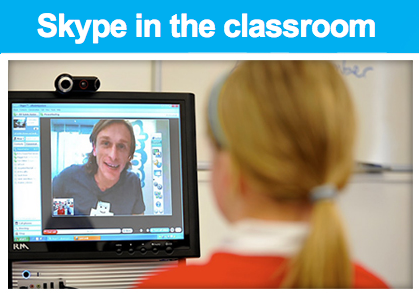
Skype in the ClassroomWe have been hearing how teachers are doing just that with the use of Skype.
“Mystery Skypes” are becoming more and more popular, and now Skype has provided the resources to help you get started.

SkypeInTheClassroom2Skype in the Classroom” is a ‘free and easy way for teachers to open up their classrooms. Meet new people, talk to experts, share ideas and create amazing learning experiences with teachers from around the world.”

Here is a way for students to better understand the differences in the communities and lives of Newark, Albuquerque, and Minneapolis.

Skype in the Classroom” can be the beginning of “classroom connections” spanning all curriculum creating lasting memories.

Watch the video below to see “first-hand” how Skype can be used.
(Yes. It made me “tear up”.)
Then check out “Skype in the Classroom” to provide lasting memories for your students.

Password Fail?

tips

Sunday Sit, Sip, and “Sync” ~ 1-20-2013

On a public computer, 

I never, ever, ever give the browser permission to “Remember your password?”

At home?
Yes, I do.
Always.
It’s my personal computer, nobody else ever uses it,
and I simply have too many accounts and passwords to manage.

Both Shannon and I are always researching, experimenting, and opening up new accounts every single week. I wrote one post about my password dilemma on June 2011,
but I still wasn’t in a “Happy Place” regarding my own personal passwords.

Since then, though, I have found a solution that works for me.

My current password is the same,
uses symbols and upper-case letters,
and includes a unique abbreviation for the site that is attached to it.

For example, if my password was “Ging3rbr3@d”, I would add a “g” somewhere within the password for my Google account.

Works for me.

But then, you have those accounts that don’t allow characters.
(Really?)
Or they require a minimum of 13 letters.
(Sigh.)

AND…
I have a few accounts that are attached to old deleted/defunct email accounts.

Now it’s time to resort to some “know-how”.
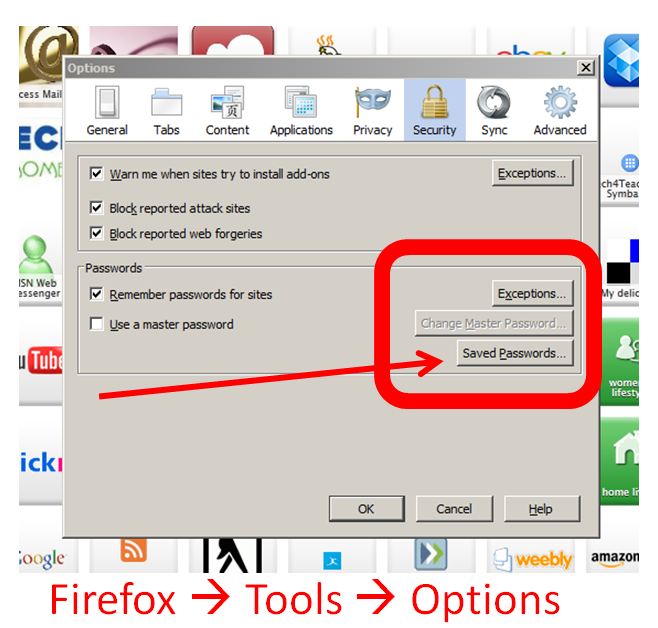
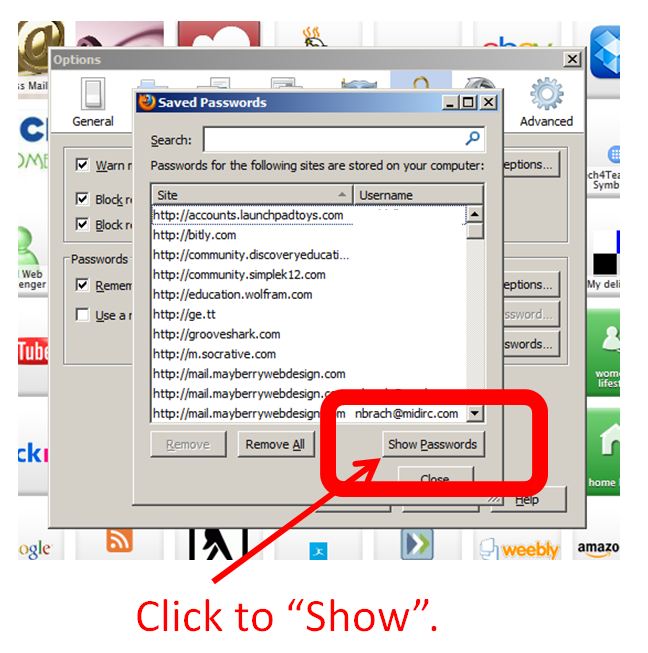
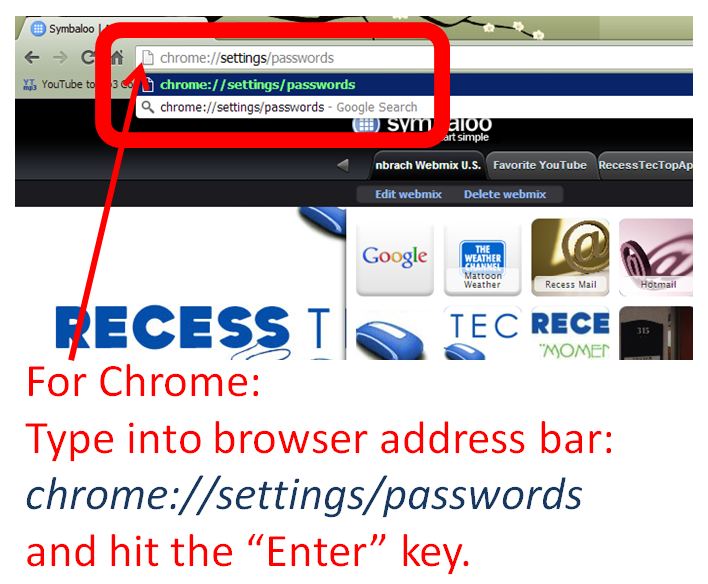
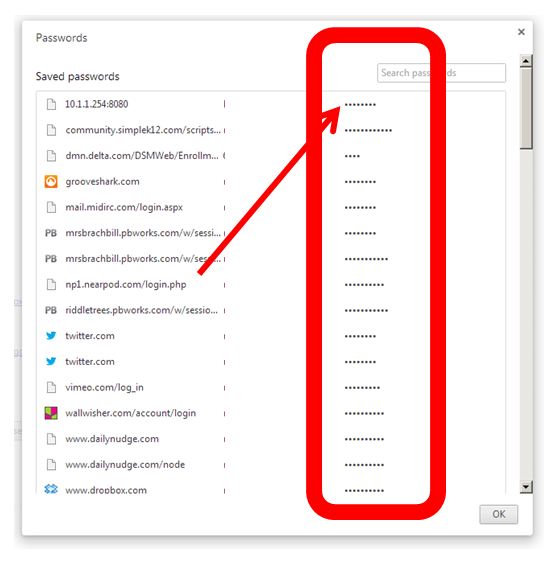
Here are some step-by-step instructions on how to “reclaim” passwords,
or to manage them on your school/shared/public computers.

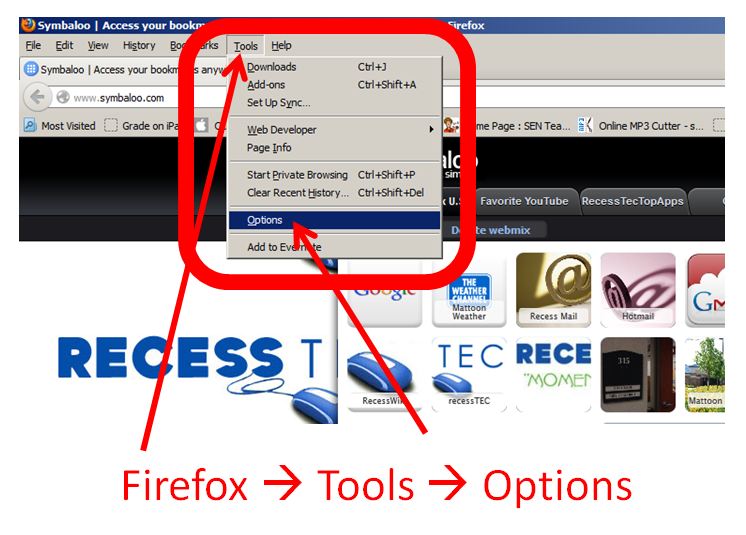
When using the FireFox browser,
follow these steps:

Firefox Step 1


Firefox2

Firefox Step 3For Chrome,
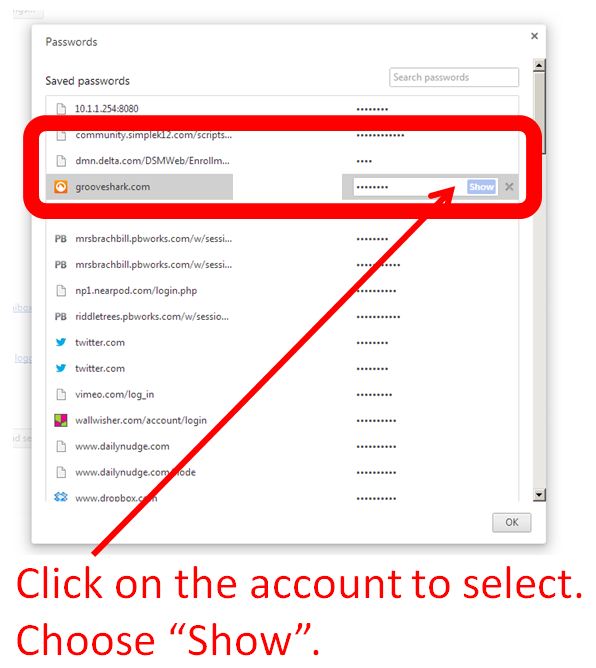
this is what you need to do.Chrome Step 1Chrome Step 2Chrome Step 3

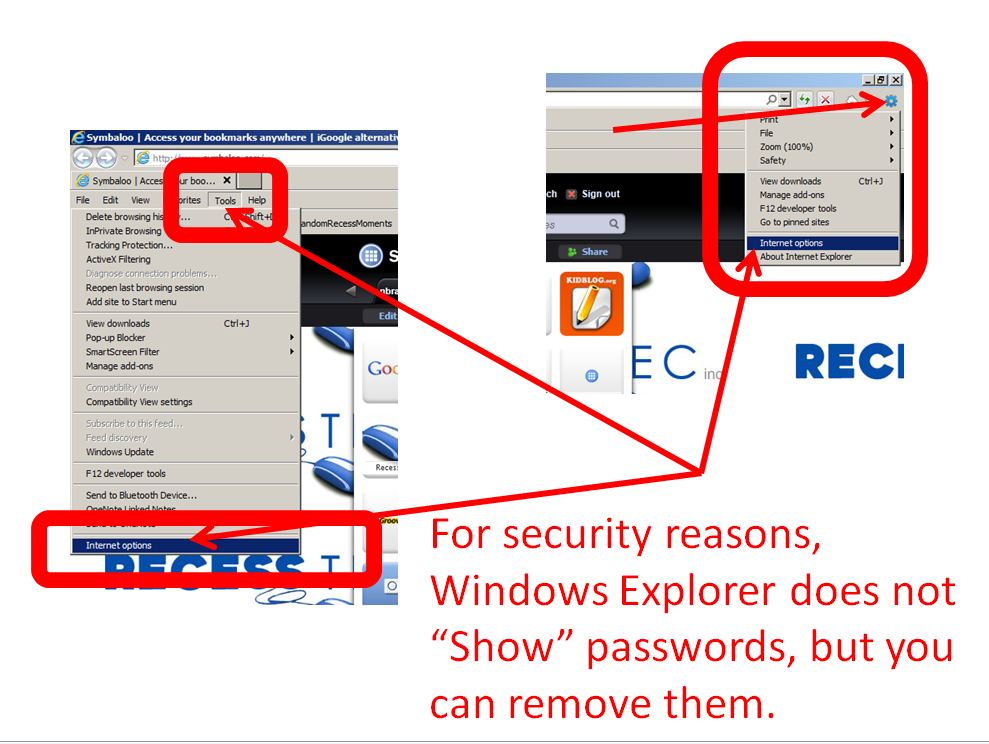
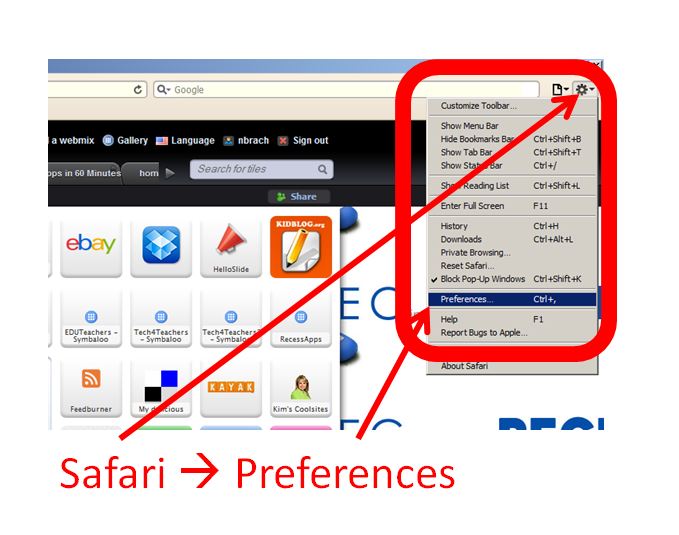
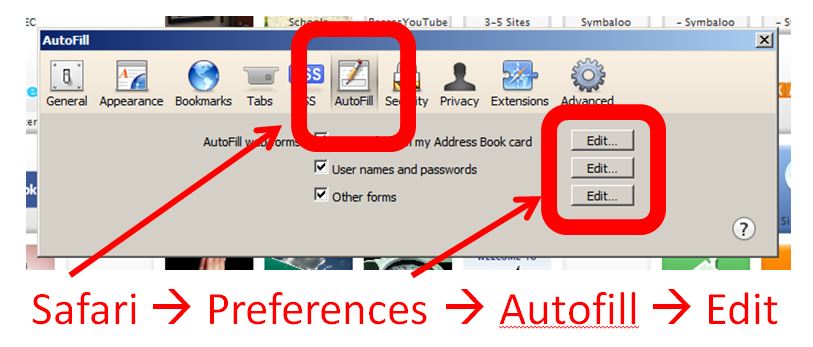
For Explorer and Safari?

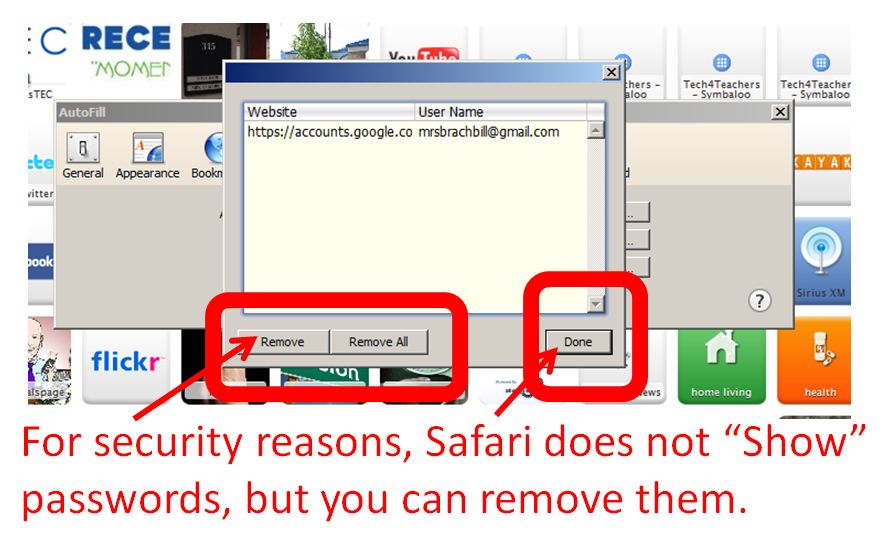
For security reasons, neither “shows” passwords, but you are still able to remove them.
If you have forgotten passwords set in those browsers,
you’ll have to hit the “Forgot your password?” link and hope for the best.

For Explorer:Explorer Step 1Explorer Step 2

and for Safari:Safari Step 1Safari Step 22Safari Step 3

So, on this Sunday morning,
I hope we were able to teach you something.

(Who knew?)

Find some time for yourself or to share with those you love,
read a book, take a walk and most of all,
have a great day and a great week!

Google Calendar

tips

Sunday Sit, Sip, and “Sync” ~ 1-6-2013

Face Book + New Year’s Day = “Filling Out 2013 Calendar” Updates.

I remember doing that:
A new gift calendar for the year.
A hook in the kitchen.
Stickers or red circles on important dates.

Enter…
Google CalendarGoogle Calendar

  • No more forgotten birthdays.
    (Really!!)
  • Reminders a month, a week, a day, and hours before the “event”, if needed.
  • Always a “click” away.
       “Does Friday, March 15th work for you?”
       “Let me check,”
    …as I take out my phone.

Shannon and I began using Google Calendar when Recess TEC was in its infant stage taking tiny baby steps.

We needed to coordinate any free days we had to schedule workdays and workshops.

With family and teaching, those days were hard to find,
and we did not want to have to schedule a “callback” to check with each other on available dates.

So, we each set up a personal Google calendar and shared them.
The only commitment we had was to always enter our events, appointments, and important dates.

To help you get started,

Is it raining outside?
Too cold for a walk?
Don’t want to grade papers or make lesson plans just quite yet?

Now you have a good reason to procrastinate.
Your life just got a little easier and a little more organized!

See Clearly…

tips

Sunday Sit, Sip, and “Sync” ~ 12-30-2012

It’s no secret that I’m easily distracted.

It is only through self-awareness, trial-and-error, and many, many years that I have found ways to work around it.

(I will stop at two “ many’s”. Any more will be too many.)

Keeping things simple, organized, and working efficiently brings me comfort and quiets my mind.

I have known since I took my very first job that the early hours of the morning is where I am most productive.

It is then that I find the fewest external distractions and that the world is quieter for me.

By the end of the day, I have reached the point of diminishing return,
and the output is not worth the effort.

Evernote” has provided me with a quick, simple, and practical way to organize the ramblings of my mind and my internet life.

But “Evernote” is another post.

This morning I want to introduce you to a small member of the “Evernote Family”.
Clearly

Clearly”.

It is “Clearly” that gives me back the day’s end as a time to read and research online.

This is a free browser add-on I use in Chrome or Firefox that eliminates advertisements, banners, and other “online clutter” to help me focus on what I read.

(You know…
those blogs that have the snow flying across my reading panel?
Really?)

As teachers, we know what happens with the first snow fall of the winter, right?

It is then that I just take time out of our day to gather my students around the windows to watch the wonder of falling/blowing/drifting/fluttering snowflakes.
It still fills me with awe.
How can I keep the awesomeness from my students?

But then,
ten minutes pass,
and it’s time to return to the reality of the classroom.

That’s what “Clearly” does for my online reading and research.

With a click of the little “Reading Lamp” in the upper-right corner of my browser,
it closes the window, turns on the “reading light”, and puts on my “reading cheaters”.
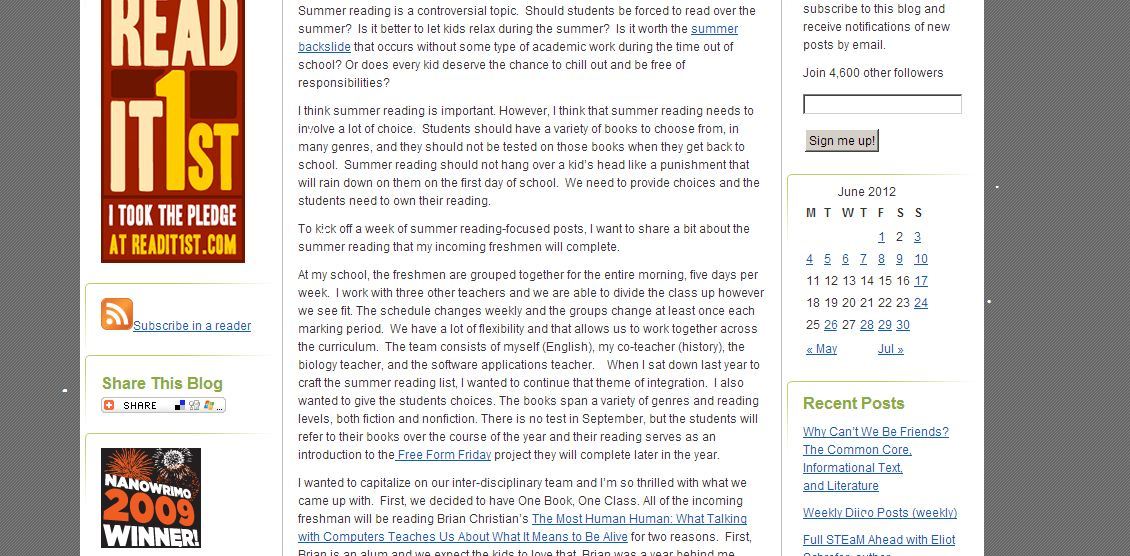
BeforeClearly

Before “Clearly”

AfterClearly

After “Clearly”

Check it out.

And let “Clearly” help you focus, too.

Last Minute…

classroom management News tips

Sunday Sit, Sip, and “Sync” ~ 12-16-2012

Okay.

I admit it.

I enjoy a trip to Staples and OfficeMax more than Macy’s.

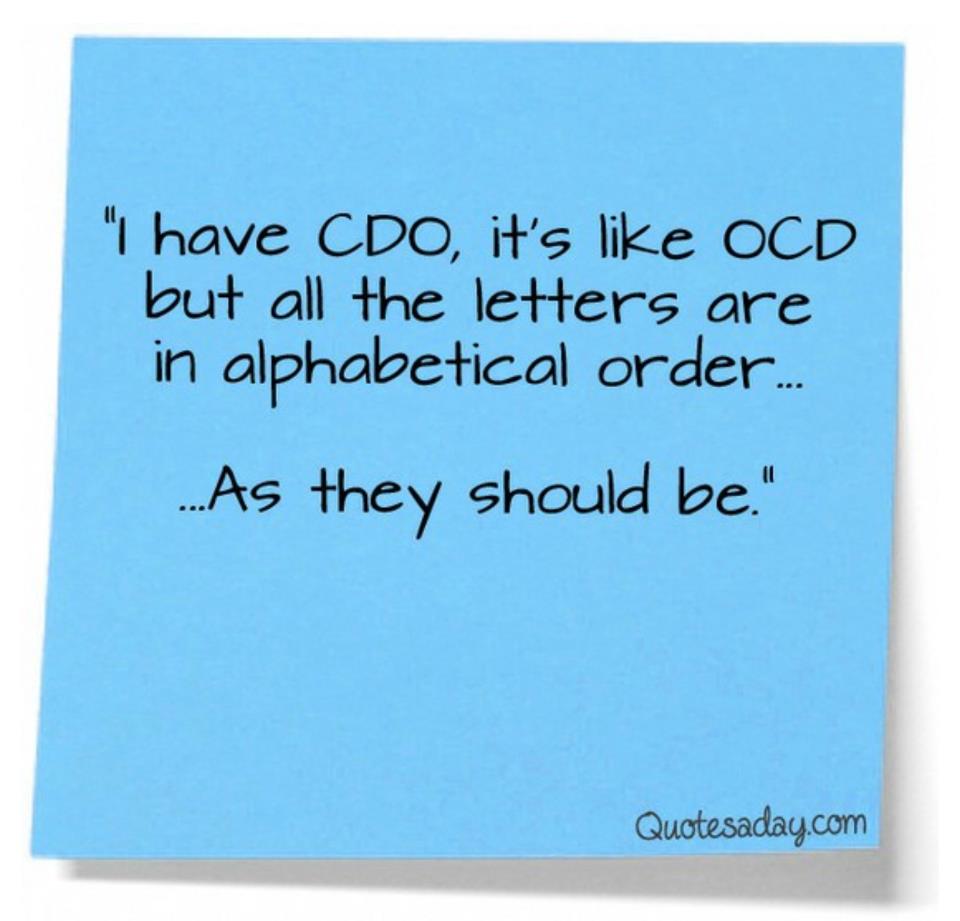
OCD

Since retirement, I have been sifting through boxes, drawers, cupboards, shelves, and closets.

“A place for everything, and everything in its place.”

My main goal is to keep only the essentials, 

and there has been a great deal of donating, shredding, and throwing away.

Those things that I keep, though, need to find a place in a house built in the 1880’s and,
quite frankly,
it is very short on storage space.

A set of empty shelves now needs some containers to store some photography equipment, and a rainy day shopping excursion online found me “in the Container Store”.

The-Container-Store

So, since this weekly tip needs to deal with technology somehow,
enjoy!

Cord Control in the Office

Stocking Stuffers for eReaders

One more thing:

There is a discount program available for the “Organized Teacher”.

But hurry!

The program ends on December 31, 2012.

The 12 Days of Christmas…

SMARTBoard tips

Sunday Sit, Sip, and “Sync” ~ 12-9-2012

…or should I say the “12 Days Games of Christmas”?

The Timed Educational Supplement (TES) is a weekly publication that began in 1910. It served as a resource primarily for school teachers in the United Kingdom. Its support site is www.tes.co.uk and it has been a huge resource for educators worldwide.

It is interesting to peek around the website, forums, and to search through the job vacancies that are world-wide.

Technology has been a huge component as educators all through the UK are encouraged to include its use and adoption within their curriculum. You will find this site has a lot to offer in that department, as well.

So today, I invite you to take a look.

You might want to start with this page of Christmas games that is offered as a free resource of 12 seasonal games that can be played both on the computer and on an IWB*.

So even with the rain, today might be the day you can stop and spend some time on your front porch, which is where I plan to be decorating, or if you really have it together, curl up with a cup of tea, coffee, or beverage of your choice, and enjoy the lights of your tree and the spirit of the season…

Have a great week!

*Interactive Whiteboard


QWERTY… Or Not

tips

Sunday Sit, Sip, and “Sync” ~ 11-25-2012

My typing teacher would stand in front of the classroom and call out the letters as we clicked away on our manual typewriters.

In unison we would “punch” the keys while making eye contact with him at all times.

Absolutely NO peeking.

So, when one of my students would stand next to me and ask me a question while I was typing, I would turn, listen, answer, and continue typing.

The usual response was,
“Wow! How do you do that?! That freaks me out!”

During the last few minutes of class, as we waited for the bell to ring, one of the favorite things they enjoyed doing was to see if I could “win the race”. A website use to exist where you could race against other random participants to type a famous quote. Your little car would move along with your WPM speed, and the pressure mounted as other contestants fought a hard battle to stay with you. Sometimes another contender (with a name you couldn’t pronounce) would win, but it was always fun when you finished in first place.

This also worked as a motivator for students to work hard in keyboarding, as in “Take It Seriously”.

Sit up straight.
Don’t look at your keyboard.
Put on your headphones to eliminate distractions,
and work to beat your best WPM time.

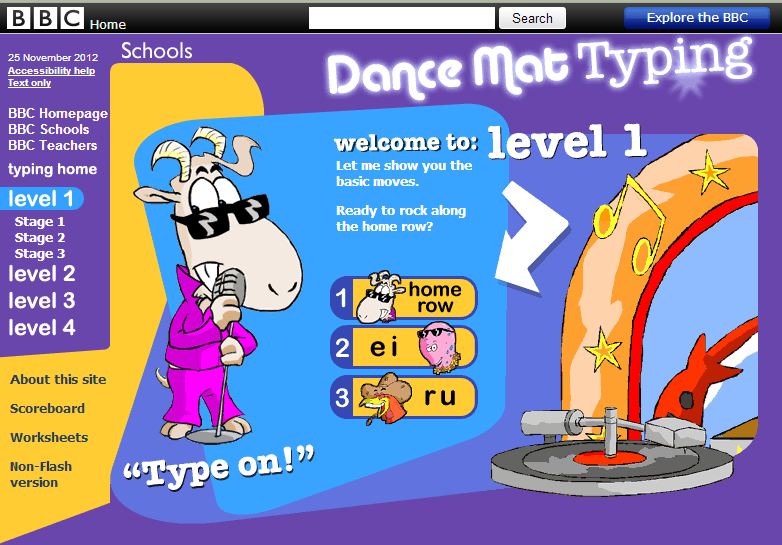
Dance Mat Typing is the program we used at school.
It is found on the BBC website and part of the BBC Schools Collection.

FREE!

And the kids love it.
(You can hear them giggle as they work.)

Another program that is very simple and easy to use is TypeFu.

And FREE.

While not as entertaining, it speeds up the process and puts you into “training mode” right now. Charts and diagrams track your progress with WPM, accuracy, letters most often typed and most often mistyped.

It’s your choice of what you will type:
  letters,
  words,
  proverbs,
  quotations, etc.

You can repeat lessons, and move ahead as you wish.

You can focus on the “home row”, or even numbers.

(Numbers on a number pad: I am a rock star.
Not so much on the QWERTY keyboard.)

And remember…
One space between sentences!
Go HERE if you want to learn why.

After you have bumped up your WPM speed,
we recommend some “outside time” while the weekend is still here.
I know I am headed for the woods for a walk and some fresh air.
(Let’s not talk about the “Pumpkin Pie” that was added to my rumpus over the weekend.)

NASA Notifications

tips

Sunday Sit, Sip, and “Sync” ~ 11-11-2012

I remember “Sputnik”.

The lives of many in my generation were changed with its launch.

Draft deferments were issued if your college major was in the areas of engineering, math, or science.

It added a new dimension to the “Cold War” and kicked the “Space Race” into high gear.

Although Sputnik’s orbit lasted only 3 short months, its legacy resulted in the technology push that serves today’s world.

During those months Sputnik orbited Earth, people stood outside searching the sky for glimpses of it. Today we have the International Space Station that orbits above us, and once again, it can be seen from the backyards and country roads of our lives.

This November, NASA released a new service that allows us to be notified when the Space Station will be overhead. You can sign up to receive an email providing the time and location for viewing as it orbits above your location.

Now you can share this experience with your students to add a ‘real” dimension to your science and history lessons.

After you read about their new service and sign up for the notifications here,
you might as well stay awhile and check out what NASA.gov has to offer in terms of videos, lessons plans, and resources for teachers and students.

Finally, we invite you to move outside this Sunday to enjoy the sun on this fall day, and make it a good one.

Have a great week!