FREE Online Grading

classroom management tips

Monday Morning Message ~ 9-19-2011

We have just been introduced to a new website that offers a multitude of classroom management options!

The best part of it is the word “FREE”!

LearnBoost…

could very well be exactly what you have been looking for.

It offers free gradebook accounts to allow teachers to manage their classrooms in one place by keeping track of student grades and attendance, maintaining schedules, importing Google calendars, creating and managing lesson plans and curriculum, tagging standards to assignments and lesson plans, and much more.

Learn Boost offers a safe and secure platform where you can also share student progress with both your students and their parents.

Once again, it is FREE!

In the past we have struggled with grading programs that were installed on your computer at school and all of the work had to be completed at school.

We all know how much work is done at home, and now you can have an online program that can be accessed from any computer with just a login.

If you want to save time with parent/teacher conferences, communication, and grade reporting, this might be a perfect FREE solution.

It’s not too late to enter those grades for the first mid-term reports.

If you are interested, and would like to learn more about Learn Boost,
visit their “Tour Page” where you can view a short video.
We would love to hear how this works if you choose to sample it, and what your opinions are.

Have a great week,
and remember to spend some time outside with your students as we begin to move into the fall season.

Sharing Safely

classroom management tips

Monday Morning Message ~ 9-12-2011

You have just received a link to a YouTube video.

You watched it, enjoyed it, laughed, cried, or were moved in some way that you wanted to share.

Then you notice the comments below, or the sidebar with videos that were digitally linked…

and they are not things you want to share.

One solution is a website that allows you to share just the video.

SafeShareTV  provides a link that will place your video into a nice viewer without comments and without other videos.

In addition, you have the option of choosing a theme, setting the starting and ending point of your video, and editing the title.

Finally, there is an option to email or share your “Safe View” to all the major social websites.

Now, go and share something,

and have a great week!

Searching, Searching, Searching, Found…

tips

Monday Morning Message ~ 8-29-2011

It’s called “Digital Literacy”…

…and it saves time.

 Control+F.

Everyone is desperate for more time, and I recently read that 90% of US net users don’t know about this shortcut.
It’s no secret that we pride ourselves in our “Geek-y” personalities, and that we love to share little “Tips and Tricks” that we’ve learned working with hundreds of other “Geeks” like us.
This tip is a “Must-Know”.
 
Whether you are working in a document such as Microsoft Word, or on the internet,  if you hold down the “Ctrl Key” and the “F” key, you will be prompted to enter the word you are seeking, and, once found, all words will be highlighted within the document or the webpage.
 
Quicker yet, while on the internet, just hit the F3 Key saving you one keystroke.
If you are working in “Firefox”, the “Forward Slash Key” (  / ) will do the same thing.
With a little time and practice, you can learn shortcuts, and after teaching our students the basic functions of the digital world, we need to model and teach these “time-saving” steps more than ever.
 
If you missed an earlier post on shortcuts,
we invite you to read a March post “
Taking the Shortcuts”.
 
Make Monday count as the first day of the best week this year,
and remember to have fun!

Another Great Writing Resource…

tips writing

Monday Morning Message ~ 8-22-2011

Last week I shared two websites that are great resources for teachers who teach writing.

Before the school year slips into “high gear”, I want to share one more that was brought to my attention.

http://www.writingfun.com/writingfun2010.html

 “Writing Fun” by Jenny Eather offers step-by-step guidance for students writing:

1. informational reports

2. procedures

3. recounts

4. explanations

5. persuasions

6. discussions

7. narratives

8. responses

9. descriptions

10. poetry

Each genre includes student examples, step-by-step guidance, and finally a page for students to enter their own work and print it. The Poetry Page includes an explanation and examples for 14 different types of poetic writing.

There is also a “subsection” on “everyday texts” giving attention to emails, news articles, letters, and invitations. One hint that might be helpful is that with all of the information that is loaded on each page and link, the easiest way to navigate through this site is by using the “Menu” tab located on the right side of each page that will take you back to the “Home Page”.

Please take a moment to visit this site and test it out. I think you will find it an excellent alternative writing resource.

Next week I’ll share a few more “keystroke” shortcuts that will help save precious time.

Enjoy what, for many of you, will be your first full week back to school.

Make every minute count, and make every student feel as though they matter.

Help Your Students Breathe… Out

tips writing

Monday Morning Message ~ 8-15-2011

Pam Allyn writes, “Reading is breathing in and writing is breathing out”.

Every year I recommitted myself as a teacher to promote and teach more student writing in my class.

Some years were better than others.

This week I would like to share two sites that might be helpful.

The first is one that is one that I have long used.
Like an old friend,
www.readwritethink.org has been a huge resource that I’ve depended on for many years.

Two of the “interactive tools” that I have my students use are:

   1. The “Story Map”, and

   2. The “Plot Diagram”.

A new resource I stumbled on, and am very excited about, ishttp://www.wordtamer.co.uk/

This is also an interactive website, but this site includes videos that direct, teach, lead, and help students make creative, personal choices to guide them as they begin the writing process, again.

The “Master of Ceremonies” is the “Word (Lion) Tamer”, and the “Study Help” videos are presented by Judy Waite who, in her British accent, clarifies further what students can do to begin and perfect their writing.

I hope these two sites will help you be a little more fearless as you begin a new year, and as you encourage your students to write.

We would love to have your comments and hear about your experiences as you use these sites to start the new year.

Label, Label, Label!

classroom management tips

Monday Morning Message ~ 8-8-2011

As I skim through recent posts on Facebook and Twitter, many involve “THE Class List”.

Posted last week: “Any people out there know when we are going to get class lists? It seems like we usually get them on Friday. I’m trying to mentally prepare myself for my last week of vacation.”
Posted last week: “I’ve hired my babysitter to help write names as soon as I get my class list.”
Posted last week: “I just found out we won’t have our class list until the day before school. How am I going to get it done???”

This week’s tip is a solution I have been using for years.

I make a trip to an office supply store, or that aisle in my local discount store, to buy plain, blank address labels. I choose the label size that has enough labels to fit one class per sheet.

Next, using the label template suited for the brand I purchased, I make a “Label Template” with my student names using Microsoft Word. Finally, I save naming it “11-12Labels”.

This little video will help, and instead of continuing to the “Mail Merge” option, I just type my students’ names.

Microsoft Office Video – Labels

Remember, you need to click on the “Tools” tab, or in some versions, the “Mailings” option.

So as to not waste any of my labels, I always print the first sheet on plain printer paper, and hold it up in front of the labels to make sure they line up.

I also have the option of changing the font properties, (style, color, and size) to match whatever workbook or article I was planning to attach the label.

I always save my sheets when there are a few unused labels left after printing. If a new student is added, I can then type the new student’s name as many times as needed on the extra labels.

We were always required to keep a Ziploc bag attached to our emergency clipboard with large blank labels and a permanent marker. The plan was that in the event of a real emergency, they would be used to generate a name label for each student. I could never imagine having to do that in a true emergency, so I always print off a sheet to attach to these “Conference Labels”. Next year, I will just attach the new label on top of the previous year’s.

Some of the things in my classroom that are labeled are:

   1. Consumable workbooks

   2. On tag-board for my “Classroom Jobs Bulletin Board”, and my

   3. A.R. Bulletin Board to move students up the “Goal Post”

   4. Cubby or coat hooks

   5. Supplies Baskets or Boxes

   6. Emergency Labels

If you want the names specifically aligned or colored, just select them all (Control key + A) and format them.

We would love to hear other ways you have used your class names, or could use labels.

It really is time to get serious and help each other out! 

FableVision

Book Reviews tips

Monday Morning Message ~ 8-1-2011

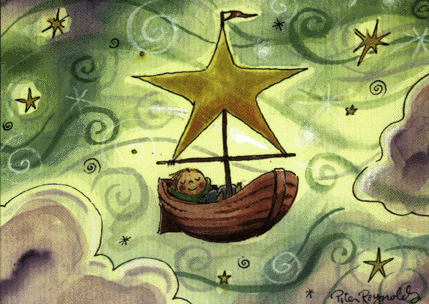
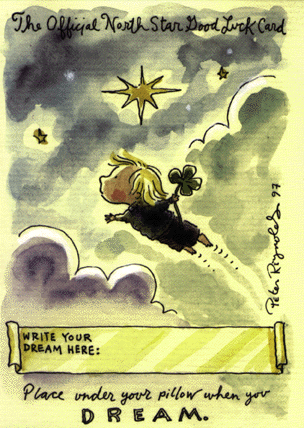
North Star artwork on this web site copyright by Peter H. Reynolds/ FableVision

Through Twitter, we have become “online friends” with Terry Shay. First introduced to us as @tjshay, Terry teaches grades 4-12 vocal music and computer instruction at North Tama School in Traer, Iowa. He also teaches Computers and Instructional Technology for Upper Iowa University.

As their “Lead Ambassador”,Terry was the first to introduce us to FableVision. We first met Terry f2f at the NECC Conference in Washington, DC, (now known as ISTE) at the FableVision booth.

If FableVision does not sound familiar, you will soon recognize it as you explore these links.  Peter H. Reynolds is the artist behind FableVision which is a company co-owned by twins Peter and Paul.  

(I know, I know… I wondered where “Mary” was, too.)

The Wikipedia link provides a quick over-view,

http://en.wikipedia.org/wiki/FableVision ,

or you can go directly to their website for educators at:

http://fablevisionlearning.com/

Peter is an amazing artist and you can find more about him at

http://www.peterhreynolds.com/news.html

He is also the illustrator for Guyku, my favorite current book of poetry.
As a mother of four boys, I can relate to this book, and any teacher will, as well.
I dare you not to fall in love with it.

http://hmhbooks.com/guyku/

What we would like to share with you this “Monday Morning”, are the resources that FableVision provides for teachers at:

http://fablevisionlearning.com/resources/

Included is clipart that can be used for lessons, or for your classroom website.

http://fablevisionlearning.com/clipart/index.html

http://fablevisionlearning.com/northstar/make/index.html

There is also a FableVision Learning Blog with additional resources.

http://fablevisionlearning.com/blog/

I personally love his whimsical pictures, and they would find a place in my lessons, both on the SMARTBoard and my website.

We would also encourage you to sign up for their monthly newsletter with updates on offers of free posters and clipart, grant opportunities, and the latest news from FableVision.

Have fun with these as we begin to refocus on “Back-to-School”.

North Star artwork on this web site copyright by Peter H. Reynolds/ FableVision
My Dream...

Looping…

tips workshops

Saturday Morning Message ~ 7-30-2011

As we draw closer to the first day of school,
we are drawing closer to the end of our summer workshops.

It has been exciting to visit new schools, and see all the innovative ways teachers are implementing technology into their daily lessons.

The last few weeks, we have helped teachers build projects to be viewed in the Windows Media Player during orientation and open house.

One question that comes up over and over is…

“How can I make my movie loop?”

They would like to have their movie replay without having to return to the computer.

The answer is…

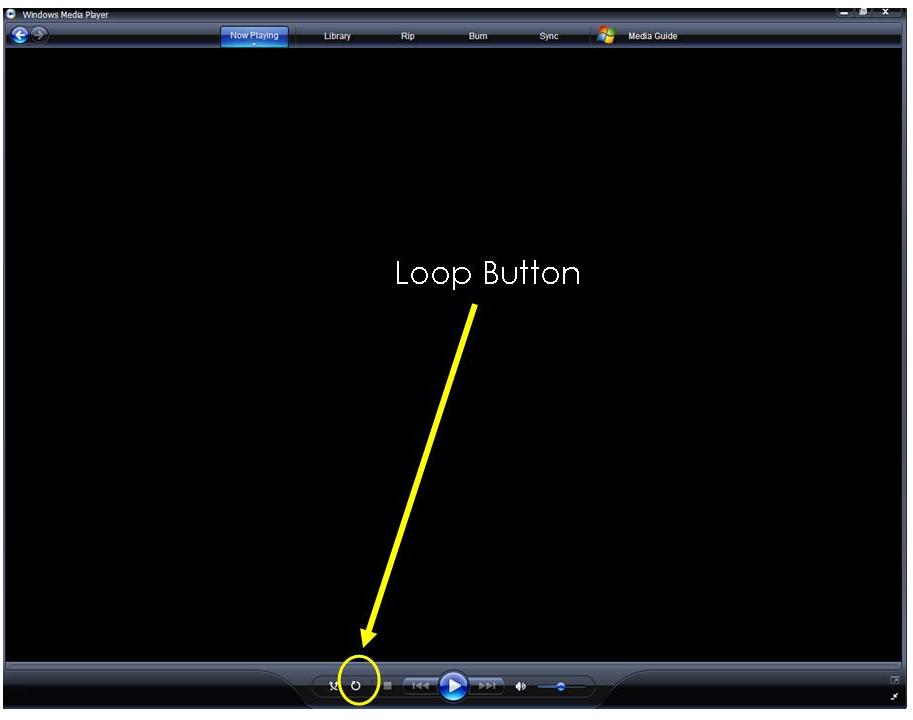
There is a little button on the left side of the “Play Button” that is the “Loop Button”.
Just click that and anything viewed from then on will “loop”.

To discontinue the looping, just deselect the button.

Easy?
 
We knew you would say that… 
Just click on this image for a larger view.


iPad Wallpapers

iPad2 tips

Monday Morning Message ~ 7-24-2011

I can’t believe we have already finished up our second week of “Technology Boot Camp”! We made so many new friends, but, as always, enjoyed spending time with “familiar faces of long-time friends”.

Our last morning included an energetic session on iPads in the classroom, and for those who attended our first workshop earlier this summer; our presentation is ever-changing. The information that we are collecting as we research and experiment is growing exponentially. The apps we discover will continue to be posted on our workshop wiki.

In the meantime, as promised, I wanted to share a link to a site I stumbled upon that features iPad “Wallpaper” backgrounds.

The easiest way to navigate these is through your iPad directly and your Safari browser.

But take a peek here, too, while you are online, no matter where you are reading this.

http://poolga.com/

The creators of this site felt their collection was the answer to people who wanted backgrounds that were different from the norm. Fun and quirky, it features the work of many artists and several have the option to download the full- size (1024 x 1024) resolution for the iPad.

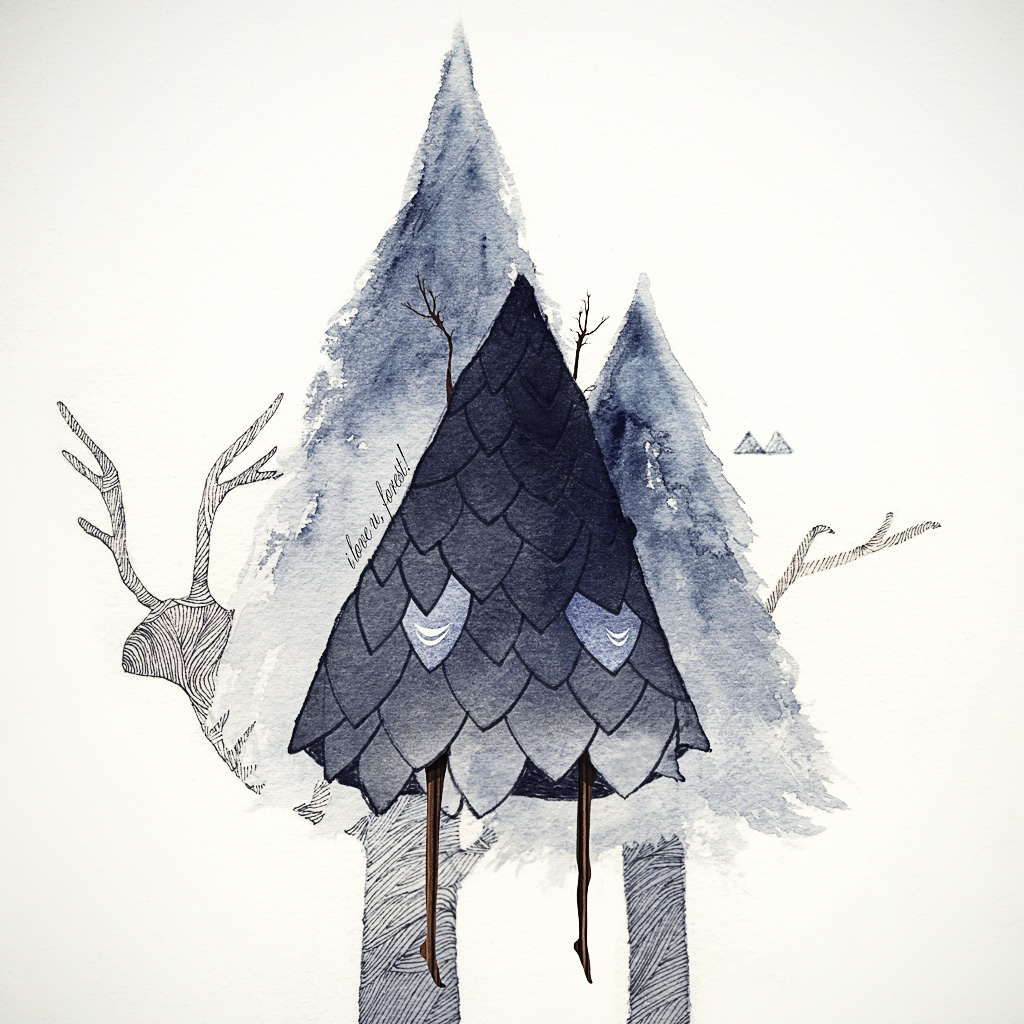
From The Mammoth Collection” by Karina Eibatova

http://poolga.com/

The second site is a “sister-site”,

http://tseventy.com

that features “hand-picked photography for mobile devices (including the iPad) from selected photographers from around the world”.

Both sites include detailed instructions, which are very easy to follow, on how to install the wallpapers on your device.

http://tseventy.com/howto

You will also find a link to shop for some very unique mobile device sleeves.

We think you will enjoy browsing through the art, and choosing something that is a little different from the rest.

http://shop.poolga.com/