It’s time to share all of the hard work and creativity you put into that decorating!
We’ve found a fun and free way to do that.
Hurry over to “Photosynth” and download this app to your iPhone, iPod Touch, or your iPad2.
I downloaded it as soon as I bought my iPad2, and drove to our cabin to take a spring panorama shot of our lake. I could not believe how EASY it was!
Before this app, I used Photoshop to stitch together my photos, and was amazed at how much easier Photosynth was! It even takes the pictures for you! The more images you stitch together in your panorama, the better your final image is. It not only captures the scene in 360˚ view, but up and down, as well.
(Photoshop: Now THAT is a program that should generate a two-year degree. I need to add that to my “bucket list” of goals to achieve. What a powerful, but oh-so-overwhelming list of options for one program! However, I can remove stains, wrinkles, “face-shine” and “red-eye” in my photos like nobody’s business.)
If you find Photosynth is “just right” for you,
we would love to see you share your shots on Facebook with us!
It’s time to “show-off”!
Don’t hold back!
We would love to see your classroom, your home, your porch, or whatever you wish to share!
Just send us your link or email your panorama images and we’ll post them in our gallery.
We did three sessions in Springfield that included iPads, SMARTBoards, and our favorite web tools.
In Chicago we enjoyed the opportunity to co-present with Dr. Voltz as a team with “Dueling Apps”.
While waiting to present in Springfield, we grabbed a little “down-time” to sit in on a few sessions. Two helpful tips we picked up that we felt were worth sharing apply to our favorite technology pieces, the SMARTBoard and the iPad. (LOVE the iPad!)
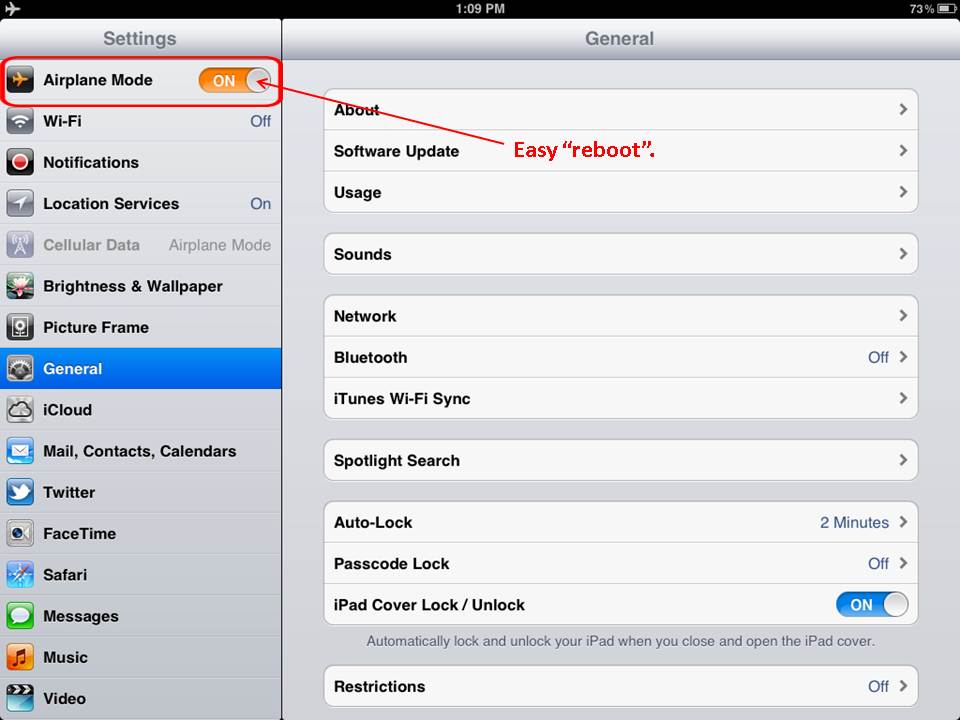
We usually toggle our iPads to “airplane-mode” while traveling to conserve the battery when we are working without the Internet. A tip provided by Ledith Whitehall was to use this toggle (found in your settings) as an alternative to rebooting your iPad. It saves a ton of time shutting-down/restarting your device.
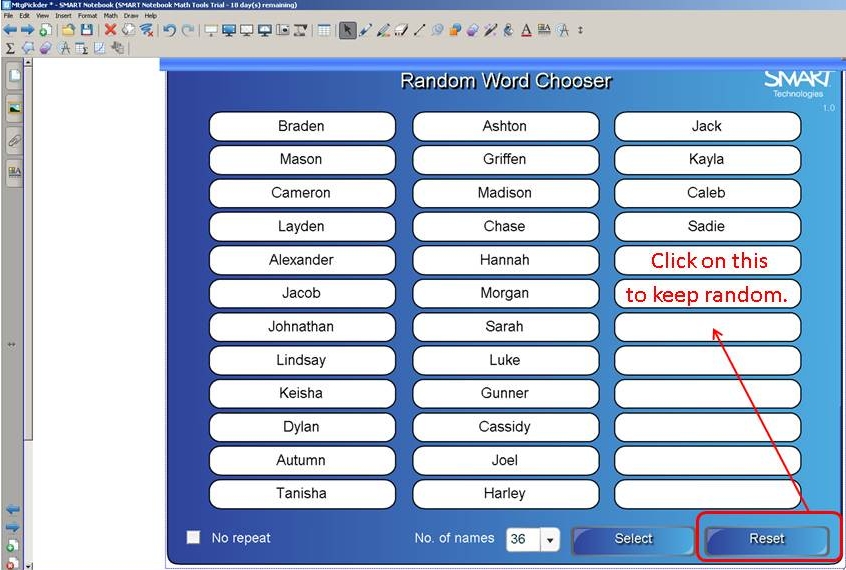
Here’s a tip for our SMARTBoard users. If you use the “Random Word Chooser” in the Lesson Activity Toolkit, and you find that it makes the choices in the same order, look down in the lower right corner and choose “Reset” and your choices will, once again, be random.
As we begin another week,
we want to take a minute to let all of our friends know how much we appreciate the opportunity to work with you at our workshops and in your schools.
It truly has been a blessing for which we are thankful.
Have a wonderful Thanksgiving and we wish you the best as you “unplug” to spend family time together with those you love…
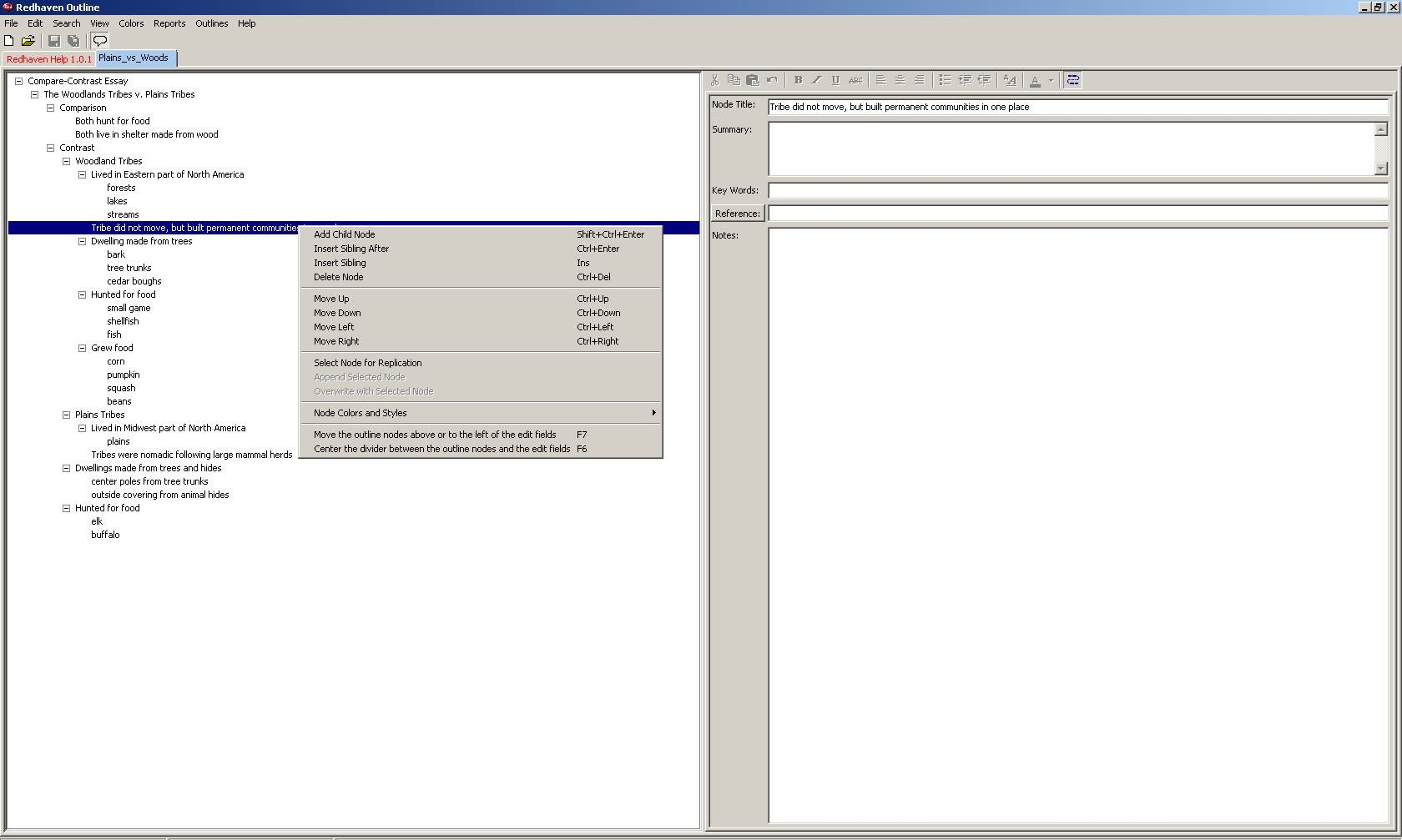
It’s an “Outline Generator” called Redhaven Outline,
and after “playing” with it for ten minutes this week, I was SOLD.
It only takes minutes to download, but it will save you hours and hours of generating outlines.
It has simplified the concept enough so that your students will be able to use it, as well.
I have included a screen capture,
and with “right clicks” and “click-and-drags”, you can manipulate the “nodes” of your outline.
Finally, when you select/highlight the “Outline Title”,
you can select the pull-down menu from “Reports” and choose “Export to clipboard using active report”.
Next, open your favorite word-processing program, and paste in your outline from the clipboard.
If you like, you can change the outline specifications through your word-processing program. I’ve included a link to view the outline generated from the screenshot samples.
Don’t be afraid to use the key short-cuts that are shown on the “right-click” menus. It took me just a couple of minutes to familiarize myself with them, speeding up the process even more.
Click on the image below to see a clear sample of what this program will look like on your screen.
Now I can’t vouch for much more since I belong to the generation where mostly boys took the advanced math classes and carried around slide rules in their back pockets.
I only made it through Geometry, Advanced Geometry*, and Algebra I and II.
Sad, but true.
(The exception was my younger sister who was the smartest person I knew next to my father…
Both of them were left-handed which leads me to believe that left-handed children are most certainly exceptional.)
Shannon, however, took accelerated math classes, and taught upper math.
I stumbled up on this article and video yesterday,
and knew I had to share.
Even though there is a touch of skepticism in the reporter,
you could hear the tears and the joy in Lesley Stahl’s voice as she witnesses the personal way the iPad has made a difference in the lives of individuals with autism.
Please take some time to watch this video,
and below you will find links to the apps that are mentioned in the story.
As a teacher, and possibly a parent, be sure to have a box of tissues close at hand…
Last spring I was asked to check out a couple of apps from a local company calledSpinlight Studios. AlphaTots and TallyTots.
I did.
Now, I’ll be honest.
I have absolutely NO personal background in teaching early elementary.
I filed the apps in the back of my mind, but retrieved them during workshops as suggestions for early elementary educators.
They were good.
Just not the kind of apps to which I could relate.
Then came TableTots,
an app by this same company that was released this week.
I downloaded the day it was released,
and I immediately became the “Spinlight Studio” stalker.
I emailed Spinlight Studios to let them know how excited I was about the app.
I played with it a little more,
and I called Mom to tell her to download it immediately.
I emailed the company again to back up my initial thoughts with more exciting praise.
I know what you are all thinking…
CREEPY!
Mom and I have been downloading and playing with apps for use in the educational setting for quite some time now.
We are pretty selective when it comes to apps that we add to our presentations.
I must say, this one is a “no-brainer”.
TableTots immediately went to the “Top 10” portion of our workshop.
This app is the first app I have seen that allows teachers to use the iPad for interactive INSTRUCTION.
Effective interactive instruction, I might add.
Don’t get me wrong.
We are pretty creative girls who can turn almost anything into a learning experience for kids.
Can anyone say Virtual Bubblewrap for number patterns?
“Autotunes” and the Gettysburg Address?
But, what we have encountered is a slew of educational apps designed to review specific, individual skills, many in a Q&A format followed by some sort of game or incentive.
Not that there is anything wrong with that.
Quite frankly, that might be all that a handful of students needs to motivate and reinforce a skill with which they are struggling.
THAT, however, does not represent the style of teaching we advocate using on a regular basis.
TableTots DOES reflect our style of teaching…
and learning.
This app starts with a “Table” which reminds me of a “placemat” for the iPad.
At least that is what popped into my head as I was playing.
There are quite a few of these from which to choose, which is fantastic.
Mom and I love to mix it up!
After you choose your table, you move on to the type of manipulative you want to use.
Letters, numbers, shapes, money, place value pieces, or dominoes.
Are you seeing the potential here?
Once you choose your manipulatives,
you can start teaching and interacting with your students.
Allow the kids to come up with problems and solutions of their own.
Customize it for YOUR curriculum, the skills YOU need to teach!
What a concept!
Honestly, the sky is the limit with this app.
There are so many applications that can be used for DIFFERENTIATED instruction.
Take for example, sorting coins.
Beginners could sort the coins by size,
while higher achieving students could combine the sorting into different amounts of money.
Even higher achieving students could create money math problems using these manipulatives.
I love the versatility! Go download it… and no, I am not getting paid for this review.
Instead, the Spinlight Studio Staff,
(I love alliteration…yes, I am a geek),
might be in the process of acquiring a restraining order.
“The tragedy of life doesn’t lie in not reaching your goal.
The tragedy lies in having no goal to reach.”
Benjamin E. Mays
For all of you “task/goal oriented people”, this is the to-do list to end all to-do lists.
http://dayzeroproject.com/
is a project that allows you to set 101 personal goals to be accomplished in 1001 days. That is 2.75 years taking you over several seasons that include multiple “teacher breaks”. The best part is that you can find other lists and suggestions that provide inspirational, motivational, and creative suggestions to add to your list.
Never mind the fact that, as I look at other people’s goals,
I gain some feeling of satisfaction knowing how much I have actually accomplished in my life.
Skydive?
Been there, done that.
Drive through a giant redwood?
Been there, done that.
But wait; there’s more…
This site is “FREE”.
(You know how we love “free”!)
The “Day Zero Project” was started and is maintained by Michael Green from Christchurch, New Zealand,
and Michael loves lists, movies, and photography. Oh, and traveling and technology, too.
What’s not to like about Michael Green???
Your list and your profile is open, but you do have an option to make it private,
or individual tasks private.
I, however, will choose to make mine open so I keep myself accountable for my goals.
The whole idea of setting goals is to accomplish and reach them, and my ultimate goal is to accomplish my goals.
This little website was a frequent resource in my classroom and is perfect to use on your SMARTBoard. It provides excellent reinforcement to math lessons, and is appropriate for grades 5 and above.
Math Live was developed under the direction of the Learning Technologies Branch of Alberta, Canada Education.
The four strands of math presented are:
Numbers,
Patterns and Relations,
Shape and Space, and
Statistics and Probability.
The lessons are presented in “real world problem-solving” format with videos that include a cast of animated students.
Lessons included are:
Place Value
Multiples, Factors, Primes and Composites
Proper Fractions
Equivalent Fractions
Comparing and Ordering Fractions
Comparing and Ordering Decimals
Addition and Subtraction of Decimals
Multiplication of Whole Numbers
Division of Whole Numbers
Multiplication and Division of Decimals
Patterns
Area and Perimeter
Area and Perimeter of Irregular Shapes
Volume
Time
Triangles
Polygons
Slides, Flips, and Turns
Tessellations
Ordered Pairs
Displaying Data
Probability
Estimating
The presentations include interactive components, along with parent and teacher notes, and assessments.
The only drawback we can see is that this is a flash-based website, so it cannot be viewed on the iPad, iPhone, or iPod.
This is one of the websites to which I often linked within my SMARTBoard lessons making it a quick reinforcement or review.
We both love this site, and we hope you find something useful on it, too.