Last spring I was asked to check out a couple of apps from a local company calledSpinlight Studios. AlphaTots and TallyTots.
I did.
Now, I’ll be honest.
I have absolutely NO personal background in teaching early elementary.
I filed the apps in the back of my mind, but retrieved them during workshops as suggestions for early elementary educators.
They were good.
Just not the kind of apps to which I could relate.
Then came TableTots,
an app by this same company that was released this week.
I downloaded the day it was released,
and I immediately became the “Spinlight Studio” stalker.
I emailed Spinlight Studios to let them know how excited I was about the app.
I played with it a little more,
and I called Mom to tell her to download it immediately.
I emailed the company again to back up my initial thoughts with more exciting praise.
I know what you are all thinking…
CREEPY!
Mom and I have been downloading and playing with apps for use in the educational setting for quite some time now.
We are pretty selective when it comes to apps that we add to our presentations.
I must say, this one is a “no-brainer”.
TableTots immediately went to the “Top 10” portion of our workshop.
This app is the first app I have seen that allows teachers to use the iPad for interactive INSTRUCTION.
Effective interactive instruction, I might add.
Don’t get me wrong.
We are pretty creative girls who can turn almost anything into a learning experience for kids.
Can anyone say Virtual Bubblewrap for number patterns?
“Autotunes” and the Gettysburg Address?
But, what we have encountered is a slew of educational apps designed to review specific, individual skills, many in a Q&A format followed by some sort of game or incentive.
Not that there is anything wrong with that.
Quite frankly, that might be all that a handful of students needs to motivate and reinforce a skill with which they are struggling.
THAT, however, does not represent the style of teaching we advocate using on a regular basis.
TableTots DOES reflect our style of teaching…
and learning.
This app starts with a “Table” which reminds me of a “placemat” for the iPad.
At least that is what popped into my head as I was playing.
There are quite a few of these from which to choose, which is fantastic.
Mom and I love to mix it up!
After you choose your table, you move on to the type of manipulative you want to use.
Letters, numbers, shapes, money, place value pieces, or dominoes.
Are you seeing the potential here?
Once you choose your manipulatives,
you can start teaching and interacting with your students.
Allow the kids to come up with problems and solutions of their own.
Customize it for YOUR curriculum, the skills YOU need to teach!
What a concept!
Honestly, the sky is the limit with this app.
There are so many applications that can be used for DIFFERENTIATED instruction.
Take for example, sorting coins.
Beginners could sort the coins by size,
while higher achieving students could combine the sorting into different amounts of money.
Even higher achieving students could create money math problems using these manipulatives.
I love the versatility! Go download it… and no, I am not getting paid for this review.
Instead, the Spinlight Studio Staff,
(I love alliteration…yes, I am a geek),
might be in the process of acquiring a restraining order.
“The tragedy of life doesn’t lie in not reaching your goal.
The tragedy lies in having no goal to reach.”
Benjamin E. Mays
For all of you “task/goal oriented people”, this is the to-do list to end all to-do lists.
http://dayzeroproject.com/
is a project that allows you to set 101 personal goals to be accomplished in 1001 days. That is 2.75 years taking you over several seasons that include multiple “teacher breaks”. The best part is that you can find other lists and suggestions that provide inspirational, motivational, and creative suggestions to add to your list.
Never mind the fact that, as I look at other people’s goals,
I gain some feeling of satisfaction knowing how much I have actually accomplished in my life.
Skydive?
Been there, done that.
Drive through a giant redwood?
Been there, done that.
But wait; there’s more…
This site is “FREE”.
(You know how we love “free”!)
The “Day Zero Project” was started and is maintained by Michael Green from Christchurch, New Zealand,
and Michael loves lists, movies, and photography. Oh, and traveling and technology, too.
What’s not to like about Michael Green???
Your list and your profile is open, but you do have an option to make it private,
or individual tasks private.
I, however, will choose to make mine open so I keep myself accountable for my goals.
The whole idea of setting goals is to accomplish and reach them, and my ultimate goal is to accomplish my goals.
This little website was a frequent resource in my classroom and is perfect to use on your SMARTBoard. It provides excellent reinforcement to math lessons, and is appropriate for grades 5 and above.
Math Live was developed under the direction of the Learning Technologies Branch of Alberta, Canada Education.
The four strands of math presented are:
Numbers,
Patterns and Relations,
Shape and Space, and
Statistics and Probability.
The lessons are presented in “real world problem-solving” format with videos that include a cast of animated students.
Lessons included are:
Place Value
Multiples, Factors, Primes and Composites
Proper Fractions
Equivalent Fractions
Comparing and Ordering Fractions
Comparing and Ordering Decimals
Addition and Subtraction of Decimals
Multiplication of Whole Numbers
Division of Whole Numbers
Multiplication and Division of Decimals
Patterns
Area and Perimeter
Area and Perimeter of Irregular Shapes
Volume
Time
Triangles
Polygons
Slides, Flips, and Turns
Tessellations
Ordered Pairs
Displaying Data
Probability
Estimating
The presentations include interactive components, along with parent and teacher notes, and assessments.
The only drawback we can see is that this is a flash-based website, so it cannot be viewed on the iPad, iPhone, or iPod.
This is one of the websites to which I often linked within my SMARTBoard lessons making it a quick reinforcement or review.
We both love this site, and we hope you find something useful on it, too.
could very well be exactly what you have been looking for.
It offers free gradebook accounts to allow teachers to manage their classrooms in one place by keeping track of student grades and attendance, maintaining schedules, importing Google calendars, creating and managing lesson plans and curriculum, tagging standards to assignments and lesson plans, and much more.
Learn Boost offers a safe and secure platform where you can also share student progress with both your students and their parents.
Once again, it is FREE!
In the past we have struggled with grading programs that were installed on your computer at school and all of the work had to be completed at school.
We all know how much work is done at home, and now you can have an online program that can be accessed from any computer with just a login.
If you want to save time with parent/teacher conferences, communication, and grade reporting, this might be a perfect FREE solution.
It’s not too late to enter those grades for the first mid-term reports.
If you are interested, and would like to learn more about Learn Boost,
visit their “Tour Page” where you can view a short video. We would love to hear how this works if you choose to sample it, and what your opinions are.
Have a great week, and remember to spend some time outside with your students as we begin to move into the fall season.
Everyone is desperate for more time, and I recently read that 90% of US net users don’t know about this shortcut.
It’s no secret that we pride ourselves in our “Geek-y” personalities, and that we love to share little “Tips and Tricks” that we’ve learned working with hundreds of other “Geeks” like us.
This tip is a “Must-Know”.
Whether you are working in a document such as Microsoft Word, or on the internet,if you hold down the “Ctrl Key” and the “F” key, you will be prompted to enter the word you are seeking, and, once found, all words will be highlighted within the document or the webpage.
Quicker yet, while on the internet, just hit the F3 Key saving you one keystroke.
If you are working in “Firefox”, the “Forward Slash Key” ( / ) will do the same thing.
With a little time and practice, you can learn shortcuts, and after teaching our students the basic functions of the digital world, we need to model and teach these “time-saving” steps more than ever.
If you missed an earlier post on shortcuts,
we invite you to read a March post “Taking the Shortcuts”.
Make Monday count as the first day of the best week this year,
and remember to have fun!
“Writing Fun” by Jenny Eather offers step-by-step guidance for students writing:
1. informational reports
2. procedures
3. recounts
4. explanations
5. persuasions
6. discussions
7. narratives
8. responses
9. descriptions
10. poetry
Each genre includes student examples, step-by-step guidance, and finally a page for students to enter their own work and print it. The Poetry Page includes an explanation and examples for 14 different types of poetic writing.
There is also a “subsection” on “everyday texts” giving attention to emails, news articles, letters, and invitations. One hint that might be helpful is that with all of the information that is loaded on each page and link, the easiest way to navigate through this site is by using the “Menu” tab located on the right side of each page that will take you back to the “Home Page”.
Please take a moment to visit this site and test it out. I think you will find it an excellent alternative writing resource.
Next week I’ll share a few more “keystroke” shortcuts that will help save precious time.
Enjoy what, for many of you, will be your first full week back to school.
Make every minute count, and make every student feel as though they matter.
Pam Allyn writes, “Reading is breathing in and writing is breathing out”.
Every year I recommitted myself as a teacher to promote and teach more student writing in my class.
Some years were better than others.
This week I would like to share two sites that might be helpful.
The first is one that is one that I have long used.
Like an old friend, www.readwritethink.org has been a huge resource that I’ve depended on for many years.
Two of the “interactive tools” that I have my students use are:
This is also an interactive website, but this site includes videos that direct, teach, lead, and help students make creative, personal choices to guide them as they begin the writing process, again.
The “Master of Ceremonies” is the “Word (Lion) Tamer”, and the “Study Help” videos are presented by Judy Waitewho, in her British accent, clarifies further what students can do to begin and perfect their writing.
I hope these two sites will help you be a little more fearless as you begin a new year, and as you encourage your students to write.
We would love to have your comments and hear about your experiences as you use these sites to start the new year.
As I skim through recent posts on Facebook and Twitter, many involve “THE Class List”.
Posted last week: “Any people out there know when we are going to get class lists? It seems like we usually get them on Friday. I’m trying to mentally prepare myself for my last week of vacation.”
Posted last week: “I’ve hired my babysitter to help write names as soon as I get my class list.”
Posted last week: “I just found out we won’t have our class list until the day before school. How am I going to get it done???”
This week’s tip is a solution I have been using for years.
I make a trip to an office supply store, or that aisle in my local discount store, to buy plain, blank address labels. I choose the label size that has enough labels to fit one class per sheet.
Next, using the label template suited for the brand I purchased, I make a “Label Template” with my student names using Microsoft Word. Finally, I save naming it “11-12Labels”.
This little video will help, and instead of continuing to the “Mail Merge” option, I just type my students’ names.
Remember, you need to click on the “Tools” tab, or in some versions, the “Mailings” option.
So as to not waste any of my labels, I always print the first sheet on plain printer paper, and hold it up in front of the labels to make sure they line up.
I also have the option of changing the font properties, (style, color, and size) to match whatever workbook or article I was planning to attach the label.
I always save my sheets when there are a few unused labels left after printing. If a new student is added, I can then type the new student’s name as many times as needed on the extra labels.
We were always required to keep a Ziploc bag attached to our emergency clipboard with large blank labels and a permanent marker. The plan was that in the event of a real emergency, they would be used to generate a name label for each student. I could never imagine having to do that in a true emergency, so I always print off a sheet to attach to these “Conference Labels”. Next year, I will just attach the new label on top of the previous year’s.
Some of the things in my classroom that are labeled are:
1. Consumable workbooks
2. On tag-board for my “Classroom Jobs Bulletin Board”, and my
3. A.R. Bulletin Board to move students up the “Goal Post”
4. Cubby or coat hooks
5. Supplies Baskets or Boxes
6. Emergency Labels
If you want the names specifically aligned or colored, just select them all (Control key + A) and format them.
We would love to hear other ways you have used your class names, or could use labels.
It really is time to get serious and help each other out!

 If your desktop looks like a teachers’ lounge refrigerator in May*,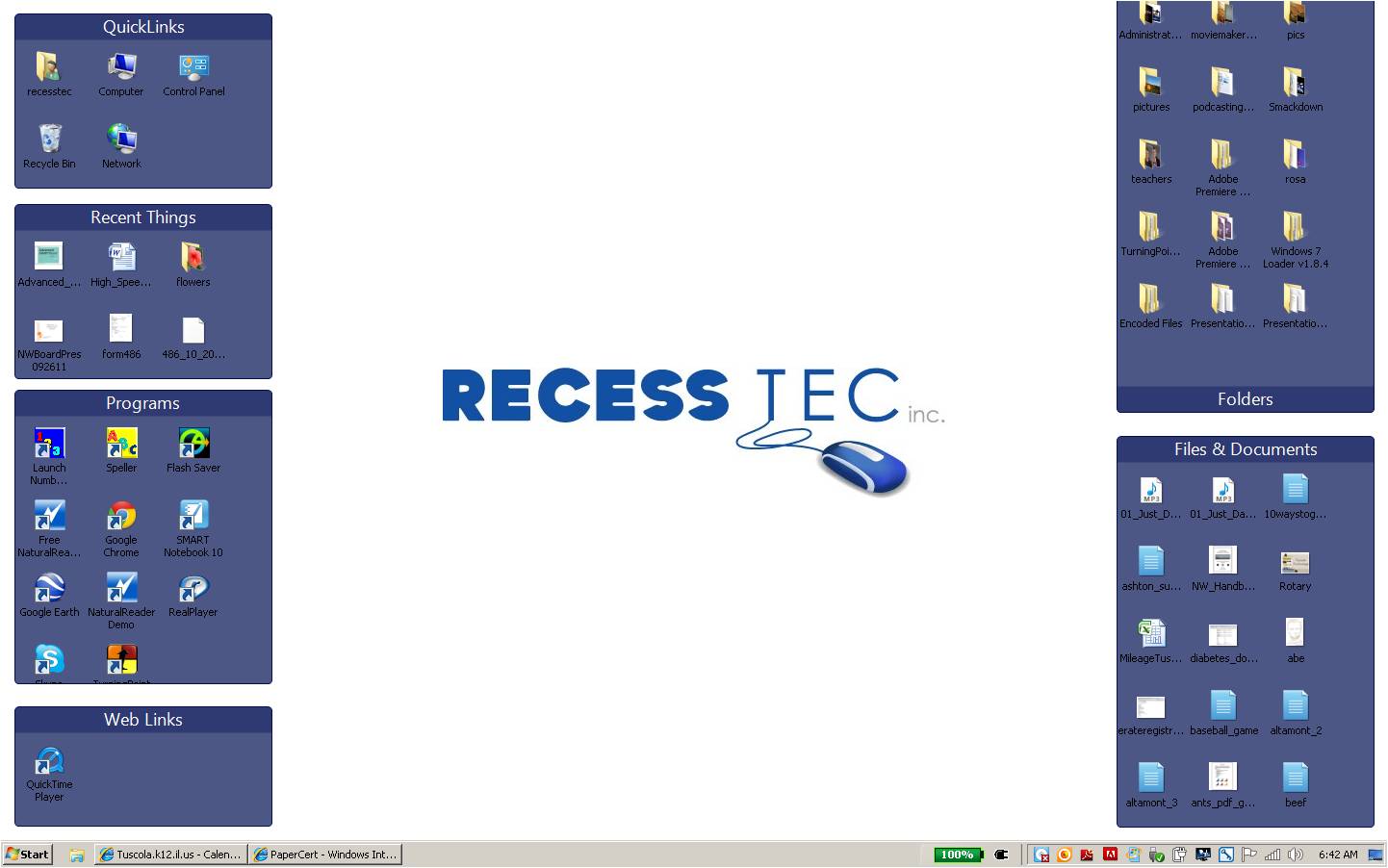





 SafeShareTV