FableVision

Book Reviews tips

Monday Morning Message ~ 8-1-2011

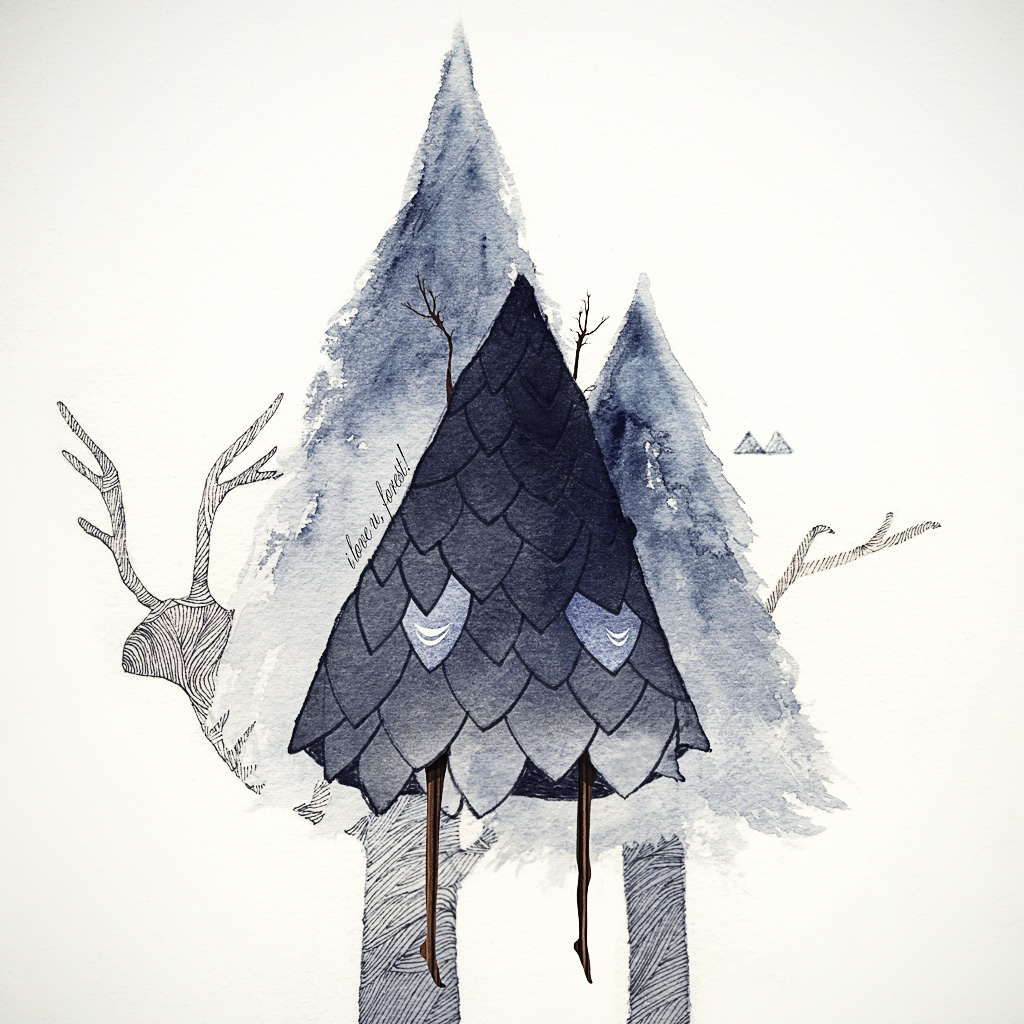
North Star artwork on this web site copyright by Peter H. Reynolds/ FableVision

Through Twitter, we have become “online friends” with Terry Shay. First introduced to us as @tjshay, Terry teaches grades 4-12 vocal music and computer instruction at North Tama School in Traer, Iowa. He also teaches Computers and Instructional Technology for Upper Iowa University.

As their “Lead Ambassador”,Terry was the first to introduce us to FableVision. We first met Terry f2f at the NECC Conference in Washington, DC, (now known as ISTE) at the FableVision booth.

If FableVision does not sound familiar, you will soon recognize it as you explore these links.  Peter H. Reynolds is the artist behind FableVision which is a company co-owned by twins Peter and Paul.  

(I know, I know… I wondered where “Mary” was, too.)

The Wikipedia link provides a quick over-view,

http://en.wikipedia.org/wiki/FableVision ,

or you can go directly to their website for educators at:

http://fablevisionlearning.com/

Peter is an amazing artist and you can find more about him at

http://www.peterhreynolds.com/news.html

He is also the illustrator for Guyku, my favorite current book of poetry.
As a mother of four boys, I can relate to this book, and any teacher will, as well.
I dare you not to fall in love with it.

http://hmhbooks.com/guyku/

What we would like to share with you this “Monday Morning”, are the resources that FableVision provides for teachers at:

http://fablevisionlearning.com/resources/

Included is clipart that can be used for lessons, or for your classroom website.

http://fablevisionlearning.com/clipart/index.html

http://fablevisionlearning.com/northstar/make/index.html

There is also a FableVision Learning Blog with additional resources.

http://fablevisionlearning.com/blog/

I personally love his whimsical pictures, and they would find a place in my lessons, both on the SMARTBoard and my website.

We would also encourage you to sign up for their monthly newsletter with updates on offers of free posters and clipart, grant opportunities, and the latest news from FableVision.

Have fun with these as we begin to refocus on “Back-to-School”.
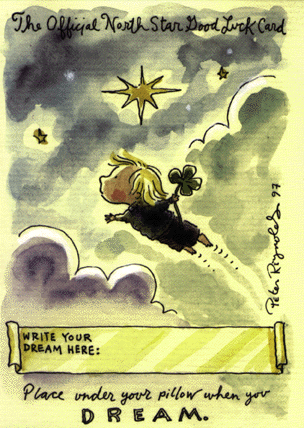
North Star artwork on this web site copyright by Peter H. Reynolds/ FableVision
My Dream...

Looping…

tips workshops

Saturday Morning Message ~ 7-30-2011

As we draw closer to the first day of school,
we are drawing closer to the end of our summer workshops.

It has been exciting to visit new schools, and see all the innovative ways teachers are implementing technology into their daily lessons.

The last few weeks, we have helped teachers build projects to be viewed in the Windows Media Player during orientation and open house.

One question that comes up over and over is…

“How can I make my movie loop?”

They would like to have their movie replay without having to return to the computer.

The answer is…

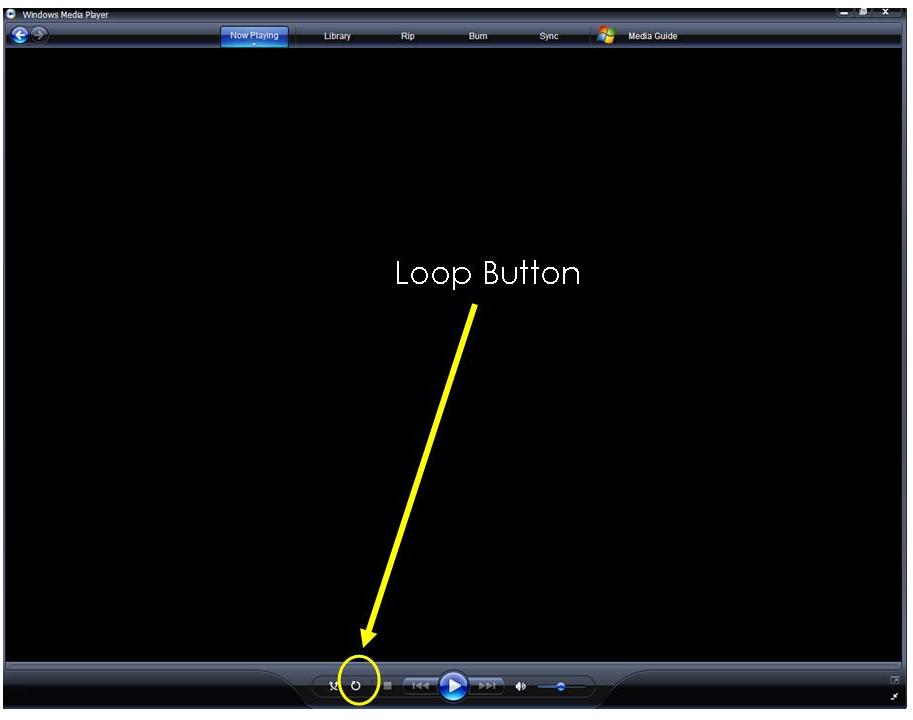
There is a little button on the left side of the “Play Button” that is the “Loop Button”.
Just click that and anything viewed from then on will “loop”.

To discontinue the looping, just deselect the button.

Easy?
 
We knew you would say that… 
Just click on this image for a larger view.


iPad Wallpapers

iPad2 tips

Monday Morning Message ~ 7-24-2011

I can’t believe we have already finished up our second week of “Technology Boot Camp”! We made so many new friends, but, as always, enjoyed spending time with “familiar faces of long-time friends”.

Our last morning included an energetic session on iPads in the classroom, and for those who attended our first workshop earlier this summer; our presentation is ever-changing. The information that we are collecting as we research and experiment is growing exponentially. The apps we discover will continue to be posted on our workshop wiki.

In the meantime, as promised, I wanted to share a link to a site I stumbled upon that features iPad “Wallpaper” backgrounds.

The easiest way to navigate these is through your iPad directly and your Safari browser.

But take a peek here, too, while you are online, no matter where you are reading this.

http://poolga.com/

The creators of this site felt their collection was the answer to people who wanted backgrounds that were different from the norm. Fun and quirky, it features the work of many artists and several have the option to download the full- size (1024 x 1024) resolution for the iPad.

From The Mammoth Collection” by Karina Eibatova

http://poolga.com/

The second site is a “sister-site”,

http://tseventy.com

that features “hand-picked photography for mobile devices (including the iPad) from selected photographers from around the world”.

Both sites include detailed instructions, which are very easy to follow, on how to install the wallpapers on your device.

http://tseventy.com/howto

You will also find a link to shop for some very unique mobile device sleeves.

We think you will enjoy browsing through the art, and choosing something that is a little different from the rest.

http://shop.poolga.com/

You Just Have to Play…

SMARTBoard tips

Monday Morning Message ~ 7-4-2011

This past week we hosted our Summer Series Workshops with a room filled with participants wanting to learn EVEN better ways to use our SMARTBoards interactively.

Our favorite session is our SMARTBoard “Make and Take”.
We show examples, and attendees spin off from those even more ideas and ways to engage and motivate the students. 

A huge resource is the Lesson Activity Toolkit and its templates.
These little flash files are fun for the kids, and we are always amazed at the different ways teachers find to use them to fit their curriculum. 

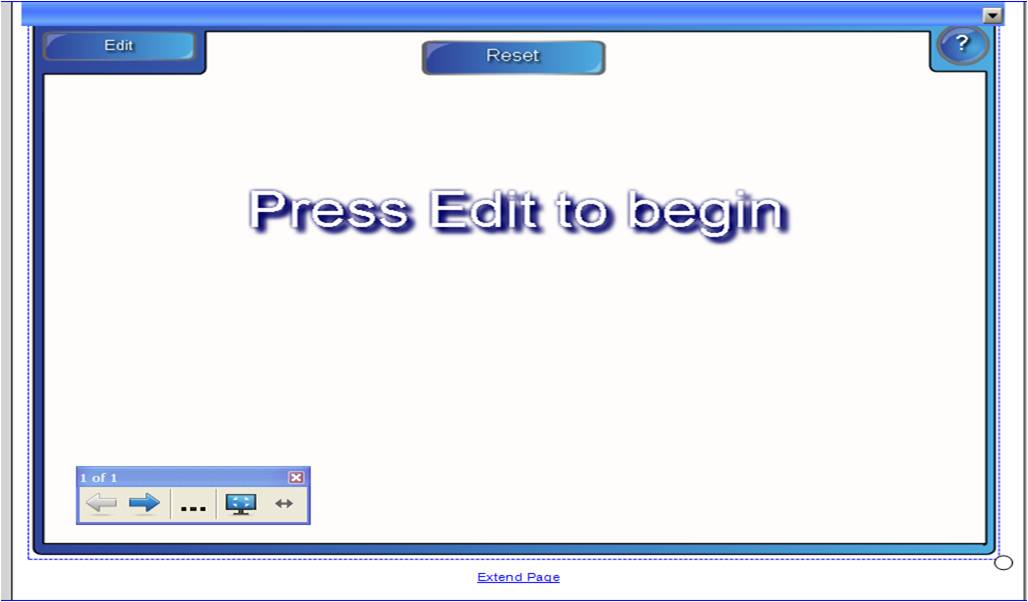
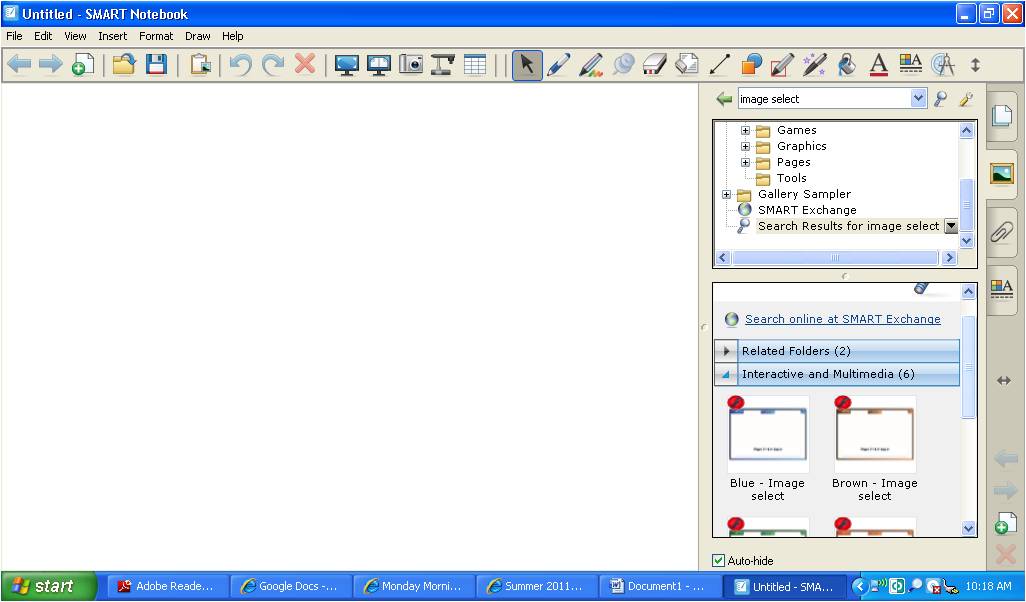
As I was helping one participant find just the right template, I came across the “Image Select”‘.  

Neither Shannon nor I could remember anyone using this template, and decided it was because nobody really understood how it works, or what it is for. 

After a bit of experimenting and “playing”, we found its use and decided its worth has been either unknown, or under-rated.

I put together a little “YouTube Video” to show how easy it is to use this tool, and we hope you can see a huge value in adapting it to many lessons.

Better yet, let your students design and make lessons to share with their classmates.
As teachers, we already know one of the best ways to learn something is to teach it!


Here is the link to the video on our  YouTube Channel if you would like to see it in full-screen. 

http://www.youtube.com/watch?v=mUrqRXj9dVU  

Remember, we strongly encourage teachers to use “real images” in place of “clip art”, and our favorite source is Microsoft Clip Art. 

http://office.microsoft.com/en-us/images/  

Happy Fourth and have a GREAT week!

Self-Assess, or Not

tips writing

Monday Morning Message ~ 6-27-2011

Have you ever wanted someone to check your work,
or give you feedback,
or maybe you just needed another pair of eyes?

PaperRater.com will provide a “pre-grade” in the areas of

  • Title
  • Spelling
  • Grammar
  • Word Choice
  • Style
    • Sentence Length
    • Word Usage
    • Verb Phrases
    • Transitional Phrases
  • Vocabulary

This site is recommended for “authors” with a high school or college level education, but it offers good tips and suggestions for anyone. My recommendation would be to have students use this tool to check their blog posts, narratives, essays, and research papers. It not only provides some guidance, but it will save you time grading by offering students a platform to evaluate their own drafts, make some adjustments and corrections, and learn from that process. PaperRater will generate a “suggested grade” if the copy is submitted as a:

  • “Research Paper”
  • “Personal Narrative”
  • “Essay”
  • “Short Story”
  • “Speech/Presentation”, or
  • “Book Report”.

No grade is suggested for:

  • “Lab Reports”
  • “Letters/Emails”
  • “Movie Reviews”, or
  • “Other”.

Sometimes students need to be reminded that we are all on the same page. We all want them to succeed, and PaperRater can enable real support.

Within our classroom settings, Shannon and I continually remind students of their responsibility as digital citizens. This tool reinforces their accountability. They need to internalize the concept that they are never “annonymous” on the internet, and the “Plagiarism Detection” feature of this tool just serves as a reminder that they truly are responsible and accountable for their own digital presence.

Finally, this tool is “FREE”!

Enough said. Have a great week…

(Oh, and I’m going to have to settle for an “82%/B” rating for this Monday Morning Message.)

Lock It Up…

email tips

Monday Morning Message ~ 6-20-2011


Passwords…

I have way too many,
and too many user names.

I have been thinking about how to make these all more manageable.

Here are some suggestions:

  1. Set up email accounts to handle different accounts.
    I have a gmail account for all of my “education” accounts and a YahooMail account for my “shopping”, and finally use our corporate email for everything associated with our business.
  2. I try to narrow it down to two user names whenever possible.
    If one doesn’t work, I only have one other option.
  3. Passwords:
    This week while logging on to some school networks, we were introduced to a new concept. So many password generators ask us to use both upper and lower case letters and to include numbers. Unless I use the same one that I can relate to, I have a hard time remembering these “Strong” passwords.
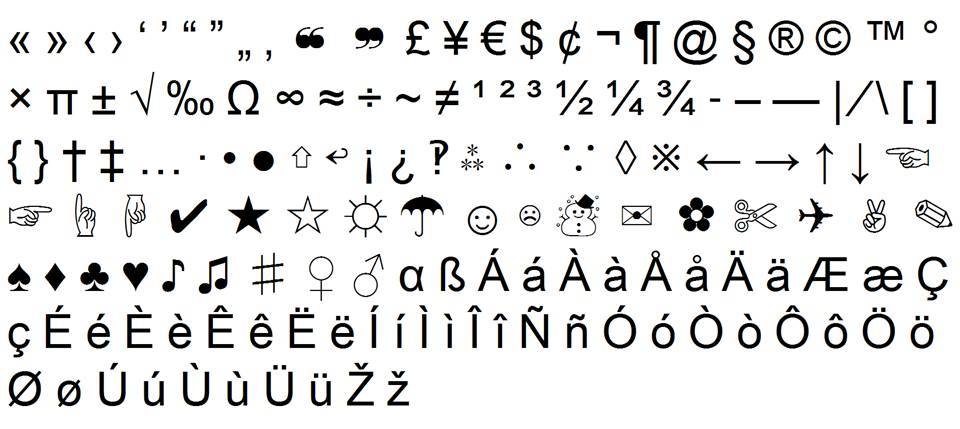
    Here is an idea that might help. Include numbers or symbols within a password such as “Ging3rbr3@d” if you love Christmas, for example.


  4. Use a password manager site or app to keep track of your private information and passwords.
    Several we know of are:

To read some reviews and more about these managers, we suggest that you visit the PC World post “Best Password Managers:Top 4 Reviewed” written by Robert L. Mitchell.

We would love to hear any comments or suggestions that might help us and our readers.

SMART Updates

SMARTBoard tips Turning Point

Monday Morning Message ~ 6-13-2011

After a week of workshops, we have seen some significant updates in SMARTBoard Notebook 10. Included is a calligraphy pen, and several new templates in the gallery.

A quick tip:

Go to the “Gallery Tab” (second tab down) and click on the “wrench” icon next to the search box “magnifying hand lens”. Choose the bottom option, “Check for Updates…”.

I checked for updates to the Gallery Essentials and the Lesson Activity Toolkit 2.0.

Even if it looks like you don’t need an update, click through to next, if the buttons are available, and you should still receive some additional templates.

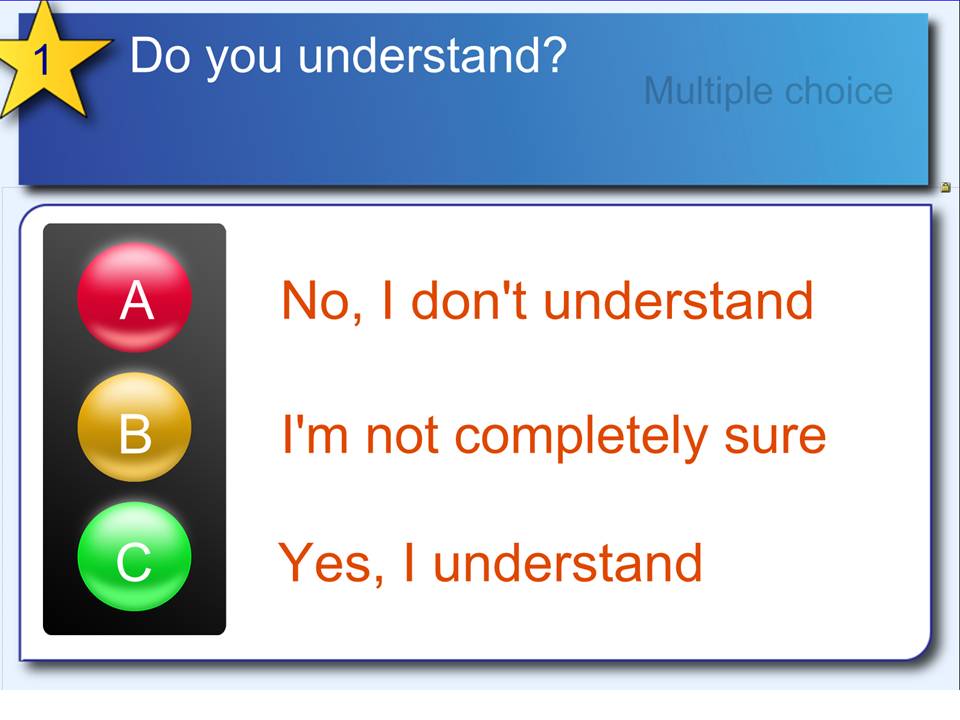
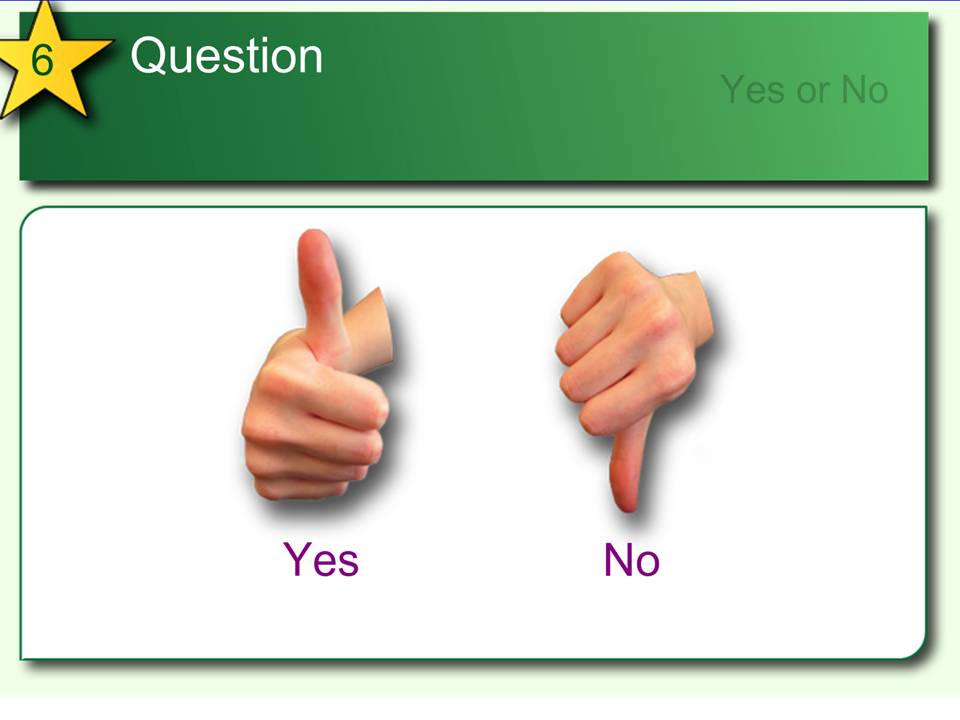
I tried to watch carefully as they updated, and two that I saw were question templates.

These can be used with the SMART Student Response Systems®, or the TurningPoint® PollAnywhere®  Systems.

Don’t wait for the scheduled calendar to tell you that there are updates. Summer is a great time to look and play.

Another “tip” is to make a few new lessons to close out the end of the year.
We are always concentrating on the start, but the final weeks are those filled with deadlines, and a little less motivation as the year comes to a close. Use some summer time to make and remake a few lessons that will make the end a lot more enjoyable!

Bread Crumbs

tips writing

Monday Morning Message ~ 6-6-2011

With rain in the forecast, we found ourselves inside for recess during the last weeks of school. Students begged to work in the computer lab on their final project of the year. We had transformed an old activity that moved them as water droplets through stations that represented different scenarios in the water cycle. Using Photo Story 3, they gave their droplet a personality and used it to narrate their “journey” through the cycle.

One afternoon, as we began working in the lab, some students logging in, some typing, and some adding pictures to their project, several found the “WaterPhotoStory” suddently missing. Several panicked, worried that all of their hard work was gone, and I was sure it was a case of someone having mistakenly dragging or deleting the folder.

I did a quick search for one of the projects. From “Day 1”, my students are taught to save their projects using their first name followed by the project title, which saves time searching, saving, and viewing.

I quickly found the file, right clicked on it, and clicked on the properties. It gave me the address, and I could see that the entire “WaterPhotoStory” folder had been dragged into the “Explorers” folder. The address, working backwards, will lead us back to where our files are stored.  Then it was only a matter of opening the “Explorers” folder, finding the “WaterPhotoStory” folder, a quick right click on that folder without opening it, cut, and then proceeding to the folder where I wanted it placed, another right click, and then paste.

G:Usersstudent5th gradeBrachbillStudentsExplorersWaterPhotoStory

Working with students in the lab can sometimes be frustrating, but if you know some of the solutions to problems that are bound to occur when working with kids+computers, you can save time and you and your students will have a lot more fun!

Fur.ly

Conferences tips

Monday Morning Message ~ 5-23-2011

Friday after school, Shannon and I headed out for the “longest distance to travel to a conference” at Adlai E. Stevenson High School in Lincolnshire, Illinois.

Now, the reason why we stress the longest distance, is that often people think living in Illinois means living somewhere near Chicago. We all know that Chicago is a big city, and is, in fact, the example I use when explaining the definition of a megalopolis. For students living in a rural community, this would be their only connection.

Living in central Illinois, and if you looked at a map of Illinois, we’re talking pretty much smack-dab in the middle, I live 238 miles from our destination, and for that, we were the day’s first prize winners – a gas card for having traveled the longest distance.

And yes, it was well worth it!

I know, at times, our workshop participants leave with their heads “spinning” saying, “No more!”

On this day, we left with our heads spinning and saying, “Overload!”

It was a fabulous day spent at “EdCamp-Chicago” with other presenters and educators who work in the field of educational technology.

We cannot wait to share the new ideas and resources in our workshops and presentation, and with only five more school days left, that will be one of the first things I will tackle.

Until then, though, we give you one new tip,
which is a website that combines more than one link.

When you want your students to visit several sites in one session, finally here is a way to provide the link for them in one, quick step.

This is what it will look like when applied:

http://fur.ly/5qcc

Yes? You love it?!
We thought you would.

Just visit: http://fur.ly/

And have a great week of school!

Before we “sign off”, just one quick note:

Make sure you use the exact address given above.
If you type in “www” before the address, the link will take you to a website that will give you some problems closing.