Seeing Double…

tips writing

Monday Morning Message ~ 4-18-2011

My fifth grade students come to me with little/no keyboarding skills.
Their paragraphs are indented with anywhere from one to twelve spaces.

And the fonts and colors… Yikes!

I give them a choice of three fonts and three colors.

Fonts from which they may choose are Arial, Calibri, or Century Gothic.

The colors they may choose are black, black, or black.

Once we have learned to use the “Tab” key to indent,
I teach them about the space between the period at the end of the sentence
and the capital letter at the beginning of the next sentence.

The stress here is:
ending punctuation and
capitalizing the first word of a new sentence!

In typing class, we were taught to type two spaces between the period and the next letter. Lately, I have been hearing otherwise and thought, before I “misteach” my students, I should do some research.

Everything I read said, “Yes…” to dropping the double-space and moving to single.

I was a reluctant reader, though, and wanted some rationale.
I felt like I was “selling out” just because someone decided it was the thing to do.

Then I stumbled upon a post on “Good Design” by Alissa Walker.

In her post, Alissa explains that today’s text editing programs take into account the width of each letter, and adjust the spaces accordingly. When we were typing with typewriters.. (and that IS my history…) the keys were each the same width, and there would be more space on each side of an “l” than an “m”. Thus, a double-space between sentences made the separation more clear.

Now it made sense to me. A logical reason is something I can accept.

So now I can teach my students, and explain why.

And it only took me a few years weeks to reteach myself to single-space.
The “carrot” was the extra time I would have to do something fun!

If you are on “Spring Break”, even if it is for just a few days, make sure you take time to have fun, too…

We’re Talking “Apps”!

iPad2 Photography SMARTBoard tips workshops

Monday Morning Message ~ 4-11-2011

We have finalized our Sixth Annual Summer Workshop Series which will once again be held at the EIASE headquarters in between Mattoon and Charleston.
This summer our theme is “Boot Camp”.
No, we’re not talking about crawling on our tummies with an M16 or digging foxholes.
We’re talking about “DIGITAL Boot Camp”!
Arm yourself with excitement about the future, a positive attitude, and a willingness to try some new things. 

Not only do we have our beginner-advanced SMARTBoard training, but we have also added a “10 Ways to Get SMARTer” session for folks who would like some new integration ideas or a refresher course. 

In addition to our SMARTBoard sessions, we are offering a variety of sessions for general technology integration, including one that focuses on iPad apps for classroom use.
You heard it! We’re talking “APPS”! 

Make this the summer you “get in digital shape” to fight the battle against student apathy.

Because when you get excited, your kids can’t help but be excited, too!

We hope to see you there! 

Shannon and Nancy

Note*
Oh yes! Our”Monday Morning Tip”…
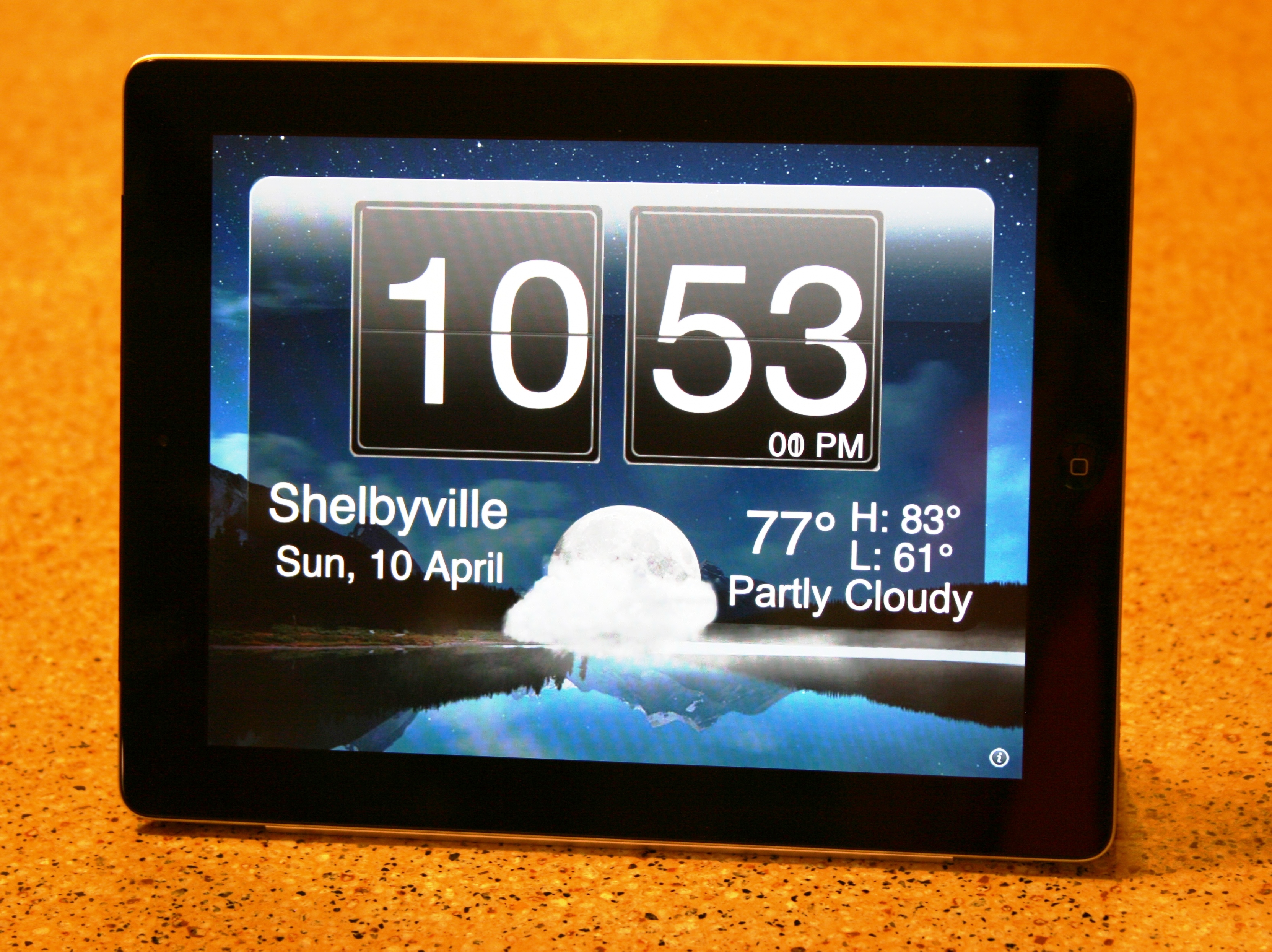
This is a picture of my brand new iPad2.
The “app” you see here is “Nightstand”.
It was taken last night and it’s going to make sure I get up in the morning on time!

Random Word Generator

classroom management SMARTBoard tips

Monday Morning Message ~ 4-4-2011

And it’s free… 

This is a quick way to randomly choose students.

If you have a SMARTBoard, we suggest you use the “Random Word Generator”.
Add your students’ names, and save it in your “My Content” folder within a sub-folder labeled “Management”.

If you don’t have a SMARTBoard, we suggest a website called classtools.net.
This is a free resource, and you have a choice of two “generators”.

With the “Fruit Picker”, a name is chosen and you have the option of removing it, after it is chosen.

With the “Typewriter” generator, you do not have that option, but it also eliminates the “Casino” theme.
Once your names are typed in, you can save it to your desktop as a shortcut.

To watch a quick video for each of these…

Add some fun to your week!

How to Make a Little Book

tips writing

Monday Morning Message ~ 3-28-2011

This is not necessarily a “technology tip”, but we thought using a piece of technology can give you several ideas for your week.

We LOVE this “Little Book”, and we can think of countless ways to use it in our curriculum.

What better way to “show you how” than with a video?

(Consider that our piece of “technology”.)

There are several tips here, in addition to the “Little Book”.

  1. YouTube is more than funny videos that are posted on Facebook and sent in emails. It is a very valuable resource for us as teachers, and in our personal lives.
  2. Consider using videos for your students’ “How To” projects. It is a great way to motivate students to write “Steps in a Process” papers.
  3. If you don’t have access to a video camera, consider using digital photos and creating a “stop-motion” video using Windows MovieMaker or Photo Story 3.

As we “spring ahead” into the final days of our school year, continue to push your students to learn and grow to be ready for next year, but don’t forget to make it fun!

*Note: We would LOVE to hear from you in the comment section how you might use this “Little Book” in your curriculum.

Once Upon A Time…

tips writing

Monday Morning Message ~ 3-21-2011

Here is a quick way to motivate your students to write fairy tales.

Using the “Insert Drop Cap” option in Microsoft Word, students can easily add a special look to their stories.

In simple steps, students need to:

1. Type their story using Microsoft Word.

2. Once the story is typed, highlight the first letter and choose
a. “Insert”
b. “Drop Cap”  choosing “Dropped”.

3. Highlight the dropped cap letter and change the size, the font, and the color as best suits the student and the story.

The video below should help answer any questions, and is best viewed in full screen.

Have a great week!
Spring has finally arrived, so here’s hoping recess is outside for you and your students!

Japan: A Teachable Moment

reflections tips

Monday Morning Message ~ 3-14-2011

For as long as I can remember, I have subscribed to the United States Geological Survey to receive reports each time a significant earthquake occurs anywhere on our globe.

Early Friday morning, as I checked my school email account, the notices rolled in, and currently I have over 100 reports sent even up until today for the aftershocks. Each of those tremors have been significant enough to generate a notification.

Why would you subscribe?

As a fifth grade teacher I have used the reports for geography to teach, among other things, latitude and longitude. Each time I receive a report, a student has been responsible for plotting the points and marking the earthquake on a world map.

This leads into math and the use of coordinates, and distance in miles and kilometers.

In science we learn about earthquakes in our physical science units, their impact on our continents, and the different types of earthquakes. We learn about the history of major earthquakes and that even in Illinois, the New Madrid Fault is a sleeping threat.

Literature in our reading program contains a story about earthquakes. I supplement this with nonfiction books about such things as the 1906 San Francisco earthquake.

Finally, these emails reinforce what is currently happening around the world, and teaches us that we are a family of international citizens. It helps students think beyond the borders of our continental United States.

To sign up to receive earthquake notifications, visit the USGS website:

https://sslearthquake.usgs.gov/ens/register

Click below to view a copy of the revised notification for the first quake.

PRELIMINARY EARTHQUAKE REPORT

Taking the Shortcuts

tips writing

Monday Morning Message ~ 3-7-2011

It doesn’t take long to learn some valuable “shortcuts” that will save you and your students time in the lab.

Basic to student instruction and use are the usual shortcuts keystrokes for:

Copy (Ctrl+C)
Paste (Ctrl +V)
Cut (Ctrl +X).

We teach these to our students in the first week, and find they catch on quickly and grow to use these instead of the “Pull-down Menus”.

One more you can add to their/your repertoire is:

   Tab (Ctrl+T)

This allows the students to quickly open up another tab and to work side-by-side when researching and collaborating. By allowing them to use additional tabs open while on the internet, they can save the tabs on the bottom for files/folders they need to access on their computer.

With 30+ computers to shut down every evening, our students use another quick shortcut that gets the job done quickly.

Shortcut to shutting down computers:

  1. To close all windows, press (Alt+Space Bar)
  2. Together (Ctrl+Windows Key) with left hand and (Up Arrow) with right hand.
  3. Hit “Enter”, “Enter”.

Your lab has been shut down, and you can rest knowing your job is finished for the day.

If you are living in the State of Illinois, enjoy your Pulaski Day off, if your district observes it.

Shannon has to work today, but I am lucky enough to have the day off before I return to our first day of ISATs. If you were able to finish yours last week, enjoy your return to normal. We will start in with “Day 1” on Tuesday.

Regardless, have a great week!

Is Anyone Listening? (Part 4 of 4)

classroom management email tips writing

Monday Morning Message ~ 2-28-2011

Your Distribution List is made, and you are ready to send out your first note.

Remember, you promised your parents that you would keep their email addresses confidential!

It’s easy and the secret is…

Bcc (or “Blind Carbon Copy”).

The benefits of sending emails to recipients using the Bcc Option is that it

   1. keeps addresses confidential;

   2. protects recipients from receiving spam; and

   3. protects recipients from receiving a reply when
someone accidentally selects “Reply All”.

When writing your note, address it to yourself using your school address.
Next, choose the Bcc Option, and use the Distribution List contact name as the recipient.

Another benefit of using this option is that you will also receive a copy of your note, in addition to the one that is in your “Sent Folder”.

One more reminder:

You might want to use the day/date as your Subject.
This also helps parents keep track of notes/reminders.
If your note contains important information or deadline reminders, you might want to use that as your subject to get their attention.

You are now on the road to being heard, and more important, they are listening!

Have a great week!

Is Anyone Listening? (Part 3 of 4)

classroom management email tips

Monday Morning Message ~ 2-21-2011

Great! Every one of your parents responded to your email address request!

Now how in the world are you going to email every single one of those people every single day?

The answer is easy.

It’s called a “Distribution List”.

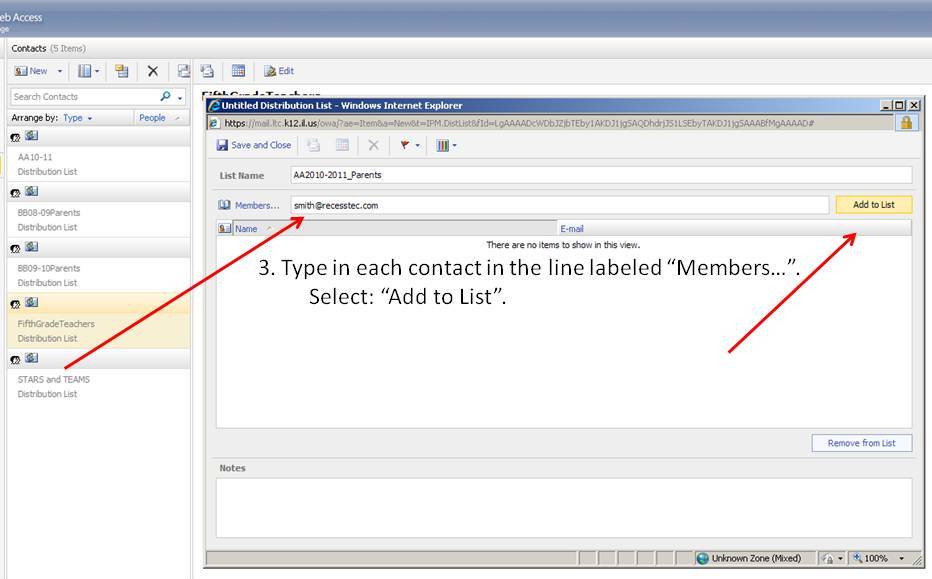
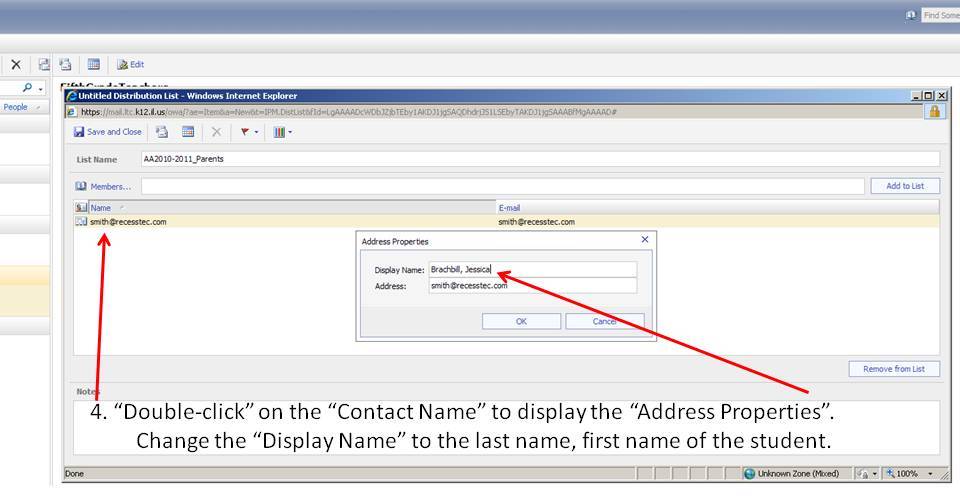
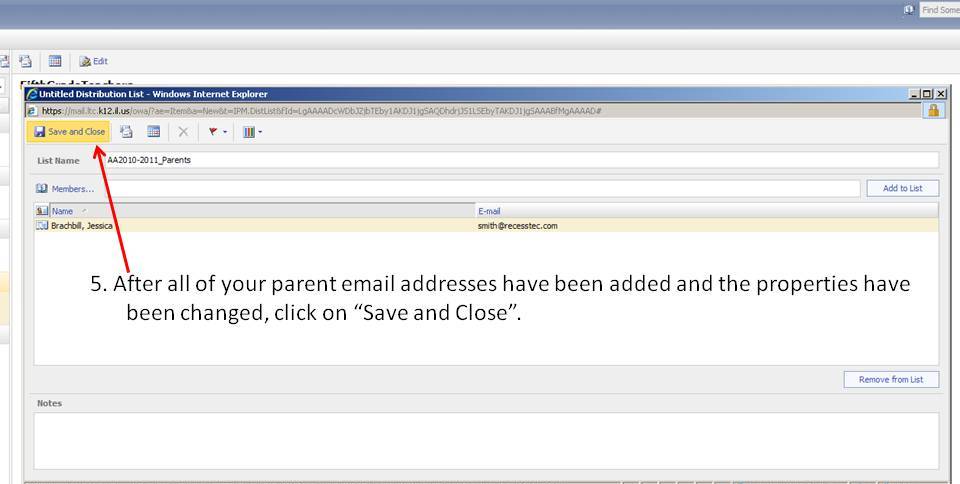
I have included step-by-step images and instructions to help you create this time-saver.

Finally, be sure to check back next Monday to see how to keep your parent emails confidential!

If this Monday you are observing Presidents’ Day with a day off from school, enjoy your day,
and be sure to do something for yourself…

Step 1


Step 2


Step 3


Step 4


Step 5

Is Anyone Listening? (Part 2 of 4)

classroom management email tips

Monday Morning Message ~ 2-7-2011

You read the word, “Email” last week, and now you will begin to see how a daily email note to your parents will solve a lot of “communication” problems.
Let’s start with the necessary steps to begin the implementation of your new system.

The first day of student attendance is quickly approaching.
Your weekends and days are filled with organizing your room, finalizing first lesson plans, and memorizing your student names on your new class list.
As youParent Signature Needed! fill your students’ “First Day Folders”, make sure you include the “Parent Email Note”.

Your “Parent Email Note” is the first step.

Send home this note on the first day, and then present it to your parents at the first Parent Orientation Night or Open House.
This note must be your first priority at starting your new year.
Getting every parent “onboard” is essential.
Remind them they can use any email address.
They may also use as many as they want.

Notice in your note that you make three promises.

Promise #1: Keep their email address confidential.

Promise #2: Write daily.

Promise #3: Don’t, and again, NEVER spam your parents’ in-boxes.

Remember many of your parents are professionals, as we are.
They use their emails to conduct business.
Also, an increasing number of parents receive their email on their cell phones.
Keep it short, and keep it simple.

Below we have provided a link to a template of the “Parent Email Note”.
Please feel free to adapt and use this to get started on the road to the best school year yet.

Finally, join us next week to learn how to keep the three promises.

ParentEmailNoteTemplate