Is Anyone Listening? (Part 1 of 4)

classroom management email tips

Monday Morning Message ~ 1-31-2011

You work hard writing, editing, and finally publishing your class newsletter. It’s filled with important topics like field trips, your week in review, and students’ upcoming tests.

Picture AND fundraiser money are due, and the permission slips for next week’s field trip.

Top that off with finding just the right piece of clip art and seasonal font, to make YOUR newsletter something you are sure will be kept in a memory box forever.

The reality is that today’s parents are different than yours were.
And all of your hard work is failing.

Parents are busy just like you.

Do you want to get through to parents?
Do you want to save trees?

Do you want to regain some of your busy life?

Everyone is busy every day all of the time.
That includes your students and their families.
Most of the time, student book bags are cleaned out, and after your notes and newsletters are skimmed through quickly, they go straight into the trash after mom or dad asks, “Hey, do we need this paper anymore, or can I throw it away?”

You have to get with the times if you want to get through to your students’ parents.

Face it.
The days of the mimeograph and ditto machines are over.
Telephone calls take up too much time, and callbacks waste even more of your precious time.

The solution to all of this is email.

We can’t wait until next Monday when we will continue with our four-part series to help you set up a quick system to get you on the road to productive, easy communication with your students and their parents.

In the meantime, enjoy your Monday, your week, and your students!

Splitting the Text

SMARTBoard tips writing

Monday Morning Message ~ 1-24-2011

We have found a great hidden tool within the SMART Notebook 10 Lesson Activity Toolkit. Called the “Text Splitter”, it will split up sentences into words, or words into individual letters.

After you have placed this little tool onto a new page in your Notebook document, simply highlight text from a document or from the Internet, copy it, and paste it onto your page. Next, drag it into the text splitter window. Choose to split it into words or letters, and your text is instantly interactive.

Do you already have spelling lists typed in a Word document? Now you can drag each word into the “Splitter” to instantly separate it so your students can respell it.


For another idea on using this tool in a Language Arts lesson, watch this quick little video. To get the “big picture” we suggest you watch it in “Full Screen” mode.

We welcome any comments to share how you might use this new “BFF”.

Stretching the Limits

Photography tips

Monday Morning Message ~ 1-17-2011

You have taken a picture of each of your students to put on the front cover of their individual annual classroom memory book. All year long you have captured images of your kiddos doing creative, educational, and innovative activities. You open your favorite publishing program to put it all together with the clock ticking away. So many pictures, so little time, and so many pages. You insert your pictures, re-size, move them all around to make them fit, and write your captions.

Finished.

But wait! Did your students go to the local amusement park and stand in front of the crazy mirrors? They are all too wide, or stretched too long. That is definitely NOT the look you are going for.

I saw this exact thing happen walking through the teacher workroom last May. The parent volunteer was assembling the books, and was not happy with how her child looked.

Here is a simple solution:

  1. When resizing any object, whether it is a picture, a shape, or a text-box, grab a corner, and hold down the shift key while dragging it to enlarge or make it smaller. This will retain the proportion of your image/shape in one easy step. Your pictures will look great, and you will look like you know what your are doing!
  2. This works across most programs such as SMART Notebook 10 and all Microsoft Office applications.

So with that, start working on those “End of Year” projects now, a little here and a little there, and if we can help in any way, just email us.

Have fun this week!

Monday Morning Message ~ 1-10-2011

Blog reflections tips

Monday Morning Message ~ 1-10-2011

With the new year, and some changes we foresee, the “Recess TEC Team” is making a new commitment.We have questions, too...

We are both asked many questions as we travel to different schools for training and presentations.
Our in-boxes are filled with more questions, and…
we often ask ourselves questions.

The difference between the questions we are asked, and the questions we ask ourselves is that;

1. most of the time we know the answers to questions asked, and
2. of the questions we have for ourselves, we know where to get the answers.

So Recess TEC has decided to share ideas, tips, suggestions, websites, and thoughts that might help you facilitate technology in your classrooms.
Our goal is to make technology fun for you and your students. We have worked with teachers who are frustrated with technology and have grown discouraged when they can’t get it to “work”.
What we do best is to break it down to the “least common denominator” and add fun and enthusiasm.
We always include things that are free, practical, appropriate, and relevant.

When we learn new things, we get excited about teaching.
And when we are excited about teaching,
our students are excited about learning.

So, check back with us each Monday, and we look forward to some “recess” time with you.

Our Newest SMARTBoard Trainer

reflections SMARTBoard tips workshops

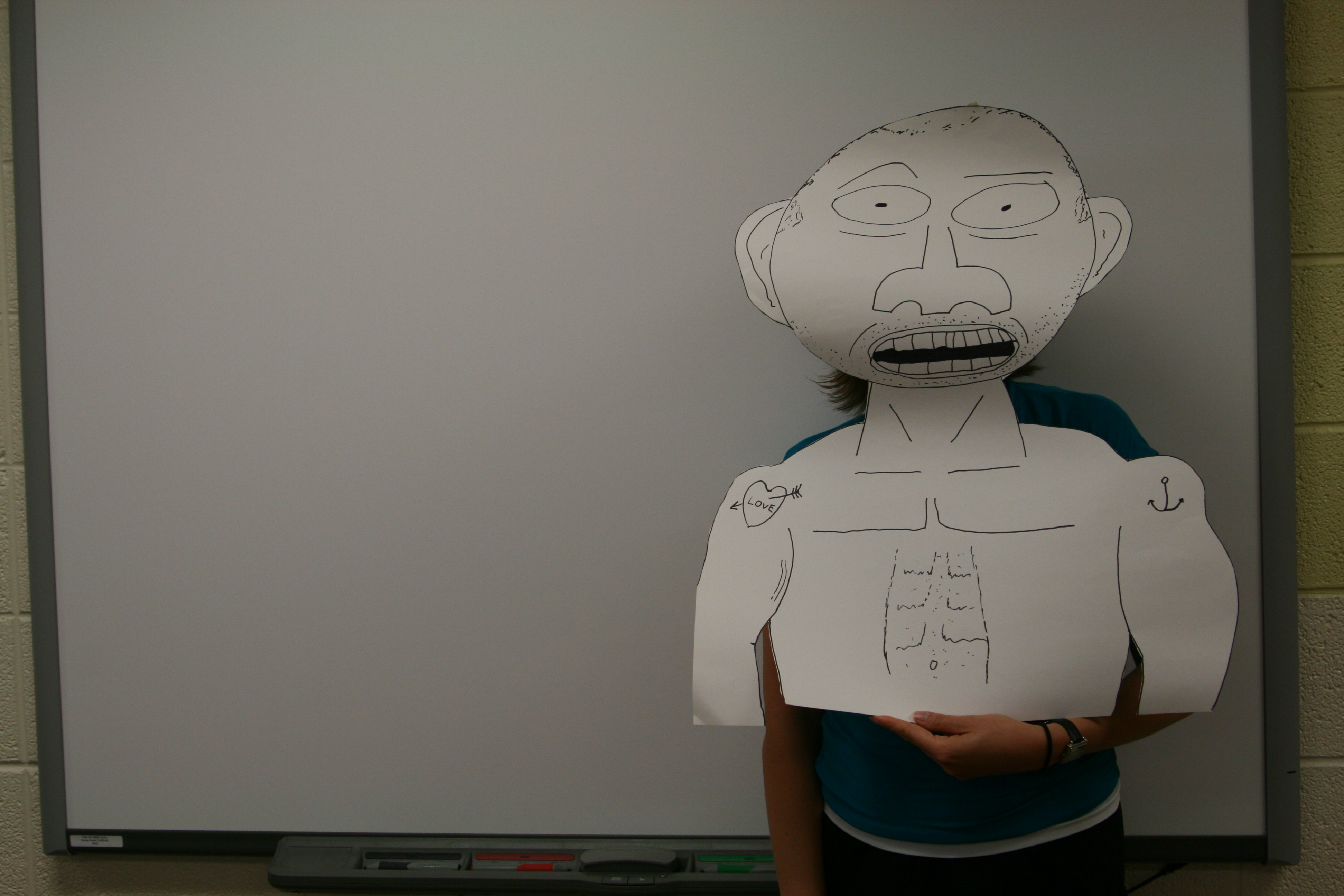
We would like to welcome the newest SMARTBoard trainer as a member of the Recess TEC Inc. team of employees.  Pretty cute huh?  I love the tattoos and the ripped stomach muscles.

Mom and I have been in Camp Point, IL for the past two days to provide SMARTBoard training to teachers.  We love working with the folks at Central High School…but WOW is it a LOOOONNNNG drive.  At the end of the day today, Mom held up this drawing that was in the corner of the room.  I have absolutely no idea why it was drawn…I am sure that it had a purpose in someone’s class this spring.  Boy would I like to know the details.  I will probably ask the next group of teachers we train when we head back to Camp Point for our next round of sessions in July.

In the meantime, Mom and I enjoyed our overnight stay in Quincy and were able to find some pretty cute places to eat.  Dinner… and breakfast (we sat at the table right next to the Christmas tree in that image…obviously the tree was not there today). 

These are the pictures that Mom took of the two places.
 Tiramasu and The Park Bench

We have been noticing some different updates in Notebook software since our last round of training this past spring.  We love it when that happens.  It is like unwrapping a little surprise gift in the middle of a workshop.  One is that the shape pen no longer snaps into a shape perpendicular to the toolbar.  If you draw it at a slant, it will snap into place in the exact angle that you drew it.  This is a perfect update for one of my examples in the workshop.  Another update we noticed is the Image Group Generator.  One of our favorite tools has been the Group Generator all year.  Now we see there is one that can be used with images rather than words!  YIPPEE!  Did I mention we love new SMARTBoard “stuff”?

Ok…off to Thomasboro for the next two days…busy, busy!  Just the way we like it!

And the Winner is…

reflections tips workshops

tech_idol_blogIt happens every year, a large group forms to reunite, socialize, be entertained, and exchange the latest and greatest in their field.  No, I am not actually writing about American Idol, but instead the Regional Office of Education’s Fall Classic Teachers’ Institute Day.  This year was hands-down one of the best for Mom and me.  Actually I can’t speak for Mom, but I thought it was GREAT!.

We decided to make our main technology integration session interactive this year. “Technology Idol”.  We compiled a list of our favorite classroom ideas, gathered teacher and student examples, and made them compete against each other for the title of 2009 Technology Idol. 

Since we use the Turning Point Student Response System in our classrooms to engage students as well as receive immediate feedback, we decided to place them around the room and have the audience vote for their favorite technology integration ideas as we presented them during the session.  There was only one problem…we have 32 clickers and there were easily over 100 people packed into a high school social studies classroom.  Don’t get me wrong, we were thrilled that the room was PACKED and bursting (sorry to those who couldn’t get in…maybe the ROE will have us do the session again in the upcoming months after school one day), we just wish we could have put a clicker in every hand! Nevertheless, we were able to gather responses from a fabulous audience cross section!

Round 1: Glogster Vs. Etherpad

These two resources are fun, student-centered, and highly motivating for students to use. 

Glogster is an interactive digital poster that allows students to mix curricular-related content with their own personal styles to achieve a 21st century poster report.

Etherpad allows students to collaboratively write on a REAL TIME notepad.  REAL TIME.  Students can work on reports, essays, take notes, or even exchange ideas online in REAL TIME.  Did I mention REAL TIME?

Round 1 Winner: Glogster

Round 2: Glogster Vs. Wolfram Alpha 

Since Glogster had won the first round, it was time to give it a new contender. 

Enter Wolfram Alpha.

This informational website is the teachers’, parents’ and students’ new best friend.  I am here to tell you!  We demonstrated how we have been using this online “brain” in our classrooms and the audience was blown away.  We easily defined a word by typing in “word duo”.  Not only do the definitions of duo come up on an easy-to-read chart, but this site also gives the word origin, synonyms, pronunciation and other “dictionary” related information.  All WITHOUT the drama of using the dictionary or thesaurus. 

We also showed its ability to factor numbers, give nutritional information on various foods, locate destinations using lines of latitude/longitude, generate words based on spelling patterns and phonics, as well as graph advanced mathematical formulas.

The gasps were audible. The buzz in the room was electrifying.  Teachers were DEFINITELY excited about this one.

Do I even need to tell you who won Round 2?

Ok I will…

Round 2 Winner: Wolfram Alpha

Round 3: Wolfram Alpha Vs. Prezi 

Prezi is one of my new favorite presentation tools.  It is just that, a tool.  It is not something that will make the kids understand content any better.  But it is pretty cool and ranks high among my motivators when asking kids to do an oral report with a visual aid.  PowerPoint is maybe a bit overused and a little lame for the kiddos. (Sorry Microsoft…I still love you!)  I showed a lesson on Author’s Purpose using Prezi that generated pleasant smiles from the audience, and they thought it was pretty cool that the presentation was online (no use of memory or flash drives here) as well as the fact that it was all on one screen, even though it didn’t first appear to be during the “show” mode.

I made sure to forewarn the teachers that while Prezi isn’t exactly the EASIEST presentation tool to quickly pick-up, the kids would have no problem and would more than likely enjoy doing reports in this format.

Winner of Round 3: Wolfram Alpha

Round 4: Wolfram Alpha Vs. Multimedia as Writing Prompts

Having difficulty motivating kids to write in a journal?  Do you need new ideas and prompts?  Why not use multimedia to spark a new story?  We showed a series of videos and images as well as what types of prompts could be generated through the use of these two media forms.  Teachers were in agreement that the kids would definitely like this twist on journaling.  They seemed to enjoy the videos (lots of laughter and note taking and questioning us about where to get the multimedia).  Therefore I thought for sure we would have a new leader.

Nope…

Round 4 Winner: Wolfram Alpha

Round 5: Wolfram Alpha Vs. Google Earth

We know Google Earth is O-L-D.  We know it has been shown at many conferences.  BUT…we also have been known to use it as an interactive learning tool and that is exactly what we showed.  HOW to integrate Google Earth into interactive learning field trips with all levels of students and across all curricular areas.  We also showed how to let students use it to build their own field trips as alternative forms of assessments.  We love Google Earth and the audience seemed to enjoy it as well but….

evidently not as much as they enjoyed Wolfram Alpha.

Winner of round 5: Wolfram Alpha

Round 6 (final round): Wolfram Alpha Vs. Wordle

Wordle is an online word cloud generator that can be used across a variety of content areas.  We showed several student examples and gave additional ideas for using this fabulous web 2.0 tool.

And while the teachers thought it looked pretty useful and some who had already used it shared some of their own success story ideas…

it didn’t win.

So…

The winner of Technology Idol 2009: WOLFRAM ALPHA…

…the site we have used in our classrooms, showed the parents of students how to use for homework help, introduced to teachers from across the region and call the Online Brain, Tutor, and One-Stop-Shop for homework help.

Thank you Wolfram Alpha for being such a motivating and exciting part of our presentation at ROE 11’s Fall Classic Teachers’ Institute Day.

Final Note:  Since this blog is also used as a way to reflect on workshops/presentations that we have provided, I want to take a moment to explain something that I learned today.  While I am constantly looking for new ways to excite, motivate and engage the students in my classroom, it seems that I often share with teachers the tools that I have my students successfully use to accomplish those things.  However, today I had a light bulb moment.  Not only do educators want ideas and resources for their students to use.  They also want ideas and resources THEY can use to help their students.  I think that is probably why Wolfram Alpha was the winner.  A lot of the ideas we showed are pretty cool (in my opinion) with a lot of “wow” factor (also my opinion but since this is my blog I get to express that one-sided opinion).  But the winner was a simple, easy-to-use and integrate, yet HIGHLY effective online learning tool.  Interesting.

I share all of Shannon’s reflections and thoughts here. This day was truly rewarding. I was worried as it began. Car troubles had me arriving just as Shannon finished unloading her car, and she had lost her cell phone (since found), so I couldn’t call her. It was raining, and both of us were more than tired from a full week of school and evening presentations. Then the teachers began to fill the room very early so, as they explained, to make sure they had a seat. This was going to be fun! And it was, as Shannon described it above. The two presentations, we agreed, are now our favorites. I walked over to Shannon after “Technology Idol” as we were waiting for the next session to begin and asked, “Would you have predicted that?” I felt that human nature would have changed the vote as we presented new, fun, and more “glitzy” Web 2.0 applications. No, not so. As the room emptied, a young man walked in, took a seat, and asked what all of the excitement was about. An administrator who had remained from the previous session to attend our next presentation explained, “It’s called ‘Wolfram Alpha’ and it’s going to replace textbooks.” How exciting for us to be part of Wolfram Alpha and its introduction to the educational community. I had to notice some of the difficulty that a few of the teachers had pronouncing the name. Not me. I’ve mentioned before that I am an “army brat”, grew up in Germany, and that my mother was a German “war bride”. When her brother (my uncle) was married, we hosted a huge celebration in our home. The bride’s younger brother’s name was “Wolfram”, and it was at that event I received my first kiss. And I’m sure if my younger sister were to read this, her only comment would be, “Eww…” Even though “That Wolfram” did not end in love forever, Wolfram Alpha is one new site that we will all grow to love in a much more practical way. It really IS a “winner”!


The Key to One of My Biggest Problems

tips

The Key to Student Email Troubles

As a 4th grade teacher I stumble across one problem again and again throughout the course of the school year.
How can I allow my students to use some of the web 2.0 tools that require a registration with a valid email address?
There is the gmail trick where you can add the + sign and set up the filters.
(A little tedious in my honest opinion.)
Today I discovered another way to involve my students without the hassle of them not having individual email accounts.
You see, I have my own domain name purchased through Go Daddy (very cheap by the way).
It is www.mrsssmith.com and is the address of my classroom website.
Looks can be deceiving.
I don’t pay any hosting costs since the site is actually stored on our school district’s server.
I just point that address to my school district issued webspace.  It has a really funky address that is hard for my fourth graders and their parents to remember.  It is something like http://localweb.k12.il*morewordsandsymblostofollow.htm.
Anyway…my point is coming, bear with me.
Once you purchase a domain name from Go Daddy, you are given a free email address with a web mail server on which to check it.
When you are setting this free email address up, you can check a box that makes it a “catch-all” inbox.
What does that mean??
It means that I can give each of my students their own email address this year…sort of.
Let’s say that Sally is in my class.  I can tell her that her email address is [email protected]and if someone sends her an email, it will go to MY inbox!
So…with that being said…do you know what that means?
They can each register for different web 2.0 applications (under my guidance and discretion of course) with their real/fake email address! Woohoo!
I will keep you posted on this actual application.  Right now I just have it in my head that it will ACTUALLY work.  But honestly…I think it will!

Everything I Know I Learned From My Mom…

tips workshops

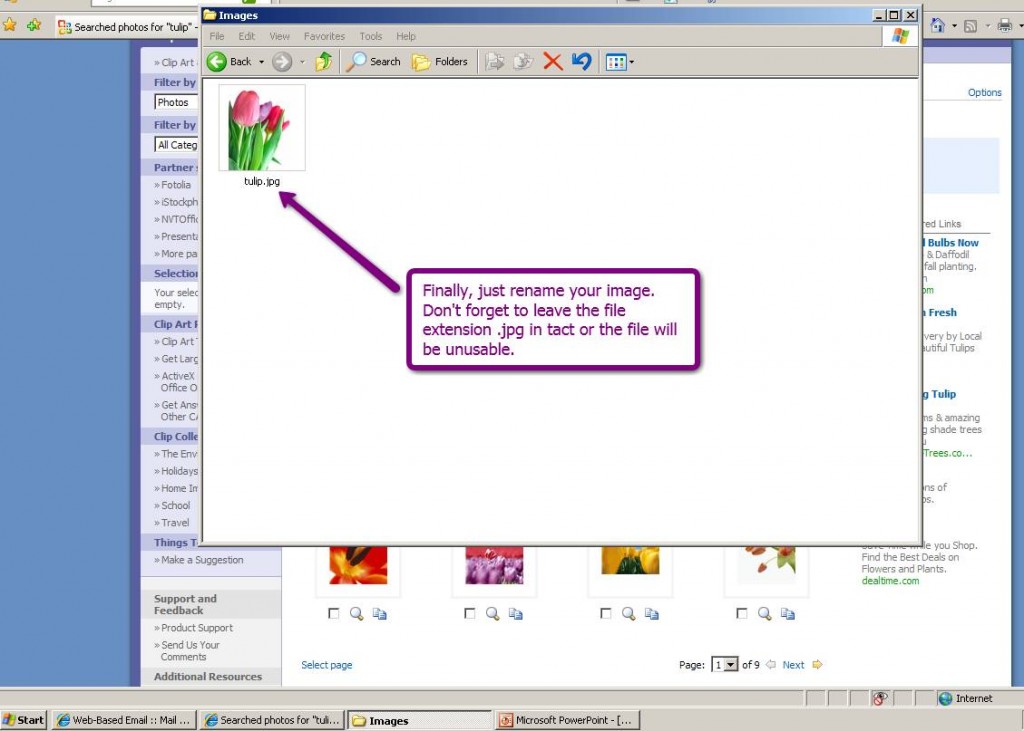
…ok…well, not EVERYTHING.  But today during our afternoon session, Mom did teach me something.  It is definitely a short cut that I will be showing my 4th graders this year while in the computer lab.  When I have students go online to gather pictures for a multimedia project, I always send them to the Microsoft Clip Art site.  This site has high quality stock images that have no copyright restrictions for student work.  It is also SAFE.  I have never seen any inappropriate images on this site.

Once the students find the image they want to use, I have them copy and paste, or drag and drop the image into a powerpoint slide.  The students then right click on the image and “save picture as…” to the desktop or some other easy to find location.  Today, while demonstrating Animoto, I showed this method of gathering images to our group.  Mom asked, “Why don’t you just drag it into a folder?”  My response was something like…awkward pause…”Uhhhh….I didn’t know you could do that.” 

What you heard next was a rambling mixture of my mom saying, “Try it,” and me sighing and making remarks like…cool…and duh!

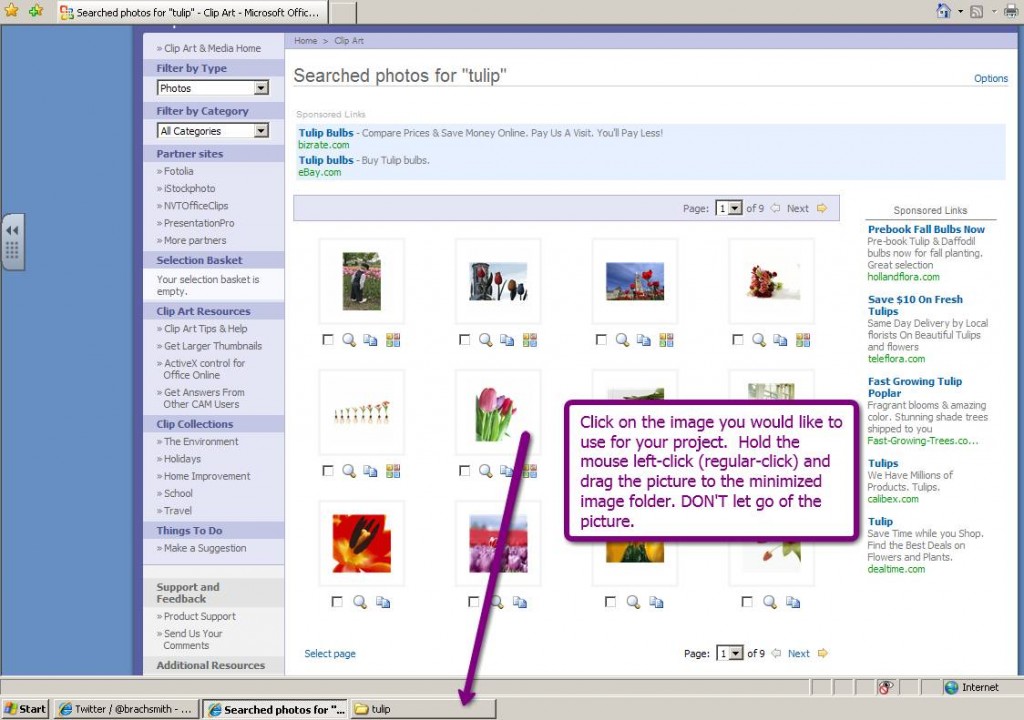
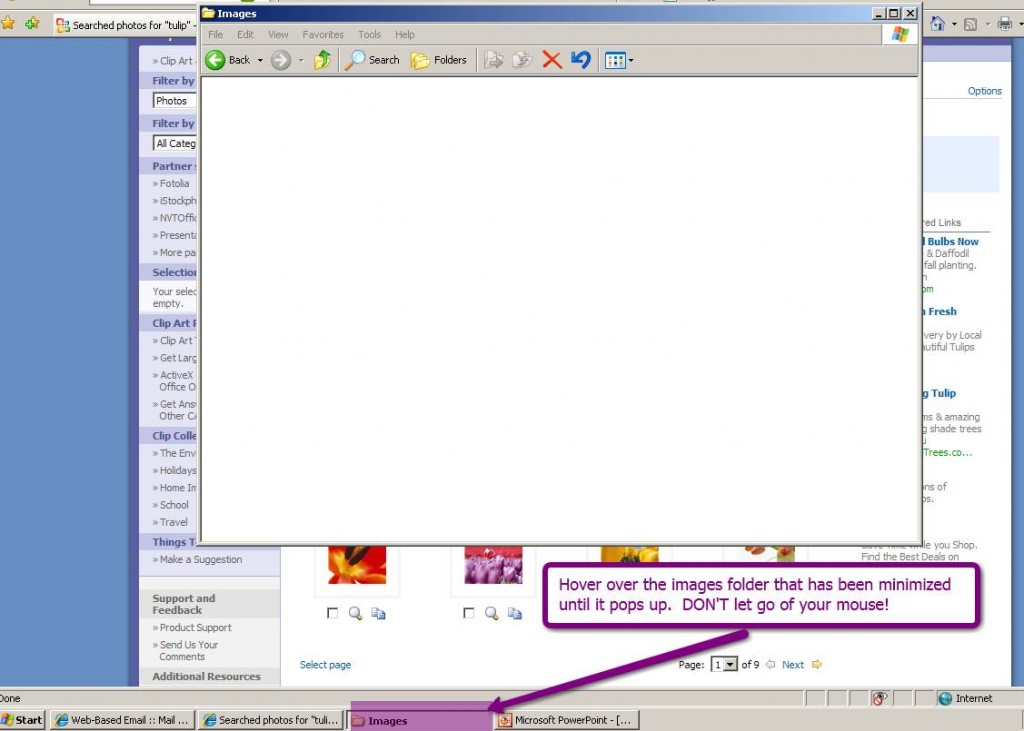
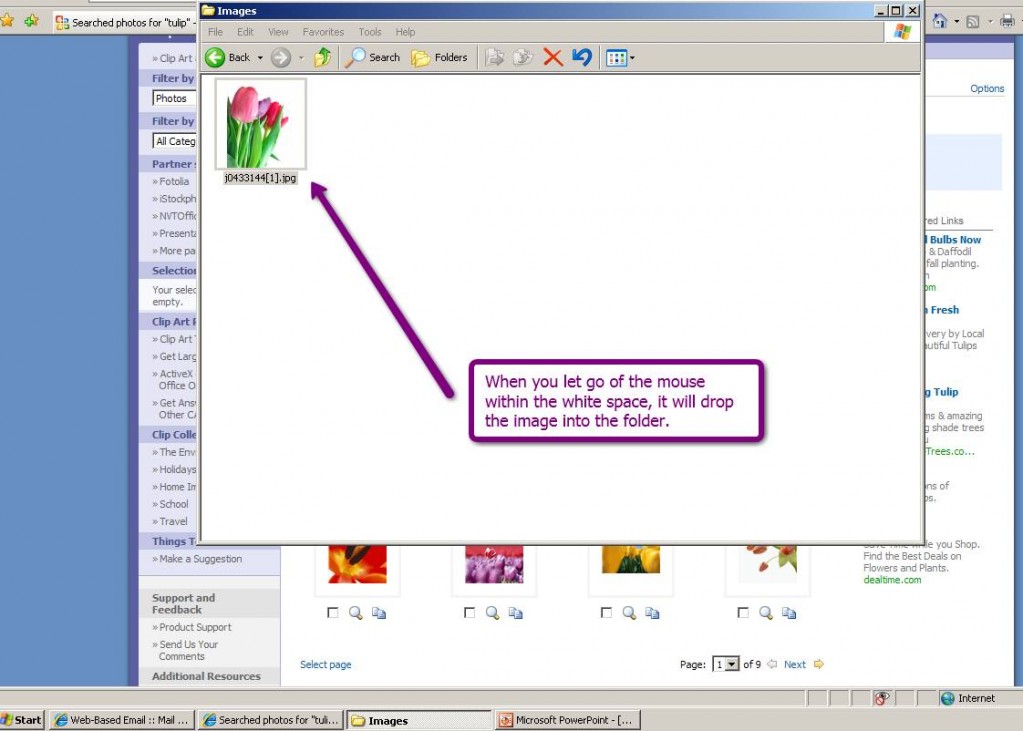
So there you have it folks.  Another useful tip learned during a workshop with my mom!  Here are the screen captures of the exact picture I “tried” during our session.

Step 1

Step 2

Step 3

Step 4

If I am the late to the game in using this new method of downloading images…well…better late than never.  If you didn’t know about this, you have my mom to thank!

Thanks Mom.

Oh…I almost forgot.  She also shared a new online timer with me today.  I know there are many available, but I hadn’t seen this one.  Egg Timer  Check it out for yourself.

Reflections

SMARTBoard tips workshops

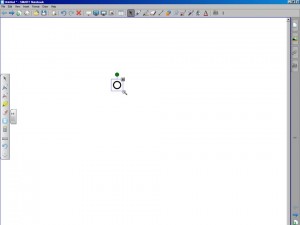
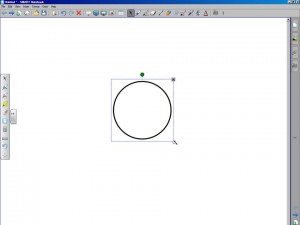
Wow!  It has been a crazy past three weeks for Recess TEC.  A good kind of crazy.  We have visited quite a few different school districts as well as hosted our first “summer series” of technology workshops at EIASE….and now it is time to reflect.  It is very important for us to share anything new that we learn while hosting professional development sessions so I think I will start there.  During our first day on location at Lake Land College where we were privileged to train high school teachers on the implementation of SMARTBoards within their classrooms, I was asked how to re-size a circle in Notebook software with perfect h/w ratios.  Of course this question came from a high school math teacher where perfect circles are a MUST.  The answer could not be “eyeball it”.  I told her to be really careful while dragging the mouse while resizing and it shouldn’t be an issue.  HOWEVER, one of our other participants was kind enough to share a tip that I had never seen.  My mom knew about it, but I sure didn’t.  Robin informed me that you could click on the little white circle on the bottom right corner of any shape, hold down the shift key, and then drag to keep the shape in proportion.  I love it when I learn something new from our participants!  Thanks Robin!

"Before"
"Before"
"After" and in perfect proportion!

“Old Dog (a.k.a. RecessTEC)” + “New Tricks” = “Something to Share”

SMARTBoard tips workshops

We were happy to be “On the Road, Again”…
and Jefferson School in Charleston was once again our point of destination yesterday morning.

“Advanced SMARTBoard” was the workshop for the morning, and we always look forward to working with Charleston teachers in a “hands-on” setting. It’s a special treat when Shannon’s “next-door neighbors”, The Pattenaudes, are our IT specialists, as well. They are very, very supportive and stay for the whole sessions.

We were in the middle of showing how to drag a slide from one Notebook file into another, when one of our participants showed us how to make the process easier!

But wait!
A picture, or three, is worth thousands of words…
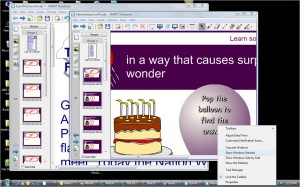
The “Old Way” was to “restore down” each Notebook file and to stack the “source file” on top of the destination file.
Then we would drag the slide from the source slide-sorter into the slide-sorter of the destination file behind it.

The Old Way


Now…
The “New Way”:

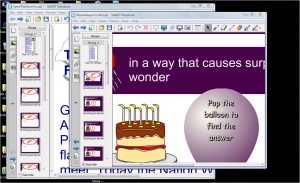
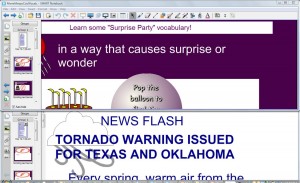
Right click on your bottom “Task Bar” and choose the “Show Windows Stacked” option.

Show Windows Stacked


Now your files are stacked on top of each other, and it is much easier to drag the slides from one file and place it where you want into the destination file.

Easier Result!


Thank you, so much, Jan, for that “Tip”!