It’s No Picnic…

Photography tips

Sunday Sit, Sip, and “Sync” ~ 1-22-2012

My Sunday Morning Tip took a 180˚ when I opened up my email this morning.
One of my favorite “fun” online photo editing sites will soon be gone.

Picnik.com is the only website I love to watch as it loads.
While the gears turn and synch together,
I look forward to the random messages that create imaginary images that are both powerful and pleasant.

“Fluffing clouds…”
“Blooming blossoms…”

“Picking blackberries…”
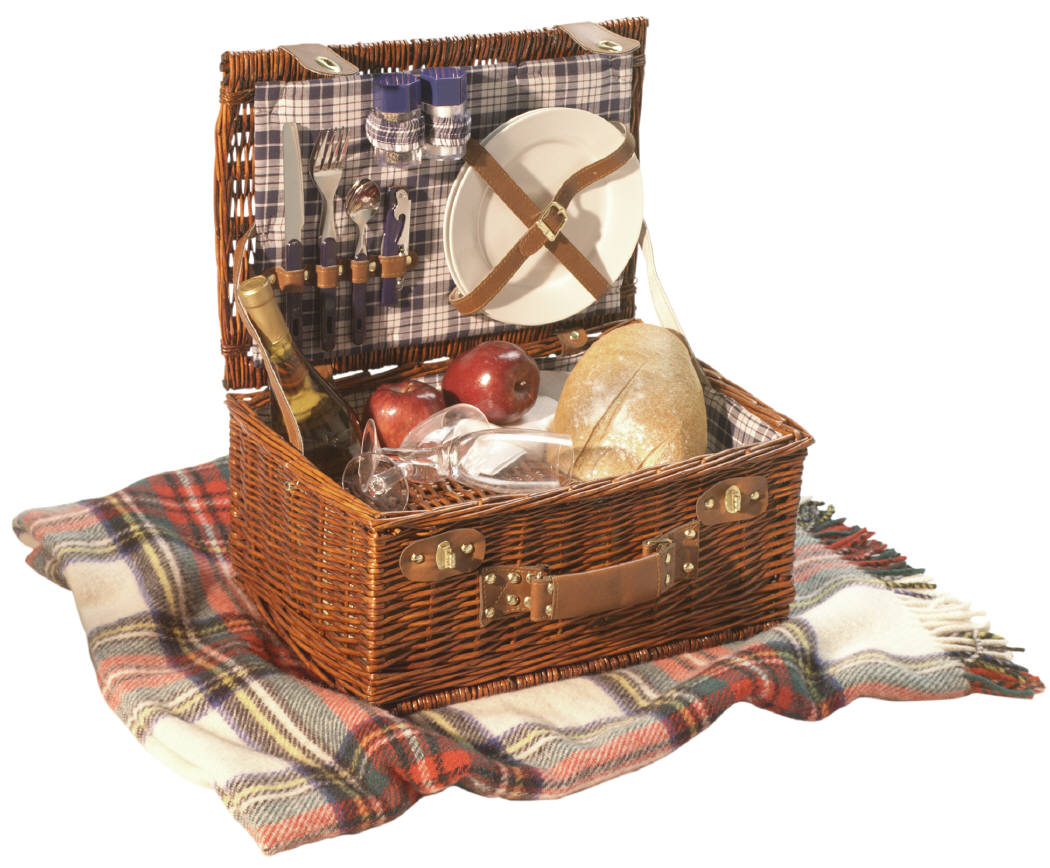
“Stealing Picnik basket…”
“Planting trees…”
“Floating kites…”
“Cueing bird songs…”
“Applying sunscreen…”
“Buttering sandwiches…”
“Growing grass…”
“Painting sky…”
“Chasing butterflies…”
“Spreading blanket…”
“Picking flowers…”

Once loaded, Picnik offers a wide menu of options, even without a paid subscription.

The sad news is that on April 19th, 2012, Picnik will be closing.

And that is, indeed, sad.

The good news is, that until that date, ALL of the “Paid Premium” effects and features are available FREE to ALL visitors.

(You know how we love “free”.)

If you have a paid subscription, they will refund this past year’s payment,
“even if you are on your very last day of an annual membership”.

Picnik has added a feature, Picnik Takeout, which “allows you to download your photos to your desktop in convenient zip files”.

There is no limit to how many times you use this feature until closing day.

If you post your pictures on Flickr,
and use Picnik to edit them,
that service will no longer be an option when Picnik closes,
but…

Flickr has announced an upcoming set of editing tools within their site,
and in their words:

“…we are working on making the editing experience even better on the site.
We know you care about speed, simplicity, and quality
and this is exactly what we are working to provide you with.
More on this soon, but we can’t wait to show you what we have in store.”

Questions?
Visit Picnik’s FAQ Page here.

Ready to take advantage of this 3-month service?
Visit Picnik

and watch the clouds fluff and the grass grow for an early, much needed spring…

Grade Essays Faster?!

classroom management tips writing

Sunday Sit, Sip, and “Sync” ~ 1-15-2012

There it was.
In BIG, BOLD font.

“Grade Essays Faster”.

“Look, we can’t grade the essays for you, but we can reduce the repetitive, inefficient manual labor involved — and in doing so we open up a new world of invaluable student data.

Welcome to the future.”

Really?

I have friends who are English teachers.
I know how much time they spend grading papers.

Rough drafts.
Revised copies.
Final copies.

I don’t claim to know much more beyond fifth grade essays,
and what I had to write as a student, myself.

(Please don’t judge them. They tried.)

I do know that my teachers,
those who guided me, taught me, and encouraged me,
had to have put in countless hours reading and suggesting and correcting what I had written.

When I discovered this website, I thought it surely would be a tool that, as an English teacher, could be as valuable and indispensable as a calculator must be for a Math teacher.

Essaytagger.com is free during their “Beta Period”,
and that ends on February 1st.

Essaytagger.com is developed by Keith Mukai, M.Ed., a high school English teacher who is now the founder and CEO of EssayTagger.com.

Once the “Beta Period” ends, there will be a cost that is described here, in the FAQ Section.
Early adopters during this period will be “rewarded”.

Here are some quick links to videos that describe the program in more detail.

So, those of you who teach English,
or those of you who know English teachers,
I encourage you to check out this site and “share the love”.

Wouldn’t it be nice if more of us could “have a life”?

Outlines Made Easy

tips writing

Sunday Sit, Sip, and “Sync” ~ 11-13-2011

I’m talking about a free download from rynelf.com.

It’s an “Outline Generator” called Redhaven Outline,
and after “playing” with it for ten minutes this week, I was SOLD.

It only takes minutes to download, but it will save you hours and hours of generating outlines.

It has simplified the concept enough so that your students will be able to use it, as well.

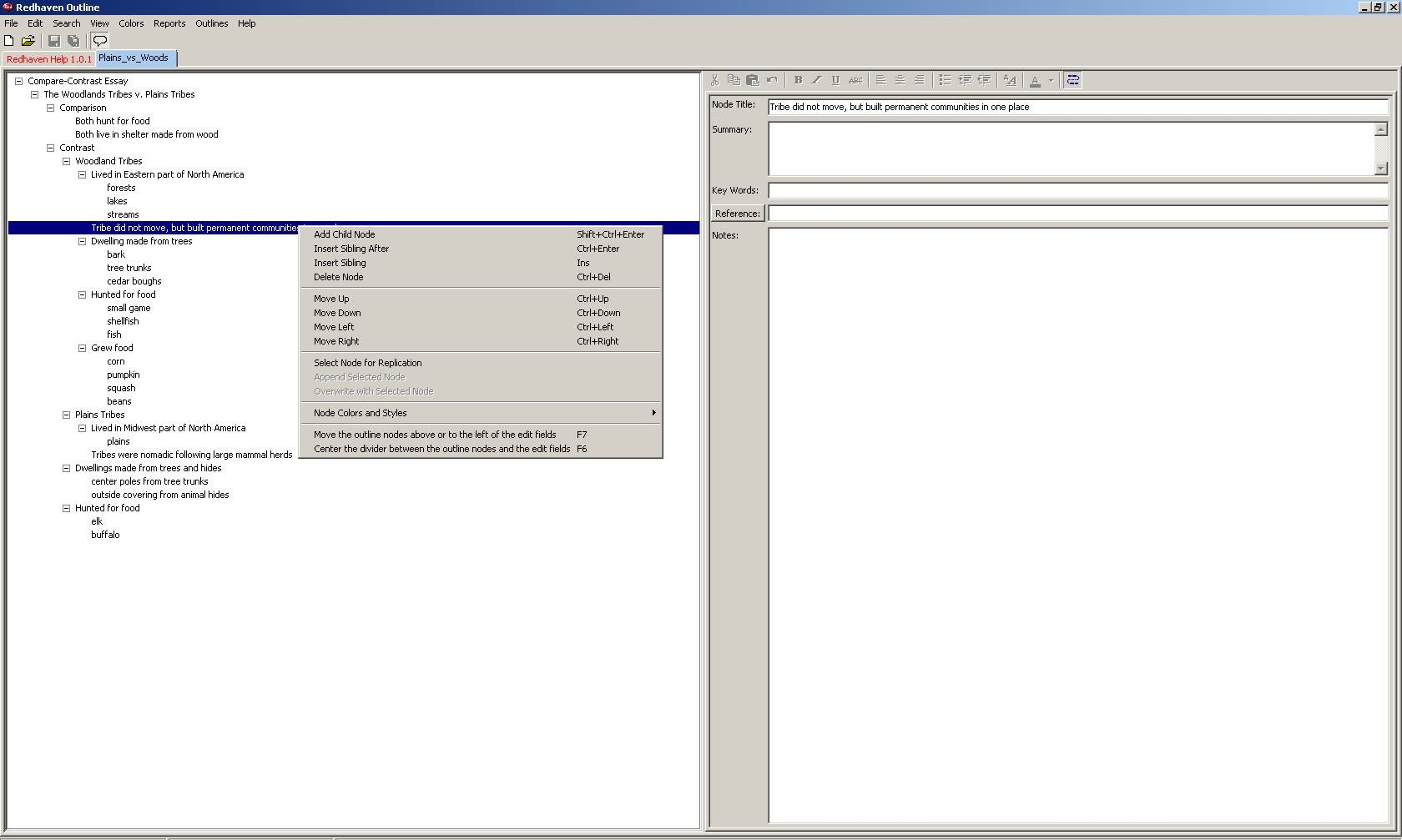
I have included a screen capture,
and with “right clicks” and “click-and-drags”, you can manipulate the “nodes” of your outline.

Finally, when you select/highlight the “Outline Title”,
you can select the pull-down menu from “Reports” and choose “Export to clipboard using active report”.

Next, open your favorite word-processing program, and paste in your outline from the clipboard.

If you like, you can change the outline specifications through your word-processing program. I’ve included a link to view the outline generated from the screenshot samples.

Don’t be afraid to use the key short-cuts that are shown on the “right-click” menus. It took me just a couple of minutes to familiarize myself with them, speeding up the process even more.

Click on the image below to see a clear sample of what this program will look like on your screen.

Click on Compare-Contrast Essay Outline to view a pdf copy of the outline that is generated from the above view.

We would love to hear your opinion on this little program,
and whether you find it helpful.

Also, if you know of any other little generators that might help all of us,
please don’t be shy about sharing!

And enjoy your week. For many of us, it is a long week, sandwiched between two short ones.

And we’re thankful for that!

Label, Label, Label!

classroom management tips

Monday Morning Message ~ 8-8-2011

As I skim through recent posts on Facebook and Twitter, many involve “THE Class List”.

Posted last week: “Any people out there know when we are going to get class lists? It seems like we usually get them on Friday. I’m trying to mentally prepare myself for my last week of vacation.”
Posted last week: “I’ve hired my babysitter to help write names as soon as I get my class list.”
Posted last week: “I just found out we won’t have our class list until the day before school. How am I going to get it done???”

This week’s tip is a solution I have been using for years.

I make a trip to an office supply store, or that aisle in my local discount store, to buy plain, blank address labels. I choose the label size that has enough labels to fit one class per sheet.

Next, using the label template suited for the brand I purchased, I make a “Label Template” with my student names using Microsoft Word. Finally, I save naming it “11-12Labels”.

This little video will help, and instead of continuing to the “Mail Merge” option, I just type my students’ names.

Microsoft Office Video – Labels

Remember, you need to click on the “Tools” tab, or in some versions, the “Mailings” option.

So as to not waste any of my labels, I always print the first sheet on plain printer paper, and hold it up in front of the labels to make sure they line up.

I also have the option of changing the font properties, (style, color, and size) to match whatever workbook or article I was planning to attach the label.

I always save my sheets when there are a few unused labels left after printing. If a new student is added, I can then type the new student’s name as many times as needed on the extra labels.

We were always required to keep a Ziploc bag attached to our emergency clipboard with large blank labels and a permanent marker. The plan was that in the event of a real emergency, they would be used to generate a name label for each student. I could never imagine having to do that in a true emergency, so I always print off a sheet to attach to these “Conference Labels”. Next year, I will just attach the new label on top of the previous year’s.

Some of the things in my classroom that are labeled are:

   1. Consumable workbooks

   2. On tag-board for my “Classroom Jobs Bulletin Board”, and my

   3. A.R. Bulletin Board to move students up the “Goal Post”

   4. Cubby or coat hooks

   5. Supplies Baskets or Boxes

   6. Emergency Labels

If you want the names specifically aligned or colored, just select them all (Control key + A) and format them.

We would love to hear other ways you have used your class names, or could use labels.

It really is time to get serious and help each other out! 

Looping…

tips workshops

Saturday Morning Message ~ 7-30-2011

As we draw closer to the first day of school,
we are drawing closer to the end of our summer workshops.

It has been exciting to visit new schools, and see all the innovative ways teachers are implementing technology into their daily lessons.

The last few weeks, we have helped teachers build projects to be viewed in the Windows Media Player during orientation and open house.

One question that comes up over and over is…

“How can I make my movie loop?”

They would like to have their movie replay without having to return to the computer.

The answer is…

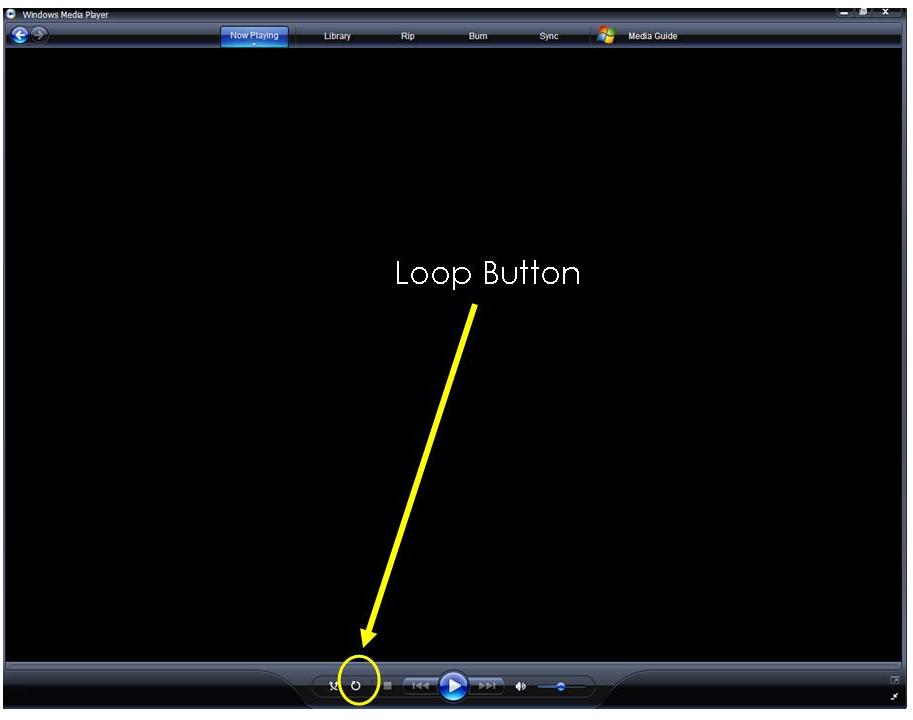
There is a little button on the left side of the “Play Button” that is the “Loop Button”.
Just click that and anything viewed from then on will “loop”.

To discontinue the looping, just deselect the button.

Easy?
 
We knew you would say that… 
Just click on this image for a larger view.


Lock It Up…

email tips

Monday Morning Message ~ 6-20-2011


Passwords…

I have way too many,
and too many user names.

I have been thinking about how to make these all more manageable.

Here are some suggestions:

  1. Set up email accounts to handle different accounts.
    I have a gmail account for all of my “education” accounts and a YahooMail account for my “shopping”, and finally use our corporate email for everything associated with our business.
  2. I try to narrow it down to two user names whenever possible.
    If one doesn’t work, I only have one other option.
  3. Passwords:
    This week while logging on to some school networks, we were introduced to a new concept. So many password generators ask us to use both upper and lower case letters and to include numbers. Unless I use the same one that I can relate to, I have a hard time remembering these “Strong” passwords.
    Here is an idea that might help. Include numbers or symbols within a password such as “Ging3rbr3@d” if you love Christmas, for example.


  4. Use a password manager site or app to keep track of your private information and passwords.
    Several we know of are:

To read some reviews and more about these managers, we suggest that you visit the PC World post “Best Password Managers:Top 4 Reviewed” written by Robert L. Mitchell.

We would love to hear any comments or suggestions that might help us and our readers.

SMART Updates

SMARTBoard tips Turning Point

Monday Morning Message ~ 6-13-2011

After a week of workshops, we have seen some significant updates in SMARTBoard Notebook 10. Included is a calligraphy pen, and several new templates in the gallery.

A quick tip:

Go to the “Gallery Tab” (second tab down) and click on the “wrench” icon next to the search box “magnifying hand lens”. Choose the bottom option, “Check for Updates…”.

I checked for updates to the Gallery Essentials and the Lesson Activity Toolkit 2.0.

Even if it looks like you don’t need an update, click through to next, if the buttons are available, and you should still receive some additional templates.

I tried to watch carefully as they updated, and two that I saw were question templates.

These can be used with the SMART Student Response Systems®, or the TurningPoint® PollAnywhere®  Systems.

Don’t wait for the scheduled calendar to tell you that there are updates. Summer is a great time to look and play.

Another “tip” is to make a few new lessons to close out the end of the year.
We are always concentrating on the start, but the final weeks are those filled with deadlines, and a little less motivation as the year comes to a close. Use some summer time to make and remake a few lessons that will make the end a lot more enjoyable!

Bread Crumbs

tips writing

Monday Morning Message ~ 6-6-2011

With rain in the forecast, we found ourselves inside for recess during the last weeks of school. Students begged to work in the computer lab on their final project of the year. We had transformed an old activity that moved them as water droplets through stations that represented different scenarios in the water cycle. Using Photo Story 3, they gave their droplet a personality and used it to narrate their “journey” through the cycle.

One afternoon, as we began working in the lab, some students logging in, some typing, and some adding pictures to their project, several found the “WaterPhotoStory” suddently missing. Several panicked, worried that all of their hard work was gone, and I was sure it was a case of someone having mistakenly dragging or deleting the folder.

I did a quick search for one of the projects. From “Day 1”, my students are taught to save their projects using their first name followed by the project title, which saves time searching, saving, and viewing.

I quickly found the file, right clicked on it, and clicked on the properties. It gave me the address, and I could see that the entire “WaterPhotoStory” folder had been dragged into the “Explorers” folder. The address, working backwards, will lead us back to where our files are stored.  Then it was only a matter of opening the “Explorers” folder, finding the “WaterPhotoStory” folder, a quick right click on that folder without opening it, cut, and then proceeding to the folder where I wanted it placed, another right click, and then paste.

G:Usersstudent5th gradeBrachbillStudentsExplorersWaterPhotoStory

Working with students in the lab can sometimes be frustrating, but if you know some of the solutions to problems that are bound to occur when working with kids+computers, you can save time and you and your students will have a lot more fun!

Fur.ly

Conferences tips

Monday Morning Message ~ 5-23-2011

Friday after school, Shannon and I headed out for the “longest distance to travel to a conference” at Adlai E. Stevenson High School in Lincolnshire, Illinois.

Now, the reason why we stress the longest distance, is that often people think living in Illinois means living somewhere near Chicago. We all know that Chicago is a big city, and is, in fact, the example I use when explaining the definition of a megalopolis. For students living in a rural community, this would be their only connection.

Living in central Illinois, and if you looked at a map of Illinois, we’re talking pretty much smack-dab in the middle, I live 238 miles from our destination, and for that, we were the day’s first prize winners – a gas card for having traveled the longest distance.

And yes, it was well worth it!

I know, at times, our workshop participants leave with their heads “spinning” saying, “No more!”

On this day, we left with our heads spinning and saying, “Overload!”

It was a fabulous day spent at “EdCamp-Chicago” with other presenters and educators who work in the field of educational technology.

We cannot wait to share the new ideas and resources in our workshops and presentation, and with only five more school days left, that will be one of the first things I will tackle.

Until then, though, we give you one new tip,
which is a website that combines more than one link.

When you want your students to visit several sites in one session, finally here is a way to provide the link for them in one, quick step.

This is what it will look like when applied:

http://fur.ly/5qcc

Yes? You love it?!
We thought you would.

Just visit: http://fur.ly/

And have a great week of school!

Before we “sign off”, just one quick note:

Make sure you use the exact address given above.
If you type in “www” before the address, the link will take you to a website that will give you some problems closing.

The Old New World…

classroom management reflections tips

Monday Morning Message ~ 5-16-2011

Our district has just adopted a new Language Arts series,
and it will require lots of room to house and store.

So it began…
the cleaning of the shelves.

I have had a set of encyclopedias on one set of shelves for over 25 years.
I honestly cannot remember the last time we used them.

Last Tuesday I piled them high on a table,
wondering what should be done with them.

“Mrs. Brachbill, can we have them?”

Reply: “May we have them…”

And after investigation/permission,
the “Great Raffle” began.

Now here comes the amazing part.
I told my students that as I pulled their names,
and they didn’t want one,
just to say, “No, thank you,” and I would continue on.

Looking up, I saw 25 students with their eyes closed and fingers crossed.

And the excitement when they got a 2-for-1 (a.k.a. “The Q-R Volume”) was amazing!

At the end of the day, I asked them to please take them home.
(We are near the end of the year, and are trying to clean out, right?)

And, indeed, they did take them home, but returned the next day, carrying them with little slips of paper marking places they wanted to investigate.

They took them outside to read during recess.

They were reading them under their desks when they should have been following along in their Social Studies book.

They carried them almost reverently;
not in their book-bags.

So on this Monday morning, if you are in need of space, and you have one of these old sets taking up valuable room on a shelf, make a memory, and give a book.