YodelOh™ Math Mountain App

app iPad iPad2 tips

Sunday Sit, Sip, and “Sync” ~ 4-21-2013

The essence of mathematics is not to make simple things complicated,
but to make complicated things simple.
  ~S. Gudder

Back in October of 2011, Shannon wrote a review about Spinlight Studio’s app, TableTots.

We have shared this app in iPad training sessions for elementary teachers,
and many have written notes confirming its versatility and usefulness.YodelOhMathMountain

This week we received a note from Spinlight Studio with this announcement:

“The sheep’s out of the bag! YodelOh™ Math Mountain hit the App Store today,
and we can’t wait to hear what you think about it!”

We love Spinlight Studio and their professional commitment to developing apps for educators.
Why?

  1. They are our neighbors located in Champaign, Illinois.
  2. Their apps do not contain “third party ads”.
  3. Their apps do not link to a social network.
  4. Their apps do not track your location
  5. Their apps do not link to web access.
  6. Their apps do not include “in-app purchases”.

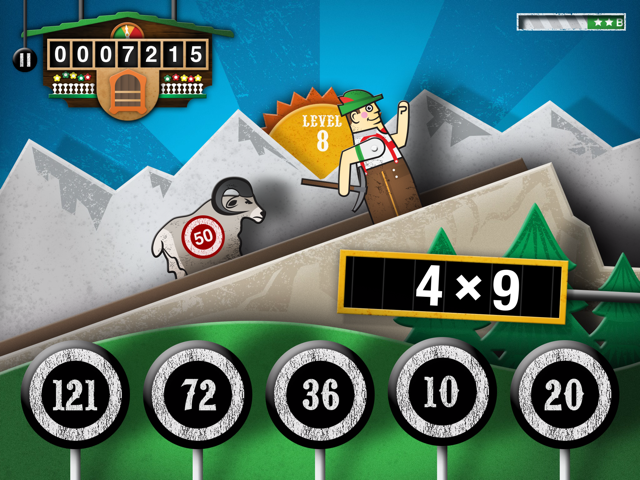
For 99¢, you have an app that “blends arcade action with traditional classroom math drills”. The game is fast and is designed “to help elementary students memorize the basic addition, subtraction, multiplication and division tables essential for math.”
It is rated for ages 6-12.
BlueSkyMathMtn

Below is a link to Spinlight Studio’s guide for  YodelOh™ Math Mountain.

YodelOh™ Math Mountain and Spinlight Studio come with our highest recommendation. Read more on their “Press Release” page.

My only wish is that we had a few mountains around us so that, on this beautiful Sunday, we could hike a few ourselves. I will have to be content to take a walk through the woods surrounding Lake Shelbyville…

Have a great week!

Symbaloo Simple

classroom management tips

Sunday Sit, Sip, and “Sync” ~ 4-14-2013

“Make everything as simple as possible,
but not simpler.

  ~~Albert Einstein

Last July I wrote about Google’s announcement to discontinue iGoogle on November 1, 2013. In that post, I described the “Chrome” alternative to bookmarks and web apps. I still love the “Chrome” features, but Chrome is not the only web browser I use.

SymbalooMy “go-to” home page is my Symbaloo page.
I have been using Symbaloo since shortly after it was introduced.
I was watching a YouTube video made by an Australian high school student describing how she used web tools in her Science projects. Over and over again she returned to a page filled with “tiles” as she used that page to link to her favorite web tools.

So, I “googled” it,
and I discovered Symbaloo.

It is free.
Of course.
You need only to register for an account, and once you have logged on, you can begin building your personal “webmix” with tiles that link to your favorite websites. You can customize your own tiles, or you can choose from hundreds (and probably thousands) of pre-made tiles that are already available.

Every morning, I can instantly click on my three web email tiles to check my email,
my “Fitness Pal” tile,
Facebook and Twitter,
the weather,
Pandora, if I am ready to work with music,
and browse through my favorite blogs.
The best feature of Symbaloo is that it is web-based and my preferences are all stored “in the cloud”. I can find my page on any computer after logging into www.symbaloo.com

Symbaloo has just updated its site with a sidebar that makes browsing your “tile sets”, or “webmixes”, much easier. It is also a “social” site, and you can share your webmix, or search and add other webmixes to your collection.

As a teacher, a second Symbaloo account could be created with a webmix that includes those sites and tools that you use in your classroom. As the homepage, students could easily find links maximizing efficiency and time.

Symbaloo has added a second site just for teachers.
www.symbalooedu.com offers training videos and additional resources for teachers. Some of the features are not free, but the videos are helpful.

So before you say “Goodbye” to iGoogle, get a jump on next year.

We encourage you to log on to Symbaloo and begin building your own personal webmix. As you find webmix sets, and new tiles, it is simple to add them. Soon you’ll have your own page, and we guarantee that you won’t want to wait until November to use it to replace iGoogle.

Enjoy your Sunday.
We will officially begin the summer season of softball this afternoon with the first game. It looks like the weather will make it a perfect day for the first pitch.

“Pop Out” YouTubes

tips

Sunday Sit, Sip, and “Sync” ~ 4-7-2013

“Make everything as simple as possible,
but not simpler.

  ~~Albert Einstein

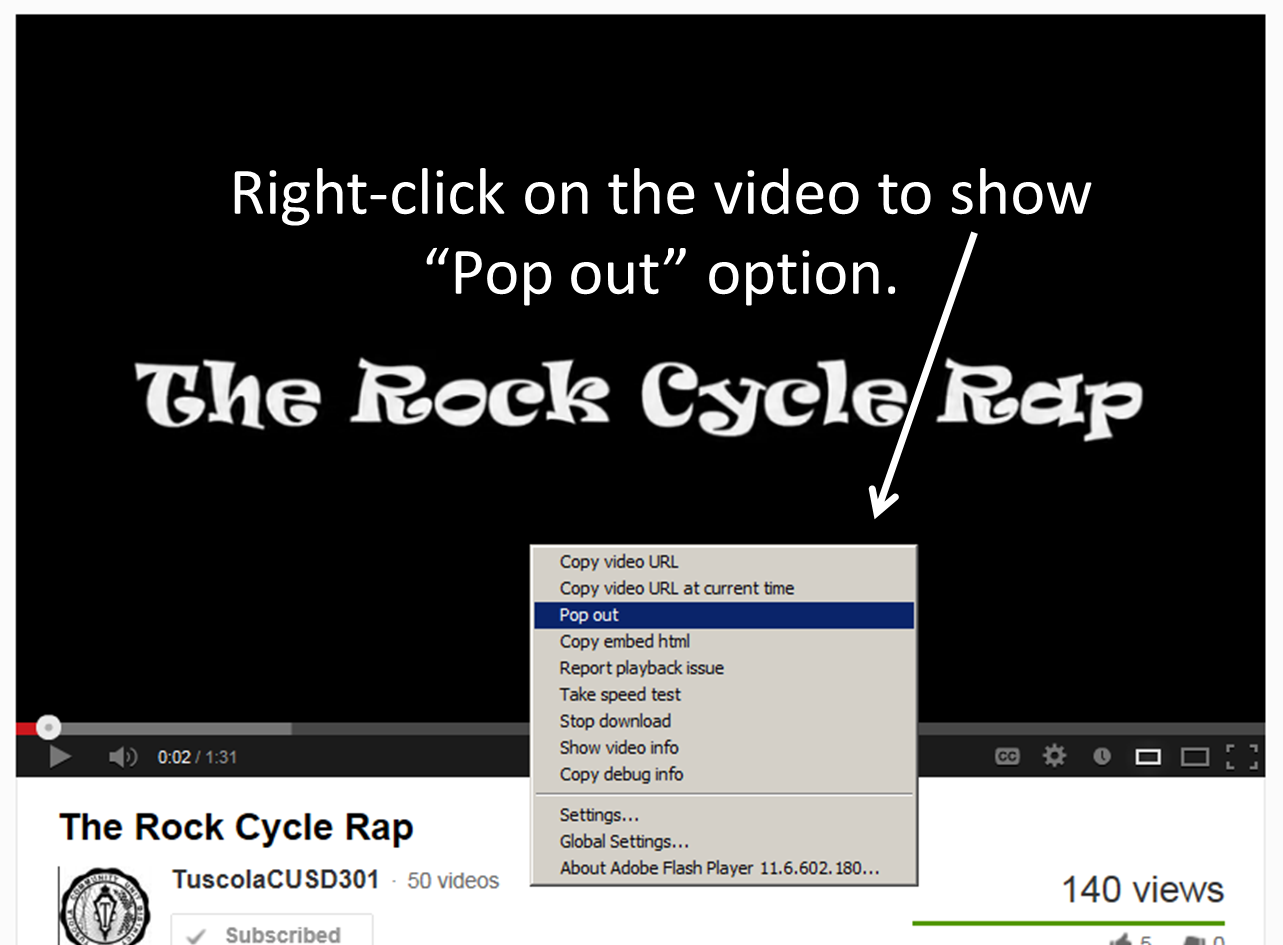
Finding the “Pop out” option for YouTube videos was easier when they were located on a “pull-down” or “drop” menu.
We thought, when that disappeared, that the “Pop out” option was eliminated, as well.

We are happy to discover that it is still an option, and it can be found with a simple “right click”.
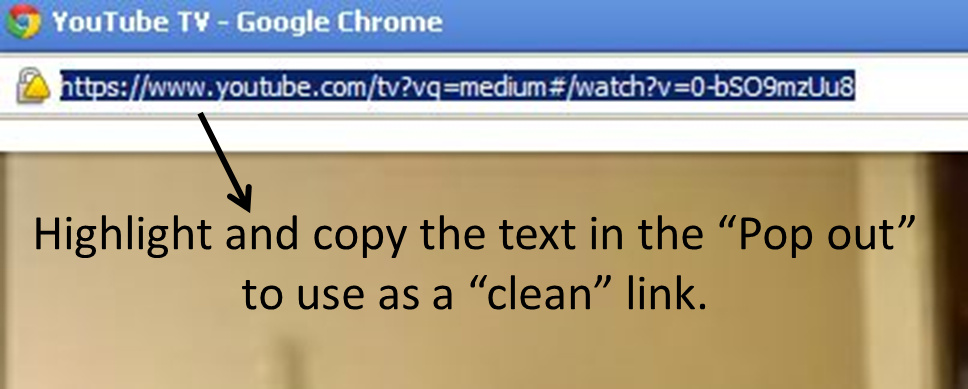
The “Pop out” link is our choice to share.
It protects our viewers from comments, suggested videos, and it provides a more pleasant viewing experience.

The two images below will guide you through the two simple steps.

PopOut_1

PopOut_2

This one was short hoping that you will take some time for yourself today.
In our neighborhood, the rain has been delayed and there is the promise of a sunny day with warm temperatures.
I have a fence to paint before the spring plants grow.
We hope you have some “outside time” in your future, as well…

Three Simple Shortcuts

tips

Sunday Sit, Sip, and “Sync” ~ 2-10-2013

On March 7, 2011, I shared “Taking the Shortcut”.
This week I was reminded of some other keystroke shortcuts that I use every single day.

control

  • While on the internet, hold down the “Ctrl Key” and press the “+= Key” (Ctrl+Plus),
    and your screen will enlarge as you zoom in.
  • Hold down the “Ctrl Key” and press the “_-Key” (Ctrl+Minus),
    and your screen will decrease in size as you zoom out.
  • (Return to normal view with “Ctrl Key” and “0 Key” (Ctrl+Zero).
  • Bonus: On a PC, hold down the “Windows Key” and “D”,
    and you will quickly navigate to the desktop.

I shared these with a group of teachers this week,
and they agreed that these “tricks” were worth a “Sunday Morning Post”.

Stay warm and dry today.
We hope your day has a nap or a good book tucked somewhere inside it.

A Cleaner Internet

tips

Sunday Sit, Sip, and “Sync” ~ 2-3-2013

On September 12, 2011, I wrote about “Safe Share TV”.
Since then, we have found another site that allows you to not only share YouTube videos safely, but to search them safely.

Filters to YouTube continue to be lifted in schools,
and for teachers, it requires us to be responsible and handle this site with care.

To keep our students safe from “trolls”, inappropriate site “suggestions”, and comments, we can use sites like “Safe Share TV” or A Cleaner Internet.

CleanerInternet2A Cleaner Internet”  is available as both an CleanerInternetiTunes app,
and an extension for Foxfire, Chrome, and Safari. Once added to your “plugins”, the extension will open YouTube in a “safe/clean” view without anything to distract your search and viewing.

I have added the extension to all of my browsers, and I have downloaded the app.
They all work great and I would recommend them to anyone who wishes a “protected view”.

As I finish writing this post, the sun is trying to shine through the clouds, and I see some patches of blue sky.

I hope everyone finds some “outside” time before the “game”,
followed by a great week!

Skype for Educators

tips

Sunday Sit, Sip, and “Sync” ~ 1-27-2013

Assignment: “What would you do if you found a pot of gold?”

During a “subbing” job last week, I handed out this paper to fifth graders to complete during their morning seat-work session.

Lots of discussion followed with suggestions ranging from “Justice Clothing” to “video games”.

Finally, someone asked me, “What would you buy, Mrs. Brachbill?”
My answer?
“Memories.”

Growing up as an “Army Brat” and attending schools all over the world,
I have always wanted to give my students the gift of experiencing different cultures, even within our own country.

Skype in the ClassroomWe have been hearing how teachers are doing just that with the use of Skype.
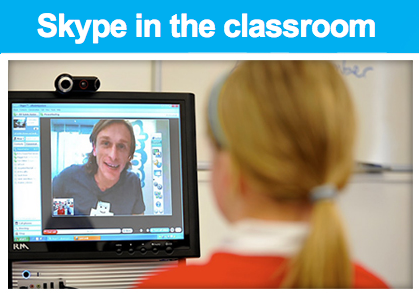
“Mystery Skypes” are becoming more and more popular, and now Skype has provided the resources to help you get started.

SkypeInTheClassroom2Skype in the Classroom” is a ‘free and easy way for teachers to open up their classrooms. Meet new people, talk to experts, share ideas and create amazing learning experiences with teachers from around the world.”

Here is a way for students to better understand the differences in the communities and lives of Newark, Albuquerque, and Minneapolis.

Skype in the Classroom” can be the beginning of “classroom connections” spanning all curriculum creating lasting memories.

Watch the video below to see “first-hand” how Skype can be used.
(Yes. It made me “tear up”.)
Then check out “Skype in the Classroom” to provide lasting memories for your students.

Password Fail?

tips

Sunday Sit, Sip, and “Sync” ~ 1-20-2013

On a public computer, 

I never, ever, ever give the browser permission to “Remember your password?”

At home?
Yes, I do.
Always.
It’s my personal computer, nobody else ever uses it,
and I simply have too many accounts and passwords to manage.

Both Shannon and I are always researching, experimenting, and opening up new accounts every single week. I wrote one post about my password dilemma on June 2011,
but I still wasn’t in a “Happy Place” regarding my own personal passwords.

Since then, though, I have found a solution that works for me.

My current password is the same,
uses symbols and upper-case letters,
and includes a unique abbreviation for the site that is attached to it.

For example, if my password was “Ging3rbr3@d”, I would add a “g” somewhere within the password for my Google account.

Works for me.

But then, you have those accounts that don’t allow characters.
(Really?)
Or they require a minimum of 13 letters.
(Sigh.)

AND…
I have a few accounts that are attached to old deleted/defunct email accounts.

Now it’s time to resort to some “know-how”.
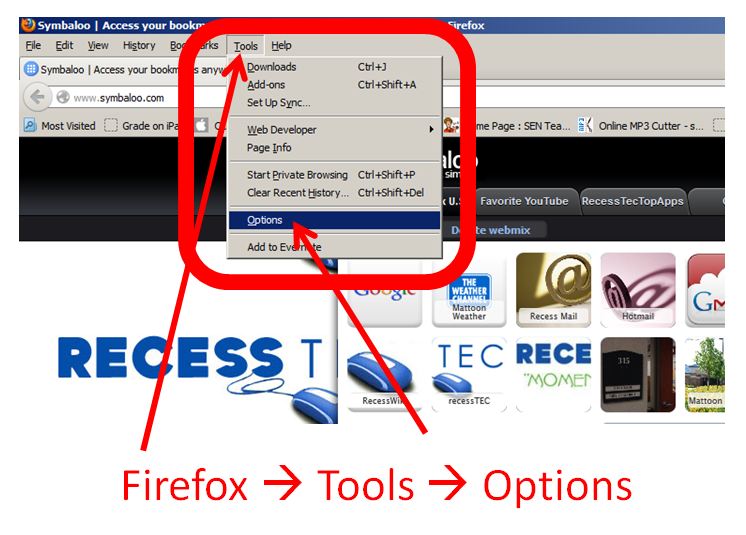
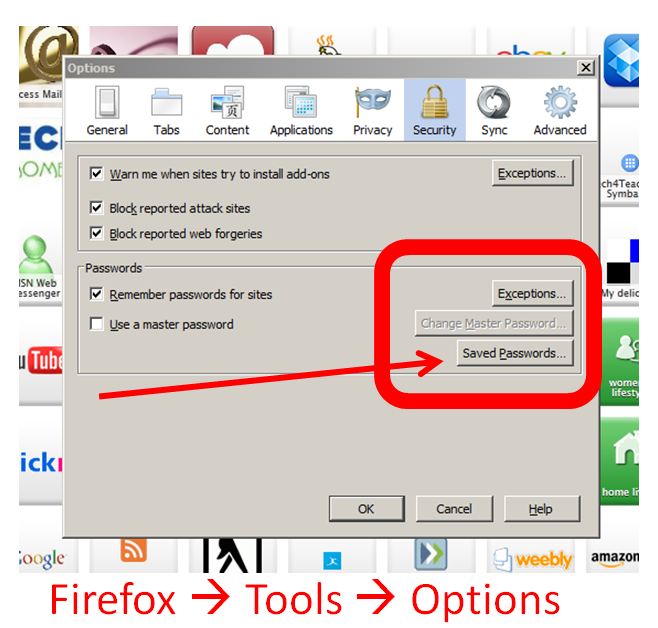
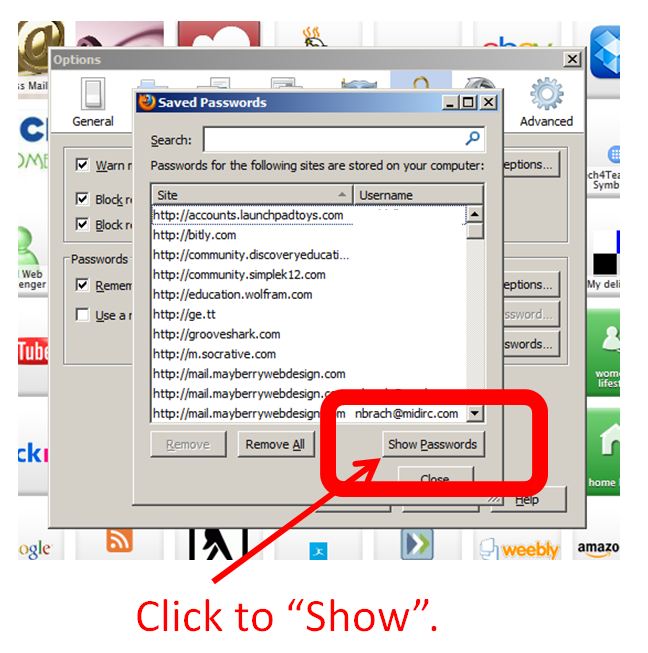
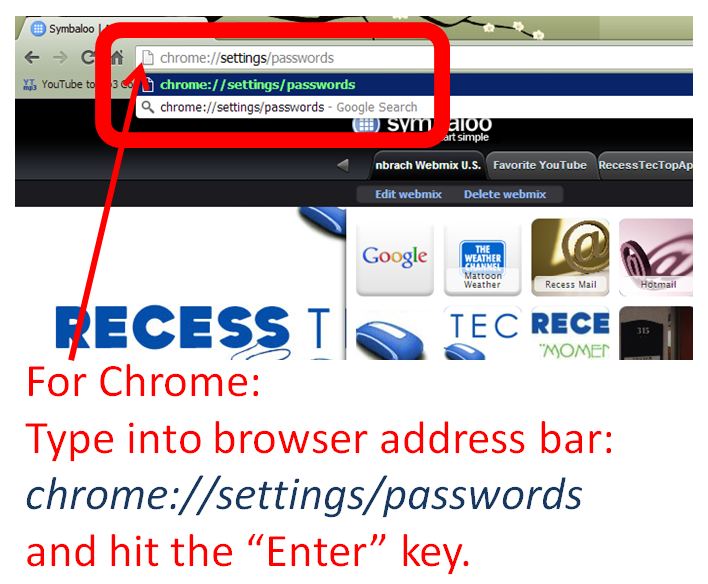
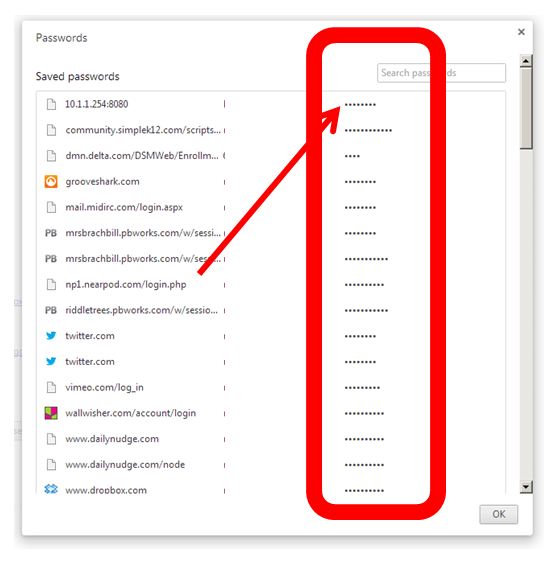
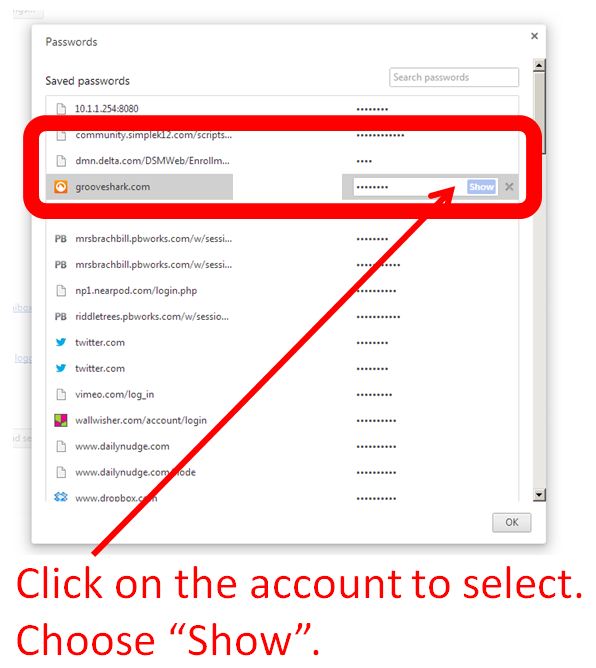
Here are some step-by-step instructions on how to “reclaim” passwords,
or to manage them on your school/shared/public computers.

When using the FireFox browser,
follow these steps:

Firefox Step 1


Firefox2

Firefox Step 3For Chrome,
this is what you need to do.Chrome Step 1Chrome Step 2Chrome Step 3

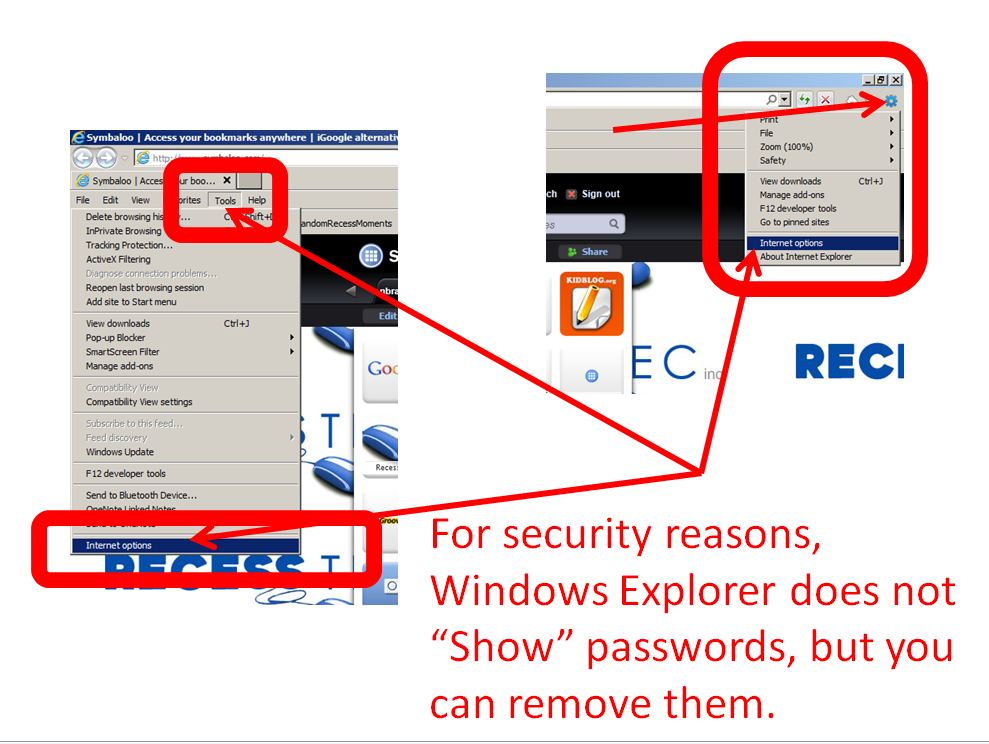
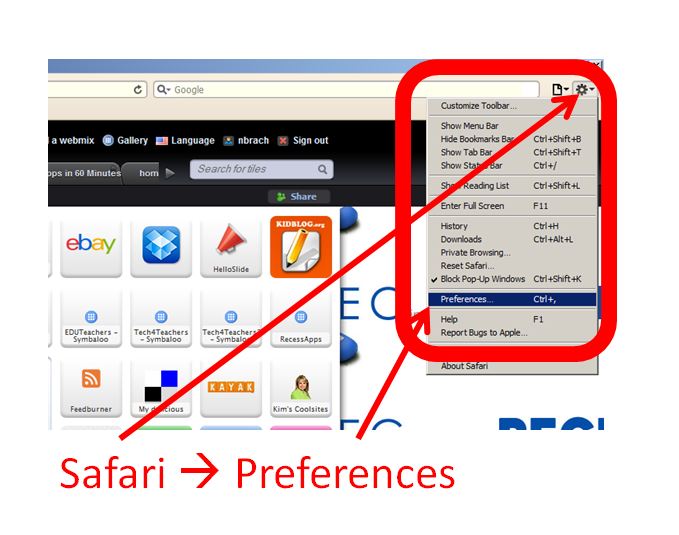
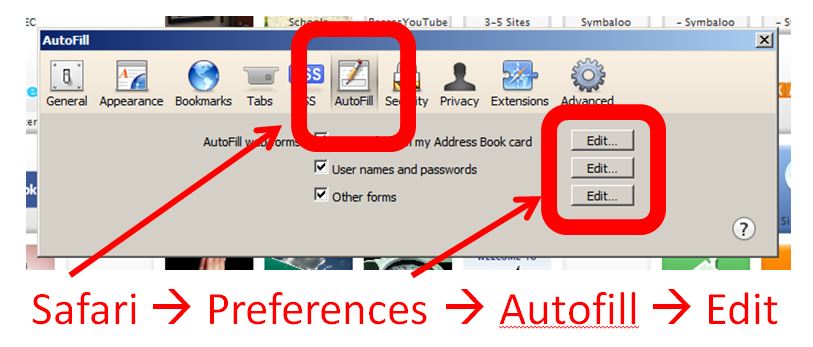
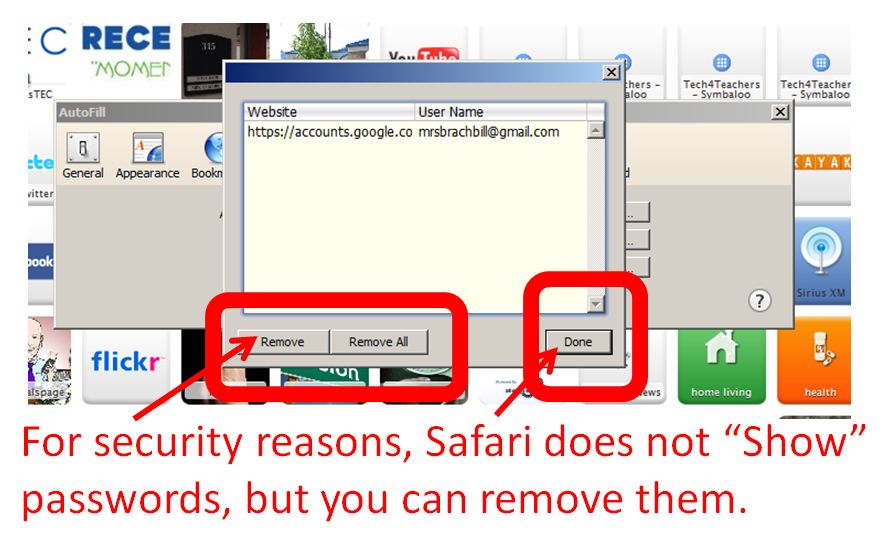
For Explorer and Safari?

For security reasons, neither “shows” passwords, but you are still able to remove them.
If you have forgotten passwords set in those browsers,
you’ll have to hit the “Forgot your password?” link and hope for the best.

For Explorer:Explorer Step 1Explorer Step 2

and for Safari:Safari Step 1Safari Step 22Safari Step 3

So, on this Sunday morning,
I hope we were able to teach you something.

(Who knew?)

Find some time for yourself or to share with those you love,
read a book, take a walk and most of all,
have a great day and a great week!

Google Calendar

tips

Sunday Sit, Sip, and “Sync” ~ 1-6-2013

Face Book + New Year’s Day = “Filling Out 2013 Calendar” Updates.

I remember doing that:
A new gift calendar for the year.
A hook in the kitchen.
Stickers or red circles on important dates.

Enter…
Google CalendarGoogle Calendar

  • No more forgotten birthdays.
    (Really!!)
  • Reminders a month, a week, a day, and hours before the “event”, if needed.
  • Always a “click” away.
       “Does Friday, March 15th work for you?”
       “Let me check,”
    …as I take out my phone.

Shannon and I began using Google Calendar when Recess TEC was in its infant stage taking tiny baby steps.

We needed to coordinate any free days we had to schedule workdays and workshops.

With family and teaching, those days were hard to find,
and we did not want to have to schedule a “callback” to check with each other on available dates.

So, we each set up a personal Google calendar and shared them.
The only commitment we had was to always enter our events, appointments, and important dates.

To help you get started,

Is it raining outside?
Too cold for a walk?
Don’t want to grade papers or make lesson plans just quite yet?

Now you have a good reason to procrastinate.
Your life just got a little easier and a little more organized!

See Clearly…

tips

Sunday Sit, Sip, and “Sync” ~ 12-30-2012

It’s no secret that I’m easily distracted.

It is only through self-awareness, trial-and-error, and many, many years that I have found ways to work around it.

(I will stop at two “ many’s”. Any more will be too many.)

Keeping things simple, organized, and working efficiently brings me comfort and quiets my mind.

I have known since I took my very first job that the early hours of the morning is where I am most productive.

It is then that I find the fewest external distractions and that the world is quieter for me.

By the end of the day, I have reached the point of diminishing return,
and the output is not worth the effort.

Evernote” has provided me with a quick, simple, and practical way to organize the ramblings of my mind and my internet life.

But “Evernote” is another post.

This morning I want to introduce you to a small member of the “Evernote Family”.

Clearly

Clearly”.

It is “Clearly” that gives me back the day’s end as a time to read and research online.

This is a free browser add-on I use in Chrome or Firefox that eliminates advertisements, banners, and other “online clutter” to help me focus on what I read.

(You know…
those blogs that have the snow flying across my reading panel?
Really?)

As teachers, we know what happens with the first snow fall of the winter, right?

It is then that I just take time out of our day to gather my students around the windows to watch the wonder of falling/blowing/drifting/fluttering snowflakes.
It still fills me with awe.
How can I keep the awesomeness from my students?

But then,
ten minutes pass,
and it’s time to return to the reality of the classroom.

That’s what “Clearly” does for my online reading and research.

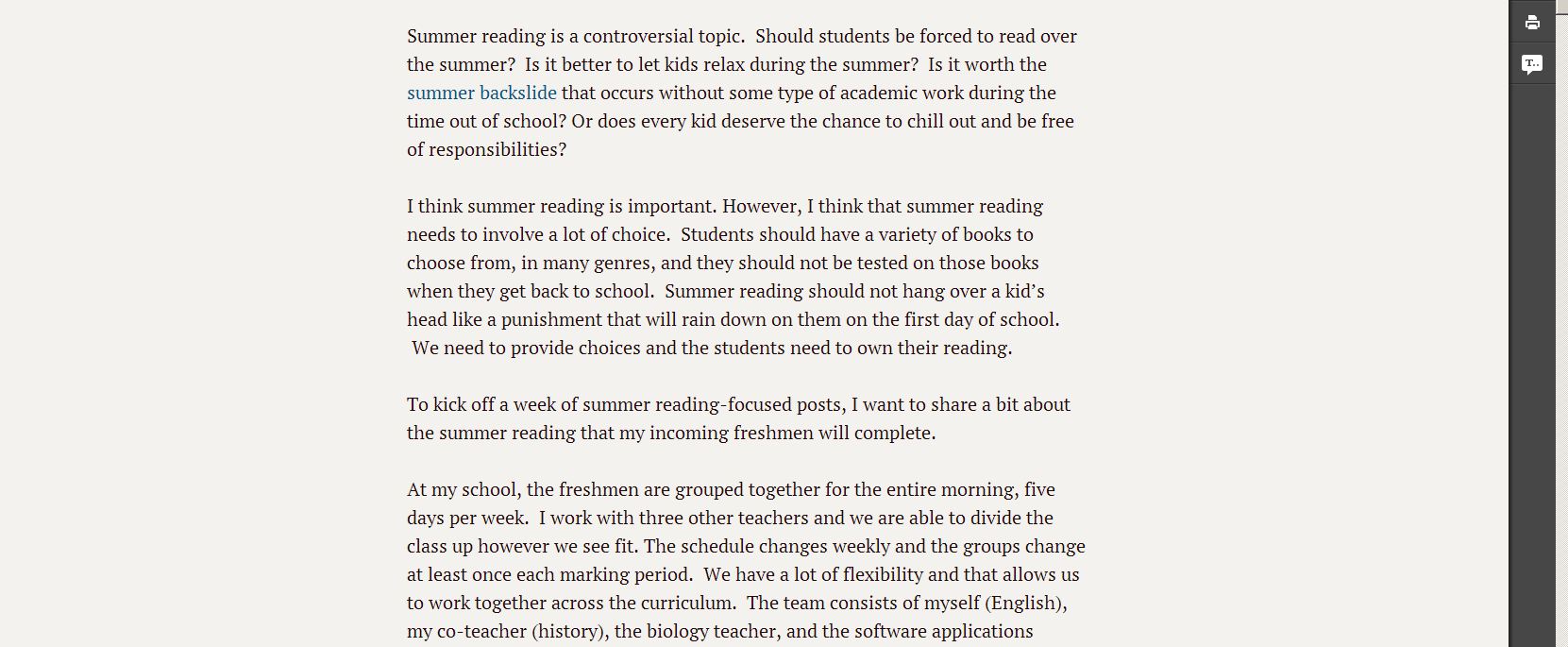
With a click of the little “Reading Lamp” in the upper-right corner of my browser,
it closes the window, turns on the “reading light”, and puts on my “reading cheaters”.

BeforeClearly

Before “Clearly”

AfterClearly

After “Clearly”

Check it out.

And let “Clearly” help you focus, too.

Last Minute…

classroom management News tips

Sunday Sit, Sip, and “Sync” ~ 12-16-2012

Okay.

I admit it.

I enjoy a trip to Staples and OfficeMax more than Macy’s.

OCD

Since retirement, I have been sifting through boxes, drawers, cupboards, shelves, and closets.

“A place for everything, and everything in its place.”

My main goal is to keep only the essentials, 

and there has been a great deal of donating, shredding, and throwing away.

Those things that I keep, though, need to find a place in a house built in the 1880’s and,
quite frankly,
it is very short on storage space.

A set of empty shelves now needs some containers to store some photography equipment, and a rainy day shopping excursion online found me “in the Container Store”.

The-Container-Store

So, since this weekly tip needs to deal with technology somehow,
enjoy!

Cord Control in the Office

Stocking Stuffers for eReaders

One more thing:

There is a discount program available for the “Organized Teacher”.

But hurry!

The program ends on December 31, 2012.