Elect to Elect

tips

Sunday Sit, Sip, and “Sync” ~ 11-4-2012

It’s finally here!

Election Week!

And I know we are all ready to have the phone calls, the advertisements, the yard signs, and the social media posts behind us.

With the entire negative, we can’t forget the wonderful privilege we enjoy living in a democracy where we have the freedom to choose our representatives.

I am often reminded of that when talking to my mother who experienced life as a very young girl in Germany during WWII.

She has shared countless examples of what their lives were like under the dictatorship of the Third Reich. She could hardly comprehend the freedoms she would have as she stood on the deck of the ship watching the Statue of Liberty come into view as a young war-bride in 1948. She “served” next to my father all through his long career as a soldier in the U.S. Army, and she loves being an American. She has already cast her vote.

As a teacher, I always vote early in the morning,
and wear my “I Voted” sticker to be that role model to my students.

And so it goes this week.

As fifth grade teachers, we often shared units of study, and for several years, I was given the task of explaining the “Electoral College”. Many of us struggle with this concept, and my lessons often included interactive pieces on the SMARTBoard paired with videos. I want to share two videos that I have used in the past.

We hope these help you, and more importantly we hope that they help your students have a better understanding of how our government works.

The last thing we can do is to encourage all of our friends to exercise the freedom that we should never take for granted.

Please vote.

Collaborating with Stixy

classroom management tips writing

Sunday Sit, Sip, and “Sync” ~ 10-21-2012

We’ve talked about “Wall Wisher” and “Linoit”,

and now we’re here to present yet another “wall” that is very useful for collaborating and sharing.

Stixy.com has even more options than what we’ve described in the other “walls”,

and we love the ease that it allows in sharing.

To quickly sum up your “Stixy Experience”,
I’ll just quote from the “Welcome Email” I received after making a free account.


From Stixy:

“Here are a few examples on how you may choose to use Stixy.


  • Keep track of your family’s schedule.
  • Collaborate and share in projects at work.
  • Gather online research; images, links, screenshots etc.
  • Organize an upcoming holiday with your friends.
  • Share photos from your last bike trip.

But it is really up to you as to how you want to use Stixy.”

Only you, your needs and imagination, set the limits.”

Once again, “FREE”.
Yup.
We love “free”.

Visit our "wall" and let us know what you think!

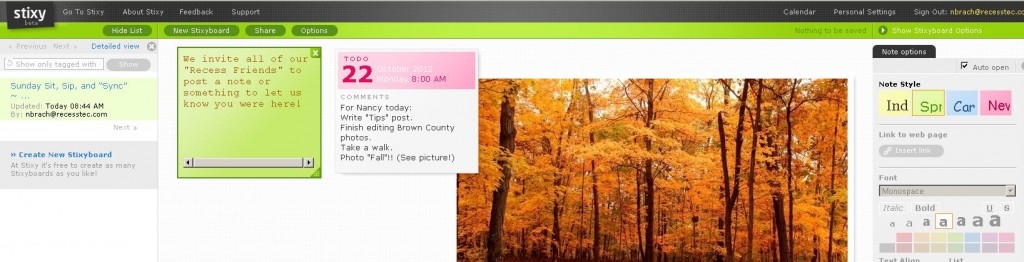
I’ve created a “Stixy Wall” this morning,
and we invite you to visit it and leave us a “note” in the form of a photo, a short “to-do list” of what you want to accomplish today, or even a note suggesting how you might use “Stixy” in your life.

Uninvite the Uninvited

tips

Sunday Sit, Sip, and “Sync” ~ 10-7-2012

Summer means “Tech Camp”, and we hold these 3-4 day workshops every year.

For our attendees that do not have their own laptop,
we own, for their use, 15 netbooks with all of the necessary programs.

Once or twice a year, those little computers need updated, cleaned, and new programs installed.

With the random use of those computers, “uninvited guests” often appear on them.

I’m talking about those rogue toolbars that are hopelessly hard to remove.

We are “Google Girls”, but we do allow Bing to join in the games.

Not so much search engines such as “Babylon”.

Several years ago, one of our computers was plagued with a search engine,
and its removal was impossible. Every forum and “help” article that I read could not provide a cure, informing me that it was very difficult to “fix”.

Finally, our virus program caught up with it,
and we were able to remove it.

Enter “The Bablylon Toolbar”.

After a little searching on forums, I actually found a link to Babylon, itself,
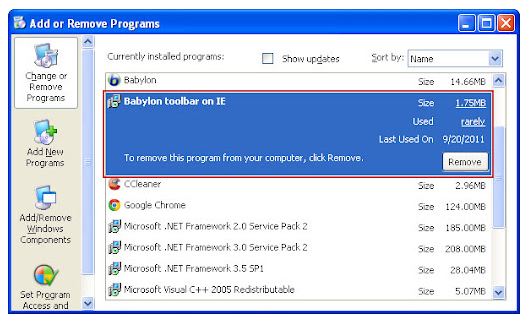
and here they described the process to remove their toolbar from Chrome, Firefox, and Explorer toolbars. 

Babylon Support provides step-by-step instructions that are easy to follow, and I had it removed from our little netbook within ten minutes.

If Babylon or any other toolbar, has appeared as an unwelcome guest on your computer, try these steps to remove it.

Now, it is time for far more important business.
I can see that the sky is getting light and the sun is shining.
Brown County, Indiana is in my future,
along with some serious outside time.
We hope you find some of that time, as well…

Snip, Snip

Blog tips

Sunday Sit, Sip, and “Sync” ~ 9-30-2012

There are lots of ways Shannon and I “capture our screens”,
but the easiest way is…
well, the easiest.

I had forgotten this simple tool until my son, Brian, pointed it out to me.

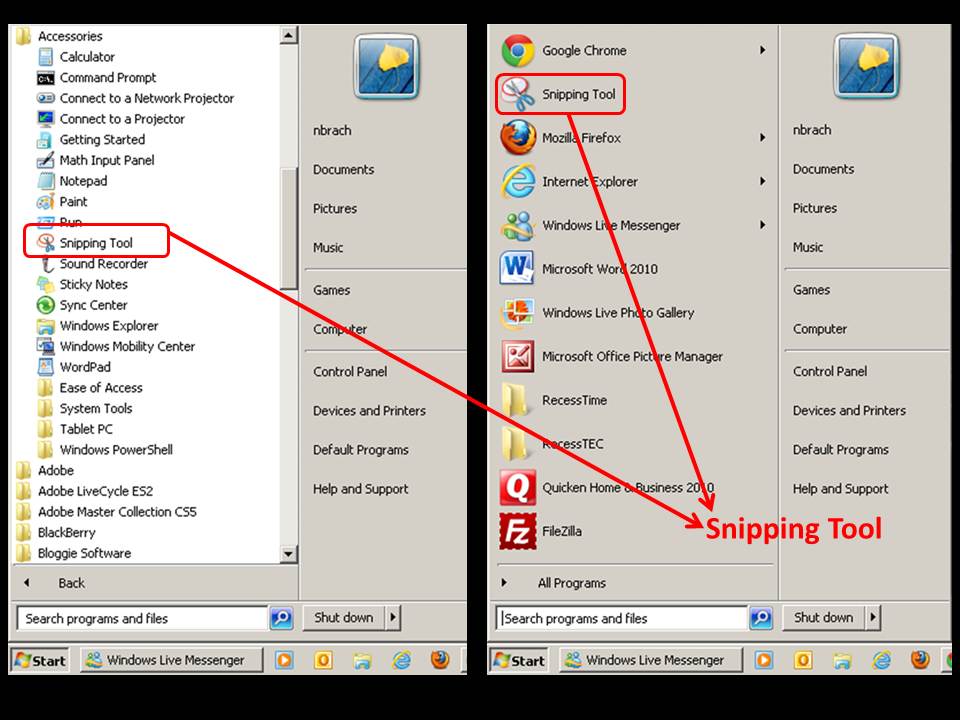
Right inside the accessories folder on your computer,
you will find the “Snipping Tool”.

If you just drag it out to your “Start Menu”,
it will be there whenever you need a quick capture.


Best of all, you can save the “snip” as a jpeg, png, gif, or html file.

The “Snipping Tool” offers other options that include highlighting, pen choices, an eraser, and sending the capture as an attachment.

This has been my “go-to” capture program over everything else because it doesn’t require another program to open, it’s accessible, and it’s quick.

So, click and drag that little tool out so it’s easy to use,
finish your morning drink of choice,
and we hope you have saved some time for yourself to enjoy this beautiful fall day…

Get Organized!

classroom management News tips

Sunday Sit, Sip, and “Sync” ~ 9-16-2012

I know.

It’s a little late.
School has started and organization feels like it has slipped through your fingers.

If you are anything like me,
I knew where everything was,
but it was often  buried under a stack of papers/things on my desk.

Progress reports should be going out soon.
Some of you have “Open House” behind you.

Maybe with a chance to catch your breath,
you might find one or two things in this article that will help you feel a little more “together”.

Dana Truby and Megan Kaesshaefer have contributed a post titled:
100 Classroom Organizing Tips” for Scholastic.com.

Some of them are “techie”, so I invite you to search through all 100.

Good ideas submitted by real teachers with “real good” ideas!

After your morning coffee or tea, make sure to take some time for you and your family.
We hope that includes time outside and some good, fresh air!


Prompting Needed

SMARTBoard tips writing

Sunday Sit, Sip, and “Sync” ~ 9-2-2012

Writing. 

For some of our students, this is difficult at best.

“How long does it have to be?”
“Does this count for a grade?”
“How many words do I have to write?”
“Does this have to be in cursive?”
“Does spelling count?”

In my classroom, journaling often began with a struggle,
but it was the one writing activity where I could see student growth.

By the end of the year, I could hear their voices,
but it was only as I read what they had written,
because while they were writing,
the room was completely silent.

Sometimes Shannon and I would provide assigned prompt suggestions,
and if these did not fit their needs or feed their imagination,
we would include suggestions from which they could choose.

I saw this “Imagination Prompt Generator” tweeted last week,
and after looking at it,
I knew it was something I would use.

The only problem was the advertising and “peripheral” distractions around the outside edge.

With that, I thought of a perfect example of how to use the new “SMARTBoard Internet Browser” element that was added in Notebook 11.

By adding a “frame” to cover the distractions on the webpage,
students can focus on the prompt and the task.

Feel free to download this Notebook file I have attached,
and tweak and change it as you wish.

Start out your first hour of the new week with a ready-made slide to bring on the “quiet”.

Stay dry,
and rest.
We love the 3-day weekend anyway we can get it!

Take the Shortcut

classroom management tips

Sunday Sit, Sip, and “Sync” ~ 8-26-2012

While helping as a “Tech Volunteer” in one of our local school districts,
the teachers sign up for a time slot, and I show up.

Their requests vary from SMARTBoard support to loading CD games onto their computers.

The biggest surprise was how many teachers wanted a desktop shortcut for a site, such as their district web-mail.
Sometimes we just don’t know what our teachers don’t know.

It occurred to me that this should be a tip,
and a way for many to save time and steps.
They have many of their management sites linked from their school website,
but a shortcut icon saves them time that they would have to spend going through links or their “favorites” to get to those sites.

So, below is a video to help you with that process.

We hope your year has begun on a positive note, and that your weekend has given you some time to stop, look, listen, and if you have any time at all, 

the “shortcut” you find today looks like this… 


Roominate

tips

Sunday Sit, Sip, and “Sync” ~ 8-19-2012

Once upon a time there were three girls.

Smart girls.

Very smart girls. 

And they wanted to play with “smart toys”. 

Like the toys our brothers had.

And our best friends’ brothers.

My sister described one scene she saw at this year’s Bay Area Maker Faire as follows:

A big, bright, pink tent with pink and purple helium balloons floating above it.

Inside were lots of girls.

Little girls.

Big girls.

Sitting on a huge carpet designing, building, assembling, and totally focused on…

engineering.

Many times I have heard my sister
(Intel is her “Boss”)
lament over the lack of women in the field of engineering.
She has always said that if smart girls went into engineering,
they would be hired right out of college.

Here is a company founded by three such girls.

Roominate.

Do yourself a favor and check it out!

My Fitness Pal

app iPad tips

Sunday Sit, Sip, and “Sync” ~ 7-29-2012

It seemed right to feature this tip this week.
It’s the week of the Olympics!

My kids have always been involved in athletics.
As my youngest joined her older siblings,
Shannon fell in step right behind them.
She tried many.
Volleyball, basketball, softball, track, and finally,
cross-country.

(Did I miss any, Shannon?)

Cross-country seemed to be her “best-fit”, and was the foundation for her adult life as she began thinking more about fitness and nutrition,
and less about weight.

Together, Shannon and I have discovered that the best “diet” is exercise.

Add to that equation good, healthy food, and we work hard to stay healthy.
(Well, Shannon works a LOT harder.
She is a “Rock Star” of cooking and eating healthy.)

Over time, though, we sometimes lose ground.
The weather might keep us inside, limiting our exercise options.
Deadlines and commitments require that we sit at computers and devices working long hours.

Before you know it,
the numbers on our bathroom scales begin to creep up,
and we just don’t feel good.

This spring Shannon took some active steps to reclaim her health and fitness,
and one important piece of that process is an app that is supported by a website.

My  Fitness Pal is a website and an app available on the iPad, Android devices, and even the Blackberry and Windows smartphones.

It is very easy to use, and FREE.

You need to register for an account, enter your personal data to establish goals and expectations, and you are on your way.

The more you use it, the easier it is to log what you eat and your exercise.
The food database contains over a million food items that can be searched and entered.
Once you enter a food item,
it is easy to retrieve and record the data attached to it.

It is literally a “click” to check a box.

Support is also there when you suggest and “friend” others using this app. When I saw how well Shannon was doing and when she explained how it works, I logged on and made an account, along with several family members.

Why is this our “Tech Tip of the Week”?

It has also become my personal “teaching tool”.

I have learned so much about nutrition and what I can and should eat.
For example, I can pile fresh strawberries and blueberries onto my cereal in the morning for 80 calories while eating 7 (SEVEN) Tostitos is 140 calories! 140!!

For only SEVEN!?

And a fruit-filled breakfast is a lot prettier than some pasty-white chips made out of white corn.
Just sayin’.

Each time I take a walk or lift a few weights,
it’s like “buying” calories.

Tomorrow is Monday,
so whether or not you need to lose or gain some pounds,
Shannon and I encourage you to head over to My  Fitness Pal
and start the week working toward a healthier you.

Maybe it’s time to find your greatness…

Wall Wisher: New and Improved

tips

Sunday Sit, Sip, and “Sync” ~ 7-22-2012

Last week we talked about “Linoit”, and
I promised to give our “old friend”, “Wall Wisher” another look and a review.

This morning I headed over to my “Wall Wisher” link,
and was surprised to see that “Wall Wisher” has a whole new look.
Each new version of “Wall Wisher” is given a name, and this one,

Senbazuru, is the Japanese word for crane.

An image of an origami crane is the new symbol for “Wall Wisher”,
and reflects the creative properties of this site.

The new home page has “wall examples” of different ways to utilize their services,
and I found several new ideas.

One idea was to use a wall as a Christmas Gift List reminder,
complete with images of the gift idea.

In one of our workshops,
we talked about using YouTube videos in our curriculum,
and after demonstrating “Wall Wisher”,
we made a “wall” for our participants as a resource to post and share their favorite videos.

This idea is on the “Wall Wisher” homepage, as well.

One of our favorite features of “Wall Wisher” is that students do not need an account to post,
but only a link to the wall.

Another “plus” is that, while setting up a wall,
teachers have the option of approving every post before it is visible,
making the wall “public” or “private”,
and finally allowing anyone to post,
or to limit the posts only to the “owner” of the wall.

Wall Wisher” on the iPad?
You betcha!
While, for now, there is no app for “Wall Wisher”,
I did open up the site on my iPad,
and it was very easy to make a new wall, and to manipulate the posts on Safari.
You can read more about iPad support on their May 3rd blog post.

For more information,
we encourage you to visit “Graffiti ~ The Wall Wisher Blog”,

where you’ll learn more about the updates and changes made to each “generation” of “Wall Wisher”.

So, I’m excited about the possibilities that “Wall Wisher” has brought to the Technology Table,
and hope this gives you some new, fresh ideas for using it as we move closer and closer to the new school year!
Have fun!