My Fitness Pal

app iPad tips

Sunday Sit, Sip, and “Sync” ~ 7-29-2012

It seemed right to feature this tip this week.
It’s the week of the Olympics!

My kids have always been involved in athletics.
As my youngest joined her older siblings,
Shannon fell in step right behind them.
She tried many.
Volleyball, basketball, softball, track, and finally,
cross-country.

(Did I miss any, Shannon?)

Cross-country seemed to be her “best-fit”, and was the foundation for her adult life as she began thinking more about fitness and nutrition,
and less about weight.

Together, Shannon and I have discovered that the best “diet” is exercise.

Add to that equation good, healthy food, and we work hard to stay healthy.
(Well, Shannon works a LOT harder.
She is a “Rock Star” of cooking and eating healthy.)

Over time, though, we sometimes lose ground.
The weather might keep us inside, limiting our exercise options.
Deadlines and commitments require that we sit at computers and devices working long hours.

Before you know it,
the numbers on our bathroom scales begin to creep up,
and we just don’t feel good.

This spring Shannon took some active steps to reclaim her health and fitness,
and one important piece of that process is an app that is supported by a website.

My  Fitness Pal is a website and an app available on the iPad, Android devices, and even the Blackberry and Windows smartphones.

It is very easy to use, and FREE.

You need to register for an account, enter your personal data to establish goals and expectations, and you are on your way.

The more you use it, the easier it is to log what you eat and your exercise.
The food database contains over a million food items that can be searched and entered.
Once you enter a food item,
it is easy to retrieve and record the data attached to it.

It is literally a “click” to check a box.

Support is also there when you suggest and “friend” others using this app. When I saw how well Shannon was doing and when she explained how it works, I logged on and made an account, along with several family members.

Why is this our “Tech Tip of the Week”?

It has also become my personal “teaching tool”.

I have learned so much about nutrition and what I can and should eat.
For example, I can pile fresh strawberries and blueberries onto my cereal in the morning for 80 calories while eating 7 (SEVEN) Tostitos is 140 calories! 140!!

For only SEVEN!?

And a fruit-filled breakfast is a lot prettier than some pasty-white chips made out of white corn.
Just sayin’.

Each time I take a walk or lift a few weights,
it’s like “buying” calories.

Tomorrow is Monday,
so whether or not you need to lose or gain some pounds,
Shannon and I encourage you to head over to My  Fitness Pal
and start the week working toward a healthier you.

Maybe it’s time to find your greatness…

Wall Wisher: New and Improved

tips

Sunday Sit, Sip, and “Sync” ~ 7-22-2012

Last week we talked about “Linoit”, and
I promised to give our “old friend”, “Wall Wisher” another look and a review.

This morning I headed over to my “Wall Wisher” link,
and was surprised to see that “Wall Wisher” has a whole new look.
Each new version of “Wall Wisher” is given a name, and this one,

Senbazuru, is the Japanese word for crane.

An image of an origami crane is the new symbol for “Wall Wisher”,
and reflects the creative properties of this site.

The new home page has “wall examples” of different ways to utilize their services,
and I found several new ideas.

One idea was to use a wall as a Christmas Gift List reminder,
complete with images of the gift idea.

In one of our workshops,
we talked about using YouTube videos in our curriculum,
and after demonstrating “Wall Wisher”,
we made a “wall” for our participants as a resource to post and share their favorite videos.

This idea is on the “Wall Wisher” homepage, as well.

One of our favorite features of “Wall Wisher” is that students do not need an account to post,
but only a link to the wall.

Another “plus” is that, while setting up a wall,
teachers have the option of approving every post before it is visible,
making the wall “public” or “private”,
and finally allowing anyone to post,
or to limit the posts only to the “owner” of the wall.

Wall Wisher” on the iPad?
You betcha!
While, for now, there is no app for “Wall Wisher”,
I did open up the site on my iPad,
and it was very easy to make a new wall, and to manipulate the posts on Safari.
You can read more about iPad support on their May 3rd blog post.

For more information,
we encourage you to visit “Graffiti ~ The Wall Wisher Blog”,

where you’ll learn more about the updates and changes made to each “generation” of “Wall Wisher”.

So, I’m excited about the possibilities that “Wall Wisher” has brought to the Technology Table,
and hope this gives you some new, fresh ideas for using it as we move closer and closer to the new school year!
Have fun!

Not Just Another Sticky Note

classroom management tips

Sunday Sit, Sip, and “Sync” ~ 7-15-2012

While researching another “Web Tool”,
I stumbled upon “Linoit”.

We’ve used other online “Sticky Note” sites,
such as “Wallwisher”,
but I was impressed with some of the features this site provides.

It is free, and after setting up an account,
you can log in and begin making your “boards”.

And yes, there’s an app for that.

(Free!)

Beth Breiner has put together four videos that outline the features of Linoit,
and uploaded them to YouTube.
She does an excellent job of describing the features,
and how this tool can be used in your classroom.

Take a look at the features and uses of Linoit,
and this might launch some ideas and ways you might want to collaborate in your classroom.

Next week I’ll talk about “Wallwisher”,
its features, and how it differs from Linoit.

Have a great Sunday and a great week,
and be sure to make some memories.

Good-bye iGoogle…

tips

Sunday Sit, Sip, and “Sync” ~ 7-8-2012

It’s official.

iGoogle will be retired on November 1st, 2013,
and one of my “homepages” will be gone.

In 16 months, I’ll say “Good-bye” to iGoogle.

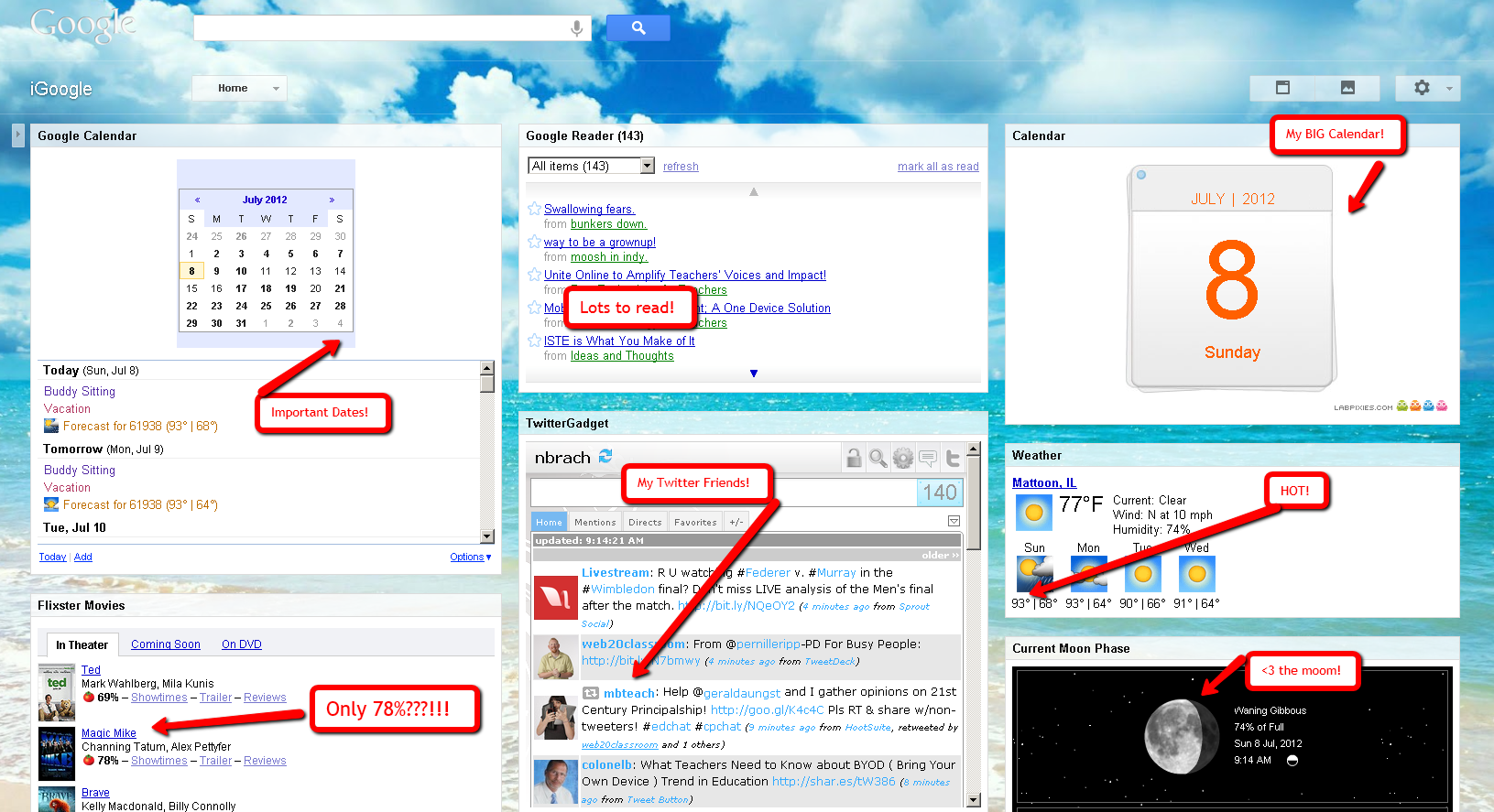
Good-bye to All of my iGoogle Apps:

  • My “Moon Phases App”,
  • My BIG “Date App”,
  • “Gmail App”
  • “Twitter App”
  • “To-do App”
  • “Google Calendar App”,
  • “Facebook App”,
  • “Now Showing Flixter App”,
  • “Swimming Koi App”,
  • AND my “Beach Theme”.

(Make sure you click on that image to get a CLOSE view!)

I have plenty of time to prepare and, in fact, have already started.

 Say “Hello” to Chrome.

“If Chrome was a man
…I would marry him.”

Well, not exactly.

At least not me.

It was something I heard at EdCamp-Chicago from an IT person at a high school where they not only use Chrome as their “go-to” browser, but have adopted 1-to-1 Chromebooks for their students and staff.

This piqued my interest,
and after I returned from Chicago,
I downloaded Chrome and began looking at it carefully.

And played.

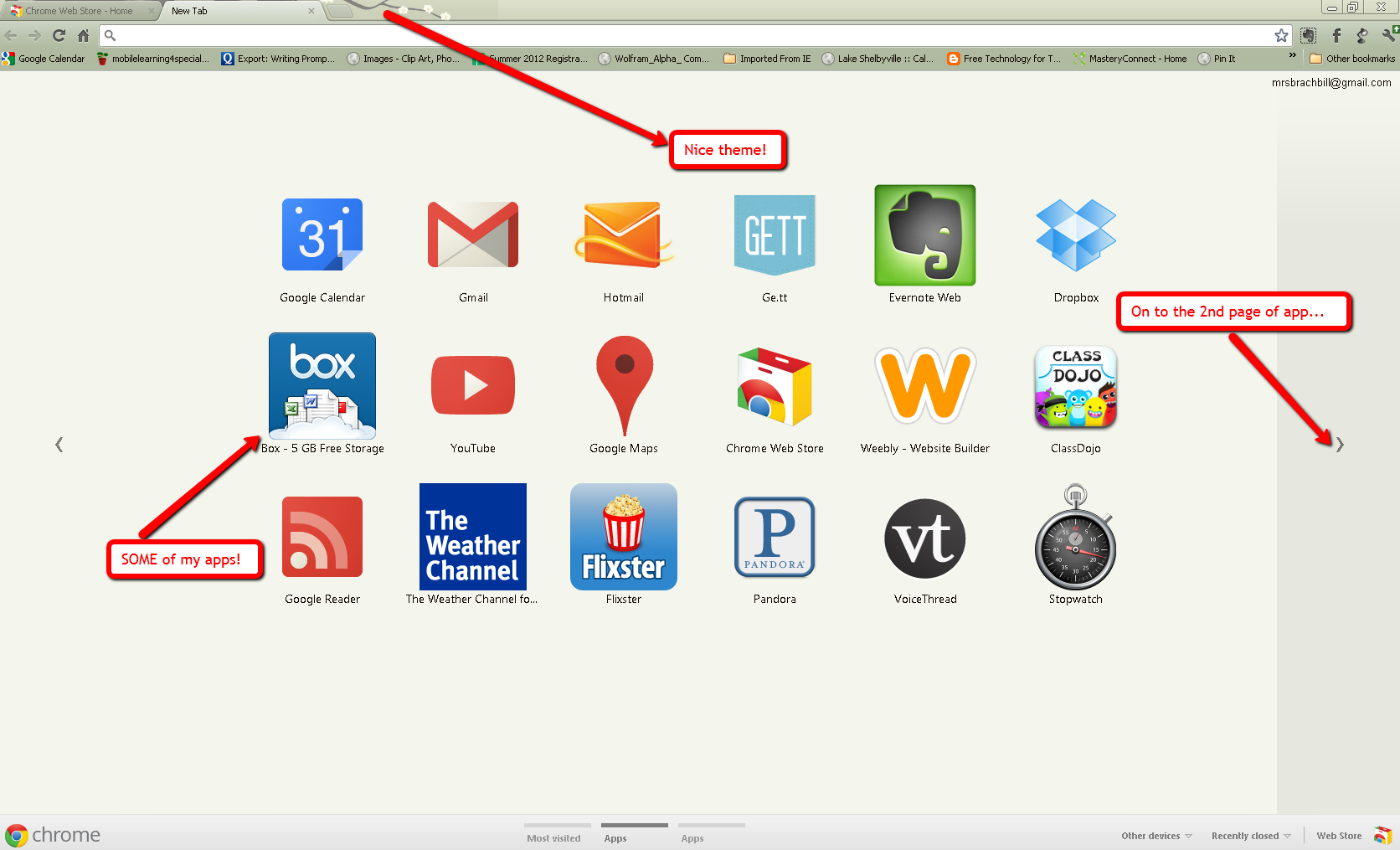
With each new tab, my “homepage” was designed.

I visited the “Chrome Store” and chose the apps that I most often use.

And I shopped the themes.

Chrome isn’t my only browser,
not at all!

But when I need something a little more “personalized”,
it’s the one I choose.

If you have an iGoogle homepage,
make sure you’re ready when it says, “Good-bye”…


SayHi

classroom management tips

Sunday Sit, Sip, and “Sync” ~ 6-10-2012

As I tweak and change the iPad presentations, I’m also thinking about the teachers we’ll be training this week in Palatine, Illinois.

We will be working in a school district where twenty different languages are spoken within the large ESL student population.

Going through the list of apps that we will be introducing to them, I found an app that wasn’t on my device, and one that was new to me.

SayHi will be their “go-to” translator app.

$.99 cents later, and I had an app that I love, love, love!

I wasn’t sure how accurate it was, since it defaults to Spanish, so I changed the settings to German, which is my mother’s language and the language I heard and spoke often when I was young.

Every single phrase I spoke was translated “dead on”!

Then I took the same German phrase and spoke into the device for translation back into English and it scored 100% again.
AGAIN!

I wish I knew about this app two months ago when our new student from Mexico enrolled into our school unable to speak any English at all!

Visit their website, and download this app now!
Don’t wait until you need it!

Some of the features are:

  • 33 languages and dialects.
  • Copy to insert into other writing apps.
  • Choose female/male voice.
  • Slow down the playback for clarification.
  • “Favorite” different phrases you might find yourself needing often.
  • The ability to edit your translations with a keyboard.

If you aren’t convinced by all of the features and the low price of $.99,
then surely this Customer Review will “seal-the-deal”:

“I just got married to a Mexican and trying to have conversations was really hard. This app helps tremendously! If you need to learn or have something translate for you. This app is awesome!”

How can you not <3 an app that supports wedded bliss…?!

HelloSlide

News tips

Sunday Sit, Sip, and “Sync” ~ 6-3-2012

…provides a quick and easy way to add voice to presentations.

HelloSlide.com is free and easy.

This site supports both Keynote and PowerPoint presentations, as long as they are uploaded in Pdf format.

The voice is added to your slide, and while it is “robotic”, the nice feature is that it can be quickly edited through typing, while recorded voice editing must be done with “retakes”. The other advantage to the “text-to-speech” option is the ability to collaborate. With student presentations, they can still work in groups and each member can provide ‘input”.

A paid membership will provide additional features that include translations into twenty other languages. An “educational account” reduces the cost by 50% and would be worth considering for a school with a large ESL population.

Below is a “quick presentation” I made, and found that the site is very easy and intuitive to manipulate.

The best part is that, even though the voice is “robotic”, it does seem to pause and add inflections in just the right places. Plus, the “English” English added a “bit o’ class” to our personal invitation. I bet you didn’t even know that we had an English “Roadie”.

And yes, you can “share” your presentations with a link or “embed” code, or on Facebook, Twitter, and Google+.

What’s a Popplet?

tips

Sunday Sit, Sip, and “Sync” ~ 5-27-2012

A picture is worth a thousand words,
but better yet, is an embedded “Popplet”.

This is a “sneak preview” of our newest Recess TEC presentation that will soon be part of our “portfolio”.

We just received notice that we will, once again, be presenting at the 19th Annual Illinois and Education & Technology Conference (IETC) in Springfield in November.

We’re always looking for new things to share, and this year will be no exception.

It’s hard to believe that Web 2.0 has been around for almost eight years,
and the amount of tools that are available to “The Tech Savvy Teacher” has exploded. Technology understands that education is in need of new, better, free, safe, and simple tools to bring teaching AND learning into our daily lives.

Popplet is one of those tools. It’s one of many “mind-mapping” sites and is also available as an app. What exactly IS a Popplet? Their motto is “see what you think together”, and if you click on the little fuchsia box in our Popplet, it will take you to the Popplet website where you can see examples and have all of your questions answered.

There’s “an app for that”, the full version costing $4.99 and a free Popplet Lite version. We have found, however, that it is much easier to build and manipulate “Popplets” on the computer.

Once built, your Popplets can be shared through Facebook, Twitter, email, the Popplet apps, a link, as an embedded Popplet, or via the username of Popplet members. You can also export it as a jpeg or a pdf file.

Once a Popplet has been embedded, any changes are automatically generated when the page is refreshed. We love “simple”.

So, check it out.
With the universal symbol for “full-screen” in the lower right-hand corner, you can take a closer look.

This might be a “Summer Project” that is fun to use as you build and plan for new ways to infuse technology into next fall’s curriculum.

We Appreciate…

tips

Sunday Sit, Sip, and “Sync” ~ 5-6-2012

you.

Is it a coincidence that “Teacher Appreciation Week” appears on our calendars just as we begin the “countdown” to get us through the last frenetic days of May?

I think not.

Rather than a “tip” this morning,
I thought I would share a site, sites that are offering “freebies” to show their appreciation.

I’m postponing my “traditional” tip to get the word out,
so you don’t miss this chance to add to your resources,
if not for this year,
as something to place in a folder for summer planning for next year.

I found this through a suggested link for a free “persuasive letter writing unit” offered by The Wise Guys.

Investigating further,
I discovered a “Blog Hop” for all levels that are participating in a
“Teacher Appreciation Jackpot”.

So…

I invite you to click on each image to search through the sites that are linked on the bottom of each page,

Click here for Pk-2 participating blogs.

Click here to find the link to the participating 3-6 blogs.

Click here for the link of 7-12 blogs that are participating.

and “hop the blogs” that are participating to let you know that you, Dear Reader, are appreciated.

Chair-Sharing

News tips

Sunday Sit, Sip, and “Sync” ~ 4-29-2012

Whenever I think of “sharing” anything,
for a “nano-second” the phrase “chair-sharing” pops into my head.
It’s a connection that I can’t “shake”,
and is so old that my students cannot even relate to it.

Years ago,
when my children were young,
and Sesame Street was just as young,
the “Golden Hour” was when they sat transfixed watching our local PBS channel and their favorite show.

I seldom watched the skits,
(I knew my alphabet, how to read, and my numbers),
but I listened while I used my “Golden Hour” to clean, pick up, and do the dishes.

Over and over again, I heard Bert and Ernie as they solved life’s little problems,
and reinforced the lessons I tried to teach my children.

With a house filled with children,
“sharing” was an absolute.

So, today, on this rainy Sunday,
I would like to teach you something about “sharing”.

ScreenLeap.com

It’s free,
instant,
with nothing to download,
nor to join,
web-based,
and easy.

You can share your screen, or part of your screen with another computer, a tablet, or a smartphone.

With an email, that contains a link or a code,
all that is needed is a quick “run” of a java app,
and your screen is instantly and clearly shared with anyone else.
You also have the option of texting the code and link to a smartphone.

Once the “share” has started, you can pause the share, and resume it.

What a quick alternative to creating “screen-shots” when all you want to do is “share”.

Check it out.

Sharing is a good thing.

Poems for the Poet

News tips writing

Sunday Sit, Sip, and “Sync” ~ 4-15-2012

April is “Poetry Month,
and with rain in the forecast,

(It IS April…)

why not help your students start their personal “Poetry Anthologies”.

The website www.readwritethink.org is an old friend,
and can make the task fun and easy.

When searching the theme, “Poetry”, the site offers 163 results,
including online tutorials, templates, and guides to many types of poems:

  • Acrostic
  • Catalog
  • Diamante
  • Haiku
  • Rebus
  • Riddle
  • Shape/Theme
  • Sports

as well as lessons to identify and teach poetic terms:

  • Alliteration
  • Assonance
  • Metaphor
  • Onomatopoeia
  • Rhyme
  • Simile

Need more help?

www.creative-writing-now.com

offers a list of poems that students will enjoy adding to their poetry collections
and a page filled with “how-to’s”.

It includes a free downloadable Microsoft “Sestina” template that can be used to guide your students’ writing.

(I know! I didn’t know what a “Sestina” was either!)

So, if you’re looking for something fun to teach,
and something fun for your students to learn,
try poetry.

It just sounds like a “Spring Thing” to me…